

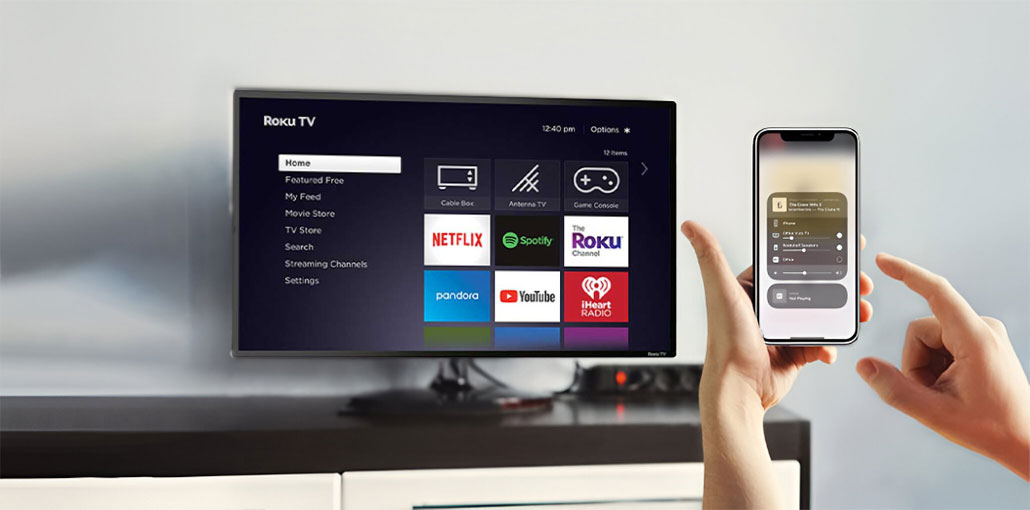
All the latest Roku TVs and devices support the Apple AirPlay feature to mirror your screen on your TV.
Typically, connecting your Apple device with your Roku TV via AirPlay is an easy task, but sometimes it happens that your Roku AirPlay connection may not work as expected.
The most frequent cause of AirPlay not working on Roku TV and the Apple device are both on different Wifi networks. Make sure they’re on the same network. If not, try again.
If this doesn’t resolve your issue, and you’re unable to connect to Roku AirPlay, I will provide 9 possible troubleshooting strategies to solve the AirPlay not working on Roku TV issue.
Why Is AirPlay Not Working on Roku? (Common Causes)
Here are the most common reasons for AirPlay not working on Roku:
- AirPlay is turned OFF in Roku settings
- Roku OS is outdated
- iPhone, iPad, or macOS is outdated
- Roku and Apple devices are on different Wi-Fi networks
- VPN or firewall blocking AirPlay
- Network router issues
- Temporary system or software glitch
Now, let’s fix them one by one.
Also read: AirDrop Not Working? 8 Easy Ways to Fix It
How to Fix AirPlay Not Working on Roku
If you follow this step-by-step solution to fix AirPlay not working on Roku.
1. Roku TV and Apple Device Connect to the Same Wi-Fi
As mentioned above, it is the most frequently encountered problem when it comes to AirPlay. When your device is connected to two networks, AirPlay does not work.
AirPlay is a service that works on your Wifi network. For these reasons, AirPlay and the other devices need to be connected to the same wifi.
If you live in a home with multiple Wifi routers, this may be a frequent issue. As you move around with your MacBook or iPhone, it changes your wifi network automatically.
To check quickly and confirm this, you must first check your Apple device’s network. It’s easy to check this by using the top menu bar.
For Roku TV, go to Settings > Network > About and ensure the same network is used as your Apple device.
2. Enable AirPlay in Roku Settings
When you use AirPlay for the first time, it is possible that AirPlay is not enabled in your Roku settings.
If AirPlay is disabled in this setting, it won’t show the Roku TV on your Apple devices list. You must enable it first.
To turn it on, you need to go to the Settings, tap on Apple AirPlay and Homekit and, in the settings, choose AirPlay to enable it (if it’s off)
After turning on this setting, make sure you can find the Roku TV in your device list on the screen mirror app.
3. Restart Your Roku TV
You might have heard about ” have you tried turning it OFF & ON again” from an IT professional at work as a solution to any computer-related issue.
It’s a straightforward solution that solves the most basic electronic problems. This is also referred to as power cycling your electronic device.
If you find that your AirPlay not working on Roku, it is one of the first things to test. Turn it off and on again. 95% chance that this will resolve the problem.
Power cycling your Roku device is an easy process. Unplug your device from the power source and disconnect the HDMI. It should take 60 seconds to let all internal capacitors drain. Plug in the device again and restart.
If you’re using a Roku on a smart TV, simply disconnect your TV from the wall, push the power button on the back of the screen for about 10 to 30 seconds, then plug it back in.
After the restart is complete, try using AirPlay to see whether the issue is fixed.
4. Restart Your Wi-Fi Router
Sometimes, the issue isn’t the device you use for streaming, such as your Roku TV or Apple device, but a problem with your network router, like a WiFi router blinking green.
The router could create a glitch that will stop your connection from passing through.
To restart your router, simply disconnect it from its power plug and then wait for 30 seconds before reconnecting it. The router will be restarted.
The router will establish a connection. Then, test AirPlay to see if it works.
Also read: Roku Remote Not Working? 7 Easy Fixes to Try Today
5. Check Your Firewall Settings
Your Apple device comes with a firewall setting that blocks unwanted connections from accessing your system.
This firewall does a crucial security function, but it can also disrupt you Airplay connection.
To turn off the firewall, go to the System Preferences >> and then tab Security & Privacy > Firewall and then turn it off.
6. Update Roku Firmware
Certain problems can be traced back to the firmware on the Roku, and updating to the latest firmware version can solve these issues.
Make sure you’re on the most recent Version of the Roku’s firmware. If not, you’ll receive an alert to upgrade your device.
To verify, go to Settings System > Software Update. Firmware update, and then update your firmware.
If the firmware had an issue, this could solve the problem of AirPlay not connecting on Roku.
If you also have an old version of Roku TV or stick, take AirPlay not working on Roku, you need Roku OS version 9.4 or higher.
You must upgrade to the latest version before you enable AirPlay.
7. Reset AirPlay Paired Devices on Roku
When you connect a Roku TV through AirPlay, it needs a one-time code that you must enter into your Apple device to establish the connection. Once that’s done, it is connected, your device will be “paired” and will not require the code.
The next troubleshooting method is to reset the device we have paired with and repeat the process to ensure that any issues with the pairing process are fixed.
To reset the pairing, go to settings > Apple AirPlay and HomeKit > Require Code > Reset Paired Devices
If you reset paired devices that connect via the Roku will be erased, and the system will begin fresh.
8. Factory Reset Roku TV (Last Resort)
Factory resetting your device will restore your default settings and return them to normal settings. Most software issues can be fixed with a factory reset, and it can be used as a last resort.
If these steps do not solve your AirPlay not working on Roku, a factory reset may be helpful.
- Locate the reset button on your Roku stick.
- Press and hold the Reset button for 10 seconds until your device’s light begins blinking. Once that’s completed, set it up once more.
Note: The button is small, so be sure to press it carefully.
If you own a Roku TV, you can reset it by using the menu settings. Follow these steps:
- Go to the Settings menu
- Scroll all the way to the Systems tab, then select
- From the submenu Select Advanced System settings.
- Choose the factory setting
- Your Roku TV may restart and undergo the factory reset procedure, which could take several minutes.
After that, your device will be reset to factory settings, and the AirPlay not working on Roku problem will be resolved.
Be aware that after a factory reset, all your settings, customizations, downloaded apps, and your data will be completely erased. Therefore, make sure to back up all your important files in case you require them in the future.
Also read: Screen Mirroring Not Working? 10 Easy Fixes for All Devices
9. Contact Roku Support
The list of troubleshooting suggestions above will cover almost every scenario. If your AirPlay not working on Roku, it’s time to get help from Roku Support.
Due to a hardware issue, contact an experienced Roku technical team for help and repair your device.
Final Thoughts
This guide will cover the most common issues and solutions for AirPlay not working on Roku TV.
To fix the Roku AirPlay not working, start with the easy solutions, such as updating your software, checking your network, and trying a few advanced methods, such as resetting your devices or changing the pairing.
If none of these work, you can contact Roku or your TV support staff for technical assistance.
FAQs: AirPlay Not Working on Roku
How do I enable AirPlay on Roku?
Go to Settings > Apple AirPlay and HomeKit > AirPlay and turn it ON. Once enabled, your Roku TV should appear in the AirPlay or Screen Mirroring list on your Apple device.
Why doesn’t my Roku show up in AirPlay?
Your Roku may not support AirPlay, AirPlay may be turned off, or both devices may not be connected to the same Wi-Fi network. Updating Roku OS can also fix this issue.
Can router firewall settings block Roku AirPlay?
Yes. Some router firewalls or security settings may block device discovery. Disabling AP isolation or adjusting firewall rules can fix the issue.
Is AirPlay supported on older Roku TVs?
Most older Roku models do not support AirPlay. You need a Roku device running Roku OS 9.4 or later.








Leave a comment