

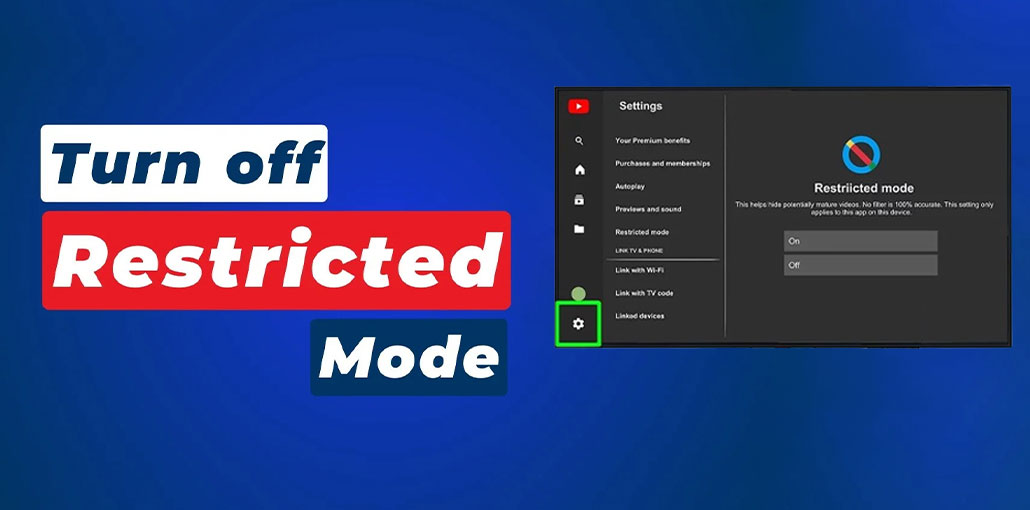
The Restricted Mode on YouTube is an option for limiting content. Disabling it is easy! In this post, we’ll help you disable Restricted Mode on YouTube. Simple steps on how to turn off Restricted Mode on YouTube. Check them out below.
What is YouTube Restricted Mode
Many users know how to restrict YouTube content. The majority of these are parents who want to block sensitive content from YouTube. Restricted Mode is among the features they employ. It’s used to ensure safe browsing by the user. Apart from hiding sensitive, adult, and violent content, it is also used to hide comments.
However, not all YouTube versions support this feature. If you’d like to use it, make sure you update the application or operating system on the Android handset or iPhone.
How to Turn Off Restricted Mode on YouTube Mobile App
YouTube is available on various phones, including the iPhone and Android phones. You can turn off Restricted Mode on YouTube for these devices. The same procedure applies to them. The best part is that you don’t require authentication from your account to turn off the feature mentioned. Follow these steps to learn the procedure.
Open the YouTube app on your iPhone or Android phone. Select the Profile button in the top right corner. Press the Settings button, and then the screen that will display. Select the General button from the menu. After that, swipe down the screen and turn off the Restricted Mode slider to disable it.
Also read: YouTube Music Premium APK 2026: Get YouTube Music For Free
How to Turn Off Restricted Mode on YouTube on a Desktop Browser
Apart from the apps, you can also turn off YouTube restricted mode in your browser. The reason is that YouTube is available via the internet. The old method is nearly this. Follow the steps to learn the procedure.
Search for the main YouTube website. Then, click the profile button in the top right corner. After that, a new set of options will appear in the main interface page. You must click to select the restricted mode button on the list. There will be an On indicator on the right.
The complete description of the feature will be displayed at the top of the page. Switch off the Activate Restricted Mode button at the bottom. After that, the feature will be turned off immediately.
How to Turn Off Restricted Mode on YouTube on Smart TVs & Consoles
YouTube is also available on Smart TVs and Consoles. How to turn off Restricted Mode on YouTube for consoles or Smart TVs? Follow the steps below.
Open the YouTube app on your smart TV or console. After that, you can select your profile and click the Settings button. Choose the restricted mode button following that. After that, you can select the off button.
How to Disable Restrictions for YouTube on iPhone/iPad
In addition to the Restricted Mode feature that is available on both your iPhone and iPad, some options could block content on your YouTube account. Switch off these restrictions to resolve the problem. Find them below.
1. Use Screen Time
Screen Time helps you monitor the activities on your screen. It also limits certain applications and features. You can turn off restrictions on iPhone screen time by following the steps below.
Open Settings. Then, you can select your name. After that, tap on the Screen Time button. Select the Turn Off App and website activity, or the turn off screen time button. Enter the passcode to confirm the task.
2. Disable Family Sharing
Family Sharing is a feature you can use on iPhone or iPad to monitor and control your kids’ iPhone and iPad activities. If you want to disable this feature, it can help you eliminate some restrictions from your iPhone and iPad. These steps will help you do this.
Start your settings app. After that, you can select your name at the top. Select the “Family” button and then tap your name. After that, tap the Stop Using Family Sharing button.
Also read: YouTube Not Loading? 8 Quick Fixes to Get Videos Working Again
Why YouTube Restricted Mode Won’t Turn Off
In some cases, Restricted Mode may remain enabled even after following the steps above.
Common reasons include:
- School or workplace network restrictions
- Family Link supervision
- Browser extensions
- DNS or VPN filtering
- Managed Google accounts
If the toggle is greyed out, try:
- Switching Wi-Fi networks
- Clearing browser cache
- Updating the YouTube app
- Signing into another Google account
- Restarting your device
Final Thoughts
Understanding how to turn off Restricted Mode on YouTube is more than unlocking content. It’s about balancing access, usability, and security for both educational and business settings. When you’re managing devices, applying parental policies, or trying to access important training content, knowing that YouTube settings affect your Google Account settings or parental Controls is vital.
FAQs: How to Turn Off Restricted Mode on YouTube
Why Is the Restricted Mode Option Greyed Out?
The Restricted Mode option may be greyed out because it is controlled by parental controls, Family Link, school or work network settings, or browser filters. Switching networks, disabling extensions, or checking account restrictions may help fix the issue.
Can I disable Restricted Mode on Smart TVs?
Yes. Open the YouTube app on your Smart TV, go to Settings, select Restricted Mode, and switch it OFF.
Can VPNs cause YouTube Restricted Mode?
Yes. Some VPNs use filtered DNS servers that automatically enable content restrictions on YouTube.
Why does YouTube say “This video is unavailable with Restricted Mode enabled”?
This message appears when YouTube detects content that may not be suitable under Restricted Mode filtering.









Leave a comment