

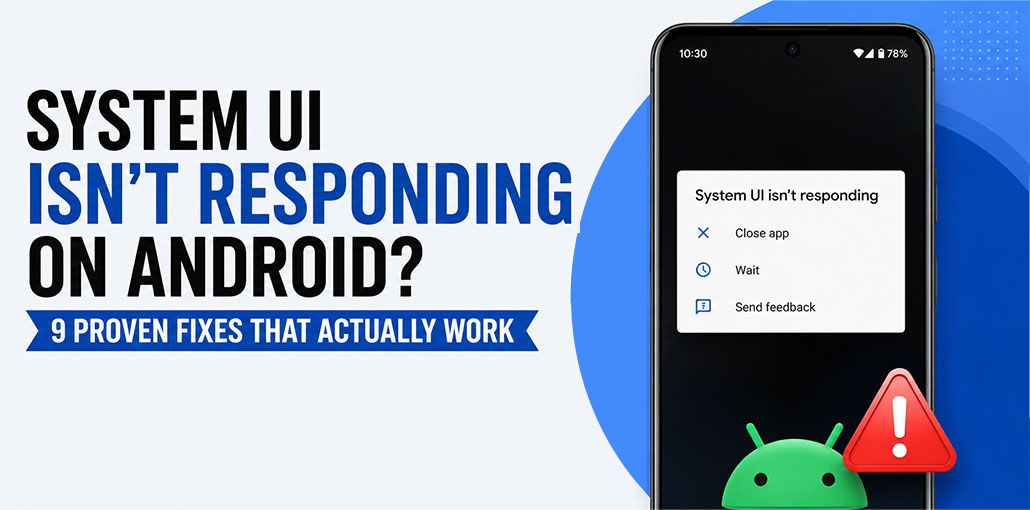
Are You Facing “System UI Isn’t Responding” Error on Your Android Phone? Don’t feel bad; many have experienced it too! This frustrating issue may cause screen freeze-up and navigation to become impossible while repeatedly showing pop-up messages: “System UI isn’t responding.
Good news – most issues can usually be fixed without replacing or factory resetting your phone! In this guide, we’ll outline what causes an error message and offer solutions to fix it.
What Does “System UI Isn’t Responding” Mean?
System UI is an integral Android component responsible for managing and displaying its user interface on phones, such as:
- Home screen
- Status bar
- Notification panel
- Navigation buttons or gestures
- Recent Apps screen
Android displays the “System UI Isn’t Responding” message if its System UI crashes or fails to load properly. Sometimes you may also encounter errors such as “com.android.systemui has stopped,” signalling that one or more system interface processes have crashed.
Why Does the “System UI Isn’t Responding” Error Occur?
Errors can arise for various reasons. Most commonly, it manifests itself after downloading major Android updates, but other issues could also trigger it.
Some of the most common causes include:
- Low internal storage
- Corrupted System UI cache
- Software bugs after an Android update
- Corrupted or faulty SD card
- Damaged system files
- Incompatible or malicious third-party apps
- Outdated Android apps
- Corrupted Google app or Google Play Services cache
Now that you know what causes the problem, let’s look at the best ways to fix it.
Also read: How to Fix the Cannot Verify Server Identity Error on Your iPhone
How to Fix the “System UI Isn’t Responding” Error
1. Restart Your Android Phone
Restarting your phone is often the quickest and most efficient solution to fix this issue.
Android will close all running apps and processes before loading them back up again when your device restarts. This clears away temporary glitches that might be causing System UI crashes.
- Press and hold the Power button.
- Tap Restart.
- Wait until your phone finishes rebooting.
2. Clear the System UI Cache
The System UI stores temporary cache files to improve performance. However, a corrupt or outdated cache file can cause the System UI to stop responding. Clear these temporary files without altering or destroying any personal data.
- Open Settings.
- Go to Apps.
- Tap the three-dot menu and select Show system apps (if available).
- Find System UI.
- Tap Storage & Cache.
- Select Clear Cache.
3. Clear Google App Cache
If clearing System UI Cache does not resolve the issue, try clearing Google Play Services Cache instead. Google Play Services integrates most applications on an Android device and should work smoothly when clearing this cache.
If there’s an issue in Google Play Services, it could cause other apps to malfunction and crash the System UI. Here is how you can clear the Google Play Services cache.
- Open Settings.
- Go to Apps.
- Select Google Play Services (or the Google app).
- Tap Storage & Cache.
- Select Clear Cache.
4. Free Up Storage Space
Low storage space can often lead to “System UI Isn’t Responding”. Android may struggle to perform essential system tasks when space runs low, resulting in crashes and malfunctions.
A warning that device storage space is running low is sometimes given; freeing up storage usually helps.
To free up storage:
- Delete unnecessary files.
- Remove unused apps.
- Clear the Downloads folder.
- Move photos and videos to cloud storage or a computer.
- Empty the Recycle Bin or Trash folder if available.
5. Reset App Preferences
Resetting app preferences could help solve the “System UI is Not Responding” error on your Android smartphone. App settings refer to the default and permission requirements each app needs to operate and communicate with your smartphone.
If you change the permissions on an app so all standard applications are removed, this could solve an issue where specific apps caused System UI crashes.
- Open Settings.
- Go to Apps.
- Tap the menu icon.
- Select Reset App Preferences.
6. Update All Android Apps
Apps installed on your smartphone use the System User Interface for their operations. However, if there’s an issue with an app, it could cause difficulties using its System UI.
Issues could arise, such as your System UI not responding on your device. To fix this problem, all Android applications on your phone should be updated to the latest versions.
7. Uninstall Third-Party Apps
A recently installed app could be responsible for the “System UI Isn’t Responding” error on your phone. To troubleshoot, uninstall it and restart your phone. Apps downloaded from untrustworthy sources tend to cause greater compatibility issues than apps from the Google Play Store.
- Open Settings > Apps.
- Select the recently installed app.
- Tap Uninstall.
- Restart your device and check if the issue is resolved.
8. Update Your System Software
If the phone’s software is outdated, it can cause your UI system to stop working. The System UI may need the latest features that are included in the most recent software. To correct this problem, you should update your phone. This could fix the issue by adjusting your System UI. Also, updating the software can improve performance and add new features that will improve your phone overall.
- Open Settings.
- Tap System.
- Select Software Update.
- Install any available updates.
Also read: Phone Not Registered on Network Error ? 9 Quick Solutions for Android
9. Factory Reset Your Smartphone
If you restore the factory defaults on your Android smartphone, all data and settings will be erased. A factory reset may solve your UI-related issue. Just remember to back up all relevant data before doing this. Because afterward, this will erase all apps, videos, photos, and files!
- Open Settings.
- Go to System.
- Tap Reset Options.
- Choose Erase All Data (Factory Reset).
How to Prevent the “System UI Isn’t Responding” Error
To reduce the chances of seeing this error again:
- Keep Android updated.
- Avoid installing apps from unknown sources.
- Maintain sufficient free storage.
- Remove unused apps regularly.
- Restart your phone occasionally.
- Install only trusted launchers and themes.
Final Thoughts
Seeing the “System UI Isn’t Responding” errors is frustrating, yet usually simple to resolve. Rebooting, clearing the cache, freeing up storage or updating Android will often resolve it quickly and permanently.
If nothing seems to work, a factory reset may be your last resort. With any luck, these solutions have allowed your phone to resume functioning normally again.
FAQs: System UI Isn’t Responding
Is the System UI Isn’t Responding error serious?
Not usually. In most cases, it's caused by software glitches, low storage, or conflicting apps and can be fixed without hardware repair.
Can low storage cause System UI crashes?
Yes. When storage is nearly full, Android may struggle to run system processes, leading to the System UI Isn’t Responding error.
Why does System UI stop responding after an Android update?
After an update, old cache files, incompatible apps, or software bugs can cause System UI problems. Updating apps and clearing cache can help resolve the issue.
How do I fix the 'System UI has stopped' error?
You can fix it by restarting your phone, clearing the System UI cache, freeing up storage, updating Android, removing recently installed apps, or resetting app preferences.







Leave a comment