

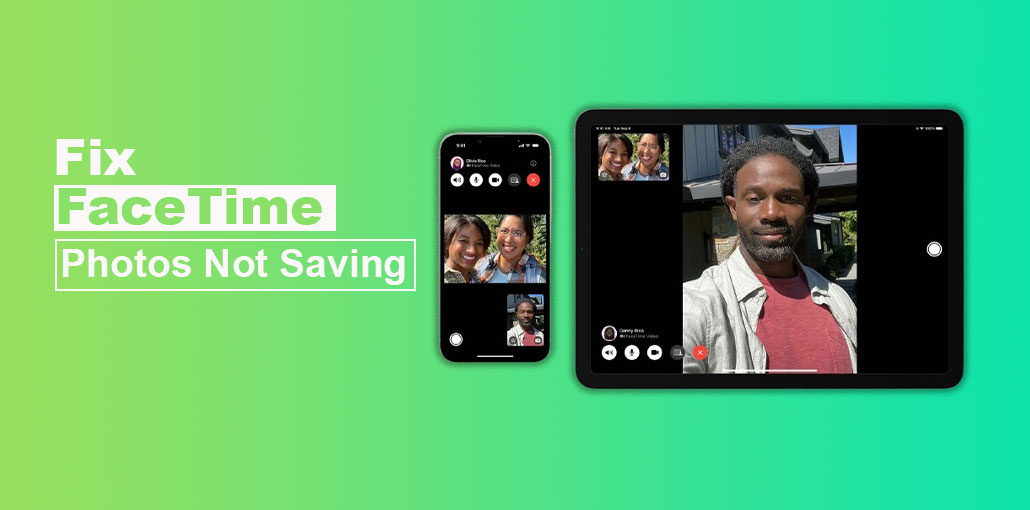
FaceTime is a fantastic feature for video calls on iOS devices, and taking a video conference via FaceTime is secure. Additionally, FaceTime has developed a stunning live photo capture feature that allows you to click images while on a live call.
Many people complain about this ” Facetime photos not saving” problem, and there are many reasons for this issue. Fortunately, we’ll share the most innovative solutions to fix this ” FaceTime photos not saved” problem.
Why Aren’t My FaceTime Photos Saving?
If you’re experiencing issues with the “FaceTime Photos not saving” problem, there are some reasons behind this problem.
- If your iOS device is running out of space, this could cause the problem.
- Enabling photo access at night time also led to the “FaceTime Photos not saving problem.
- Network problems or software glitches could also be the primary cause.
- iCloud Photos sync issues
Where Do FaceTime Photos Go?
FaceTime takes photos while live events and then tends to save them to the Photos app. This guide will show you how to access FaceTime photos using an iOS device.
- Navigate to the Photos app on your iOS device, and then click the Library button.
- Now, you can view the most recent FaceTime photos on the Library tab.
Also read: FaceTime Not Working on MacBook? Try These Quick Fixes Now
How to Fix FaceTime Photos Not Saved?
1. Turn on the FaceTime Live Photos
If FaceTime Live Photos are turned off, issues such as “FaceTime Photos not saving” are apparent. This is how you can turn on FaceTime Live features.
- Start the iOS device’s settings and then hit the General button.
- Click on the FaceTime icon, and turn on the “FaceTime Live Photos ” toggle.
2. Look for storage space
If the iPhone has run out of space, and there’s plenty of storage space available on the iPhone. The device could fail and trigger a ” FaceTime photos not showing up” problem. So, you could free up storage on your iPhone and test the issue.
- Click on the General button once you’ve started with the iOS settings.
- Press the iPhone storage button to check the remaining storage on the iPhone.
3. Install the updated software
If you’re still using the old iOS update, that might be the cause of the FaceTime Photos not saving problem you’re experiencing. Therefore, you’ll have to install the latest iOS update as soon as it becomes available.
- Launch the iPhone settings and click the Software Update icon.
- Click on the Update Now icon to download the update.
4. Restart iPhone
If your iPhone device is damaged by a software glitch (virus or software bug), it may cause the ”Facetime photos not saving issue. Restarting your iPhone may help you resolve the issue that you’re experiencing.
- Press and hold either the side or volume button. You’ll see the power-off slider on the left. Move the slider to the left to turn off your device.
- Press and hold the side button to turn on iPhone, and then release the button after the Apple logo appears.
5. Restart the FaceTime App
Switching off the FaceTime application and then switching it back on will help fix this ” FaceTime screenshots not saving” problem. You need to double-press the Home button and push FaceTime to the left to remove it. Turn on FaceTime again to see if it works.
Also read: How to Use FaceTime on Android: Step-by-Step Guide for 2025
6. Reset iPhone settings
If you’ve made a few changes to the iOS settings of your device, this could cause you to experience the ”FaceTime Photos not saving issue. Resetting your iOS device may help resolve this problem.
- Start the iOS device’s settings and then click the General button.
- Click on the Reset icon before pressing the button to reset all settings. Reconfirm the action by entering the password.
Conclusion
If issues such as ” FaceTime photos not saving” pop up during a video call, the iOS device usage experience could cause a significant setback. The good news is that we’ve listed the most effective ways to resolve issues like the ” FaceTime photos not showing up” problem, and each of the options to try.
FAQs: FaceTime Photos Not Saving
Why are FaceTime photos not working?
FaceTime photos won’t work if the other person has Live Photos disabled. Both users must turn on FaceTime Live Photos in Settings for the feature to function.
How do I turn on FaceTime photos?
Go to Settings > FaceTime and toggle on FaceTime Live Photos. The person you’re calling must also enable it.
How do I fix FaceTime Live Photos not saving quickly?
Turn on FaceTime Live Photos, allow Photos permissions, ensure enough storage, restart your iPhone, and update to the latest iOS version.
Are FaceTime Live Photos supported on all devices?
FaceTime Live Photos work on iPhone, iPad, and Mac running supported versions of iOS, iPadOS, or macOS.






Leave a comment