

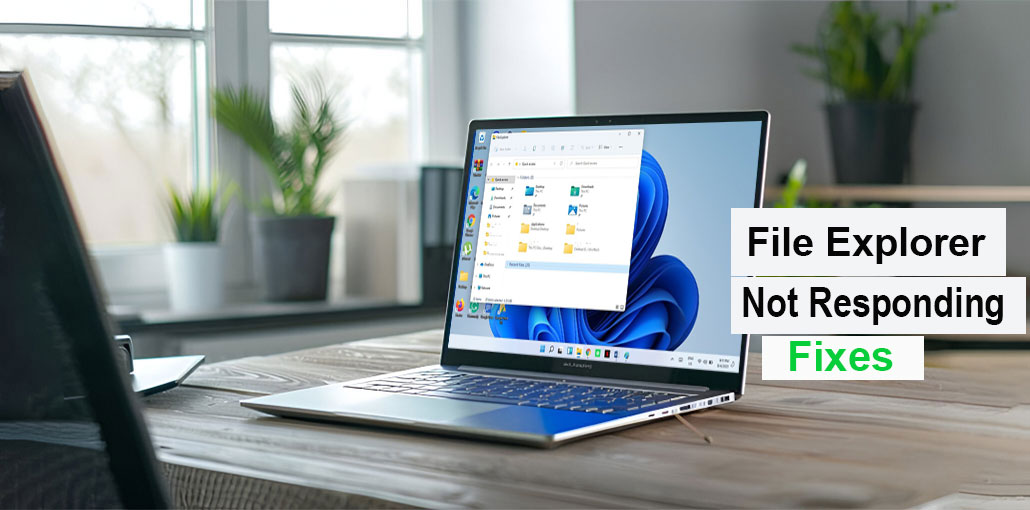
File Explorer(AKA Windows Explorer) is an application that is built into Windows. Windows operating system. It is a useful and essential component that lets you access, manage, and organize all files on your PC.
But sometimes Windows File Explorer stops responding, and you are unable to work with the system with ease. It can cause the icons on your desktop to stop responding, and the taskbar may disappear, and you’re frustrated and don’t know how to fix it.
In this article, we discuss possible reasons for File Explorer not responding on Windows 10, and you’ll be given practical solutions that can help you tackle this problem.
Why is File Explorer not responding on Windows?
There’s a topic we need to discuss before starting solve the issue. Why is the File Explorer not responding on Windows 10? In this section, we’ll look at the possible causes, and identifying the root cause can help solve this issue.
- Outdated video driver: The outdated video driver installed on the Windows PC is the possible cause of Windows File Explorer not responding, since the driver acts as a bridge between hardware and software.
- Older Windows operating systems: Windows File Explorer may stop responding if you are not up-to-date with the latest versions of the Windows operating system.
- Corrupted system files on PCs: The Windows File Explorer can become inactive when the computer detects that you have access to corrupted or damaged files, specifically those with problems or corrupted images. A defective hard drive can cause problems with the normal functioning of File Explorer.
- Virus or malware infection: If a virus or malware is infecting your system, a variety of issues are likely to arise, and naturally, it could be Windows File Explorer not responding.
- Interference by third-party software or services: Certain Windows users have also reported that Windows File Explorer stops working when certain third-party software is installed. This could be due to conflicts and incompatibilities between them.
- Faulty system settings(mainly display settings): Customized display settings, improper power settings, and any other configurations you’ve made may result in the failure or malfunction of Windows File Explorer.
- Large folders or files on the PC: Windows File Explorer does not respond, and this could be due to the large files or folders on your computer, which means the File Explorer may need a longer period of time to respond.
- Storage space on your system drives is full: Occasionally, Windows File Explorer may not work normally if the computer’s drive is low and there’s no reason to delete.
- File Explorer history is full: The overflowing File Explorer history may cause the Windows File Explorer to act up.
You can try troubleshooting according to the reasons mentioned above. If there are a variety of other problems and issues related to Windows File Explorer not responding, you may refer to the suggestions below to fix the issue.
Also read: Windows Search Bar Not Working: Complete Guide to Fix It
How to Fix Windows File Explorer Not Responding
If you’re facing the File Explorer not responding issue, try the solutions below one by one.
1. Restart File Explorer via Task Manager
You can bring the File Explorer back on track by restarting it using Task Manager. Before doing so, you must end this File Explorer process in Task Manager. The steps are below on how to stop and start File Explorer:
- Right-click the taskbar in Windows and then select Task Manager.
- Find and right-click Explorer File Explorer(or Windows Explorer) under the Processes tab, then click End
- Task to close File Explorer.
- Click the File tab and choose the Run New Task option.
- Type explorer.exe into the box, and then click OK. File Explorer will be restarted immediately.
2. Restart File Explorer via CMD
Command prompts can be extremely useful in identifying the root of a Windows computer problem. If you’re familiar with using cmd, which is the Command Prompt(cmd) on Windows, you can restart File Explorer by using it
- Enter cmd in the Windows search bar. Select Run in Administrator mode.
- Type taskkill /f im explorer.exe (there’s a Space before every /)in the command window, and press Enter, and you will end the File Explorer process, which will shut down.
- Type explorer.exe in the window and then press Enter to start your File Explorer.
- You can then quit the command prompt window and check if the File Explorer reverts to normal.
3. Update the Video Driver
The video driver controls interaction between software and hardware, so upgrading the video driver on your computer could be the solution to the problem of File Explorer not responding on Windows 10.
- Type Device Manager in the Windows search bar and then click to open it.
- Click on the arrows of Display adapters to expand.
- Right-click the adapter’s video icon and select Update Driver.
- Select Search Automatically for Drivers within the window that prompts you.
4. Change Display Settings
You may ask why the display settings on Windows are related to this File Explorer not responding issue; however, it can cause a change to your system when it’s not adjusted to the correct size for the screen, which could cause File Explorer fail.
- Click the Start button in the upper left corner and open Settings.
- Click on System in the Windows Settings.
- Select the Display option, then scroll, and adjust the resolution to the default parameter(usually the recommended one).
5. Clear File Explorer History
A few Windows users have shared their test results of cleaning File Explorer history, which effectively resolves the ‘File Explorer not responding’ issue
- Type File Explorer Options in the Windows search bar, and then click on it.
- First, click Clear, then click OK, to delete all history from the File Explorer history.
6. Free Up System Storage
It’s a fact that everything can become overloaded if your computer lacks system space, and Windows File Explorer on Windows 10 is susceptible to becoming stuck in this situation, particularly when the Thumbnail’s cache grows larger. Follow the instructions below to clear space on your system.
- Open your File Explorer and select This PC on the left side panel.
- Right-click the drive on which you want to install and select Properties
- Select Disk Cleanup and wait for the search and calculation
- Choose the Thumbnail cache and temporary files, recycle Bin files, and any other files you’d like to delete.
- Select OK and start the cleaning process.
Also read: 9 Best Duplicate Photo Finder & Cleaner Software
7. Disable Thumbnails
If you notice the File Explorer crashes every time you browse a folder with videos or photos, it could mean that the images have corrupted or damaged thumbnail data, which causes the File Explorer to fail to respond. If this is the case, you can disable thumbnails. File Explorer not responding in Windows 10 will likely be fixed.
- Open File Explorer.
- Click the View tab and then click Option icon.
- Select the View tab of the Folder Options window, and tick the checkbox. Always show icons, but not thumbnails.
- First, click Apply, and after that, click OK.
8. Rebuild the Search Index
Indexing refers to the process of looking through the contents of files and other media on your computer. It allows your PC to browse the index to discover content more quickly. A few Windows users have shared their experiences with the Windows Search service. Which caused the File Explorer to freeze, which was eventually solved by rebuilding the index.
- Type Indexing Options in the Windows search box, and then click the option to open.
- Click the Advanced button, then find the Troubleshooting section.
- Click Rebuild to start indexing rebuilding, and click OK.
9. Run System File Checker (SFC)
Windows File Explorer not responding could be due to corrupted or damaged files, or any other issues with your system. You should run the System File Checker(SFC) command to check for problems with your computer and repair them if needed.
- Input cmd into the Windows search box, and then select Run as Administrator.
- Enter SFC /Scannow in the cmd window, and press Enter to begin scanning.
- If an error is detected, the sfc program will try to fix it automatically(this could take some time).
- Close the cmd windows and restart your computer once the repair and scan have completed. You can then determine if the issue has been resolved.
10. Uninstall Malware or Unwanted Software
Excessive unused software occupies an enormous amount of space on the computer’s drive. Malware can also affect the normal functioning of Windows, such as Windows File Explorer. You can try to remove any malware or software and then check if the issue is resolved.
- In the Windows search box.
- Click on Uninstall a program right under Programs.
- Right-click on the program that you wish to remove and then select Uninstall.
Also read: Memory Management Blue Screen Error: 7 Quick Solutions for Windows
11. Restore Windows to a Previous Date
Do you recall the last time Windows File Explorer worked normally? You can use System Restore to revert your system to a previous restore point, so this File Explorer issue is expected to be fixed.
- Serch Create a Restore Point in the Windows search box and then click to open.
- Click System Restore in the System Protection tab.
- Follow the directions and choose the restore point you want.
12. Update Windows
Windows File Explorer not responding could be the result of an out-of-date Windows version. Therefore, keeping up-to-date with the latest version is highly recommended. This could help avoid any other issues with your computer.
- Click the Windows Start button and select Settings.
- Select Update & Security from Windows Settings’ main menu. Windows Settings.
- Click for updates, check for updates, and install the latest Version of Windows.
Final Remarks
These are some solutions to fix the Windows File Explorer not responding. If you’re facing the same issue in your system, you must determine the root of the problem before attempting the techniques described above.
FAQs: File Explorer Not Responding
Can Windows updates fix File Explorer not responding?
Yes, installing the latest Windows updates can fix bugs, improve performance, and resolve File Explorer issues.
Can malware cause File Explorer not responding?
Yes, malware can disrupt system processes and make File Explorer unresponsive. A full antivirus scan is recommended.
Why does File Explorer freeze when opening certain folders?
File Explorer can freeze on specific folders if they contain large numbers of files, corrupted thumbnails, or bad file links, especially Downloads or Pictures folders.
Does opening too many Explorer windows cause it to hang?
Yes, opening many File Explorer windows at once can use extra system resources and sometimes cause Explorer to stop responding.




Leave a comment