

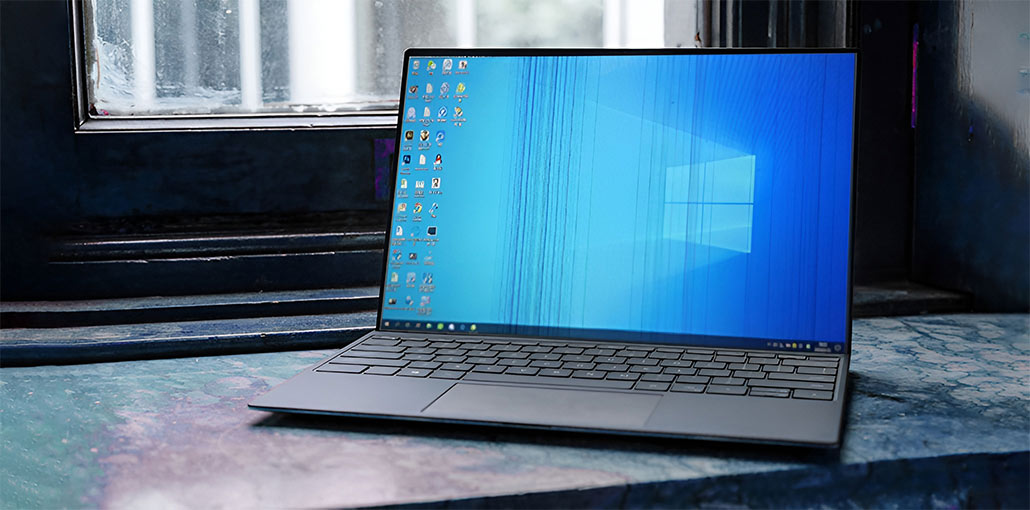
Laptops are growing day by day and are replacing traditional PC towers faster than we anticipated. They provide portability without limitation of power computation and features.
As a product grows in its production, more defects begin to pop up. One of the flaws is the laptop’s screen, which is flickering constantly. Laptop screen flickering is related to the hardware and software. We will explore solutions to both situations. Before we get into solutions, it’s important to determine if a third-party program is the source of the issue or if it is related to the display drivers.
Common Causes of Laptop Screen Flickering
Outdated or Corrupted Display Drivers
If the graphics driver is outdated or damaged, it can cause the laptop screen to flicker.
Incorrect Refresh Rate
A wrong screen refresh rate setting may lead to an unstable or flickering display.
Loose or Damaged Display Cable
The internal cable connecting the screen to the motherboard may be loose or faulty.
Graphics Card Issues
An overheating or failing graphics card can cause a frequent flickering laptop screen.
Incompatible Applications
Some software or apps may conflict with the display driver and cause flickering.
Also read: Fix Lenovo Yoga Screen Flicker: 6 Easy Solutions Explained
How to Identify the Cause of Laptop Screen Flickering
Then, we will start Task Manager. If the task manager also shows a flickering effect, this means the problem is most likely with the display driver and the settings. If it does not flicker, that means a third-party app is causing the laptop display flickering issue. Click Windows + R, then enter ” taskmgr” in the dialog box, and hit Enter to start the task manager.
Another way to confirm there’s no hardware problem is to connect the laptop’s display to a second monitor and check if it appears normal. If not, then it could mean the problem is in the software rather than the hardware.
How to Fix Laptop Screen Flickering Issue
1. Changing Resolution and Refresh Rate
Before we attempt any other method, we’ll change your device resolution and the refresh rate that goes with it. For some systems, using a higher resolution or a higher refresh rate than the system can not support can create issues like the laptop screen flickering. Then, we’ll lower the settings to see whether it makes a difference.
- Press Windows + S to launch the Search application. Enter ” resolution” into the dialog box and then open the application that opens.
- After opening Settings, scroll to the end of the page, and then select “Advanced display settings”.
- Another window will open, consisting of all the details of your screen displays. Choose the Display adapter properties for Display 1.
- Then your hardware’s properties will appear. Select ” List All Modes” located under”Adapter” under ” Adapter”.
- There will be various resolutions on the display. Make changes to them according to hardware specifications.
- After you press ” OK” each time, see whether they have a significant impact.
Reboot your computer once you have successfully modified the settings. See whether the flickering is still occurring.
Also read: Blurred Screen on Laptop? Easy Troubleshooting Guide for Windows 10
2. Deleting Third-Party Programs
If the flickering didn’t occur within the task management system, then it indicates that the issue is with a third-party program. The best thing to do is find out which applications could interfere with the laptop’s display. They could be the default applications preinstalled on your laptop, or they could be a different display optimization software.
Use Windows + R Type ” appwiz.cpl” in the dialog box, and then press Enter. Here, all applications installed on your system will be displayed. Browse through them until you locate the one you suspect is causing the laptop screen flickering issue, and then uninstall it. Some of the programs recognized issues with Norton AV, IDT Audio, iCloud, etc.
3. Rolling Back/Updating Graphics Drivers
Graphics card manufacturers release periodic updates to add more features and eliminate bugs. It is recommended to search the web, look up your hardware, search it on Google, and check that there are drivers for installation. Or, you could have Windows update them automatically for you. But doing a bit of study could make troubleshooting much easier.
If updating drivers doesn’t work for you, try rolling back the previous driver version. It’s not surprising to find out that newer drivers may not conflict with your operating system. This can result in a laptop screen flickering issue
NOTE: Before proceeding with this method, you should first disable the device and then enable it again. This easy fix solved the issue for many people.
- Installation of the application to uninstall the Display Driver. You can continue with this step, but this will ensure that there aren’t any leftovers of these drivers.
- Once you’ve installed the Display Driver Uninstaller (DDU), launch your computer in safe mode.
- After booting your computer in safe mode, open the program you recently installed.
- After you have launched the application, you can choose to clean and restart. The program will then uninstall the drivers and reboot your computer as needed.
- To boot your computer into normal mode. Press Windows + R, then enter ” devmgmt. msc” in the dialog box and enter. Most likely, the default drivers are installed. Should they not be, just right-click any space, and select ” Scan for hardware changes”.
- There are two choices. Either look online for the most recent driver compatible with your hardware on the manufacturer’s site, like NVIDIA or AMD. (and install it manually) or allow Windows to download the most recent version automatically (search to find updates on its own).
- We’ll look at the possibility of installing the driver automatically. Right-click on the hardware and choose ” Update driver”. Select the first option, “Search automatically for updated driver software“. Select one of the second options in case you’re updating manually. Choose “Browse for driver” and locate the file you downloaded.
Start your PC after installing the drivers, and then check whether the laptop screen flickering has been fixed.
Also read: Acer Laptop Won’t Turn On? 9 Easy Fixes Try at Home
4. Check Hardware Faults
If none of the above options work to fix the laptop screen flickering issue, then the issue likely lies in the hardware. A few tests could determine whether there is a hardware issue and whether the flickering occurs in safe mode. If it does, check that all power outlets are properly connected to the laptop, and check for loose ends.
Some users report that damaged capacitors could cause laptop screen flickering. There are also instances in which the display strips are not connected correctly or are damaged. Due to this condition, the screen might flicker.
We do not recommend posting hardware-related technical solutions. Take your laptop to a local repair shop to have it examined. There is a good chance that a tiny module (like the one described above ) is not working or has been damaged. This is fixable with a minimal cost.
Conclusion:
The primary goal of this post is to tell readers how to fix laptop screen flickering. I’ve provided four simple solutions to repair the laptop screen flickering.
FAQs: Laptop Screen Flickering
Why is my laptop screen flickering?
Laptop screen flickering usually happens because of outdated display drivers, incorrect refresh rate settings, incompatible software, or loose display cables. In many cases, updating graphics drivers or adjusting display settings can fix the problem quickly.
Can outdated drivers cause laptop screen flickering?
Yes. Outdated or corrupted graphics drivers are one of the most common causes of laptop screen flickering. Updating your graphics drivers from Device Manager or the manufacturer’s website can often resolve the issue.
Does Windows update cause laptop screen flickering?
Sometimes a Windows update can install incompatible graphics drivers, which may cause screen flickering. Updating the driver manually or rolling back to a previous version can help fix the issue.
Is laptop screen flickering a hardware problem?
Not always. In many cases, laptop screen flickering is caused by software issues such as outdated drivers or incompatible applications. However, if the problem continues, it could indicate a hardware issue like a damaged display cable or faulty screen panel.


Leave a comment