

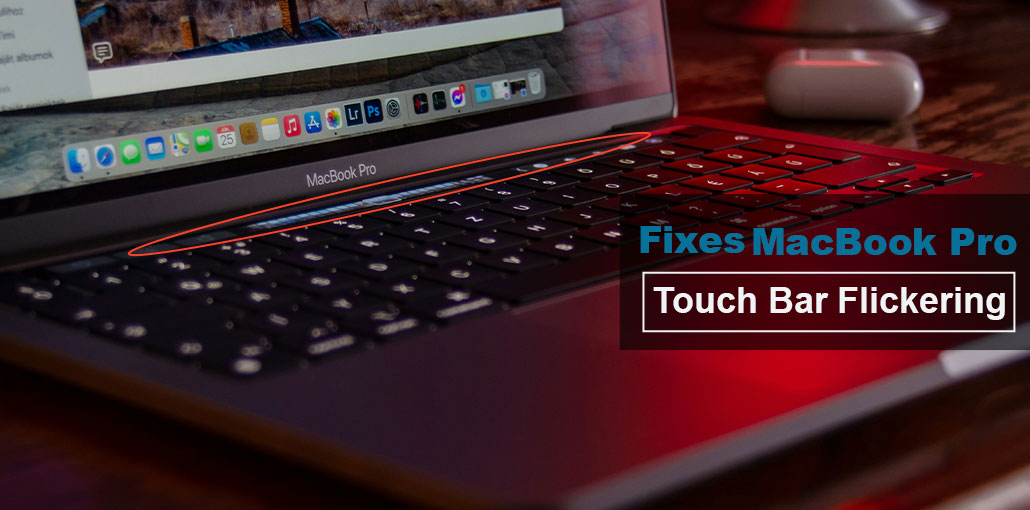
Many people have spoken out on Reddit and the Apple Community about their experiences with the MacBook Pro Touch Bar flickering issue. The most common cases are listed below. The suspect was that the malfunctioning hardware was the cause, since solutions such as resetting the SMC and NVRAM do not work.
Common Touch Bar Flickering Symptoms
Users in 2026 still report the same patterns:
- White or green flashing lights
- Rapid flickering when idle
- Brightness pulsing automatically
- Touch Bar is going black or freezing
- Random reboots of the Touch Bar display
If your Mac shows one or more of these, the root cause usually falls into one of four categories.
Our research suggests that software issues or inaccurate Touch Bar settings can also cause the MacBook Pro Touch Bar not working. So, before contacting the Apple team for advice, which could cost a full replacement of the bottom casing or a new MacBook, try our suggestions in this article first. There’s a chance you’ll find a solution within these.
Main Causes of MacBook Pro Touch Bar Flickering
- Software Bugs & Glitches
- Ambient Light Sensor Issues
- Hardware Failure (Most Common in 2026)
- Firmware & Power Management Issues
Also read: MacBook Won’t Turn On? 7 Powerful Methods to Start It Again
How to Fix MacBook Pro Touch Bar Flickering Issue
Perhaps your 2020 or 2019 MacBook Pro Touch Bar is flickering in white or green, or is disappearing. However, whatever the issue, these solutions will help you fix problems with the MacBook Pro Touch Bar Flickering.
1. Restart Touch Bar Processes
If you notice your 2019 or 2020 MacBook Pro Touch Bar flickering more often or crashing on the Mac, you may force quit Touch Bar Server, Control Strip, and Touch Bar Agent one by one, allowing the system to automatically relaunch them.
The three are the primary methods used to control the Touch Bar functionality. Close them one by one to determine if one of these processes is causing the problem.
- Go to Launchpad > Other > Activity Monitor.
- Find TouchBarServer and choose it.
- Click the quit button in the toolbar, and then select Force Quit.
- Give it a second, then tap the Touch Bar to let macOS start auto-relaunching the Touch Bar Server, and verify the flickering issue has been resolved.
- Enter Control Strip in the Activity Monitor search bar if the issue persists.
- Select and then force to quit Control Strip.
- After a while, press the buttons on the right-hand side of the Touch Bar to let the system automatically restart the Control Strip and then observe whether the Touch Bar returns to normal.
- Keep trying to locate the Touch Bar Agent if the issue persists.
- Select and force stop it.
- Take a couple of seconds, press on the Touch Bar, and see whether it flashes or not.
Alternatively, you can utilize Terminal to end these processes if you are unable to do so through Activity Monitor.
- Open Launchpad > Other > Terminal.
- Use the following command to stop the background process of the three Touch Bars.
sudo pkill TouchBarServer, killall ControlStrip, then pkill “Touch Bar Agent.”
- Enter your admin password when asked, and press Enter.
If your Touch Bar stops flashing, it is a sign that the problem is due to a Touch Bar software issue. If it persists, you can try the following solution.
Let others know how to fix MacBook Pro Touch Bar flickering.
2. Adjust Touch Bar Settings
Changes to Touch Bar configurations can resolve incorrect settings, making the Touch Bar stop flickering.
- Go to the Apple Menu > System Settings and Keyboard.
- Select Touch Bar Settings.
- Within the Touch Bar sections, Select Expanded Control Strip.
- Choose Customize Control Strip to remove these buttons from the Touch Bar and then add them again.
3. Disable Ambient Light Sensor
The built-in ambient light sensor on Mac can be used to determine lighting conditions around your device and automatically adjust the screen and the Touch Bar’s brightness to match the surroundings.
When the sensor for ambient lighting functions incorrectly, it can reason behind the MacBook Pro Touch Bar flickering. This is why you should disable this sensor for an experiment. This approach has been proven to work for certain users.
To disable the sensor for ambient light, simply disable the auto-adjust brightness feature within the display settings:
- Click the Apple Menu > > System Settings > Displays.
- Switch off Auto-adjusting the brightness.
4. Clear System Cache
The system cache is typically the reason your Mac performs poorly, including the Mac Touch Bar flickering, which happens sort of randomly. Therefore, you should delete the system caches and then see if the issue disappears.
However, the system cache files are scattered in the ~/Library/Caches, /System/Library/Caches, and /Library/Caches folders, making them hard to find.
5. Turn off Touch Bar zoom
There could be a conflict in your Touch Bar zoom (the virtual Touch Bar) and your physical Touch Bar, causing the MacBook Pro Touch Bar to flicker. If you’ve enabled Touch Bar zoom, just turn it off.
- Click on the Apple Menu > Settings for System > Accessibility Zoom.
- Uncheck to enable the Touch Bar zoom.
Also read: How to Fix Laptop Touchpad Not Working Issue (9 Simple Methods)
6. Reset SMC and NVRAM
Some users have stated that resetting SMC and NVRAM won’t resolve Touch Bar glitching; it can be beneficial for other users.
SMC handles low-level functions on Intel-based Macs, such as the keyboard. NVRAM stores certain configurations to ensure the Mac is operating properly.
If the above solutions haven’t fixed the issue, try resetting SMC and NVRAM.
If you’ve attempted this method, you can jump to the next option to fix MacBook Pro touch bar flickering.
7. Update macOS
It is not impossible to rule out the possibility that computer glitches might trigger you to experience a MacBook Pro touch bar flickering issue. If your Mac doesn’t have the latest version, you can update it. This will update the system and correct any bugs that might cause Touch Bar glitching.
Final Thoughts on MacBook Pro Touch Bar Flickering
To a large extent, the MacBook Pro Touch Bar flickering is probably due to hardware issues. But, as Apple doesn’t have to pay for it, they’ll advise you to replace your MacBook’s keyboard or purchase a new model. We suggest that you read the tips in this article before spending money and time.
Many users have solved this problem through restarting Touch Bar processes, adjusting Touch Bar-related settings, clearing the system cache, and so on.
Please share this article with other people who are also interested in learning how to fix your MacBook Pro Touch Bar flickering.
FAQs: MacBook Pro Touch Bar Flickering
Why is my MacBook Pro Touch Bar flickering?
The MacBook Pro Touch Bar may flicker due to software glitches, corrupted system processes, brightness sensor issues, or hardware failure in the OLED strip. In many 2026 cases, aging hardware is the main cause.
Is MacBook Pro Touch Bar flickering a hardware problem?
Yes, in many long-term cases it is a hardware issue caused by OLED wear or internal display failure. If flickering continues after resets, hardware repair is likely needed.
How do I restart the Touch Bar on MacBook Pro?
You can restart it by force quitting: TouchBarServer Control Strip Touch Bar Agent These processes will automatically relaunch.
How much does it cost to fix MacBook Pro Touch Bar?
Repair costs vary, but usually the entire top case (keyboard + Touch Bar) must be replaced, which can be expensive compared to the device value.
How do I fix MacBook Pro Touch Bar flickering quickly?
Try restarting Touch Bar processes like TouchBarServer, Control Strip, and Touch Bar Agent. If that doesn’t work, disable auto-brightness and restart your Mac.



Leave a comment