

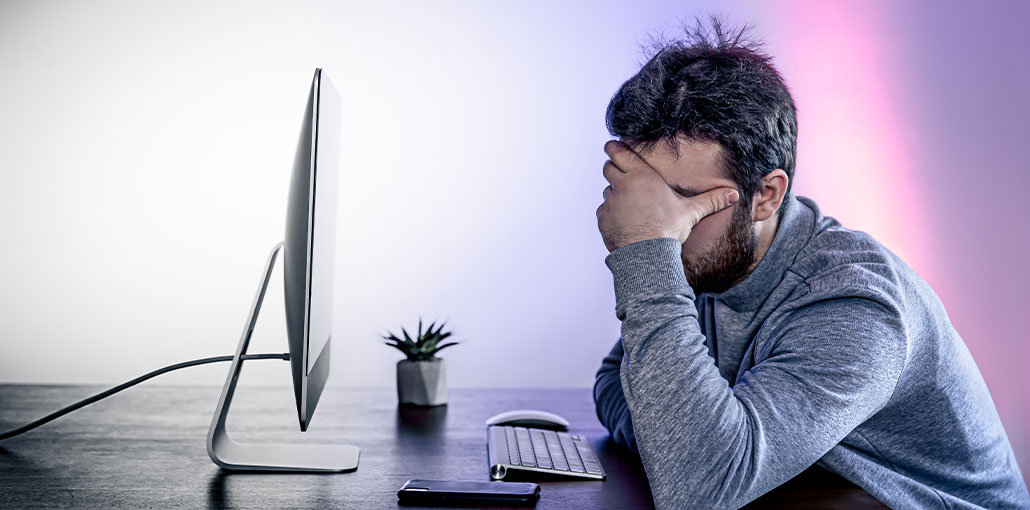
If your PC is turning on like a portable radiator, you’ll need to stop PC overheating. There are a few reasons why your PC is overheating. We’re covering information you should know to ensure that the issue is solved to the highest possible extent. Modern computer components are designed to manage the heat as efficiently as possible, but that doesn’t mean you shouldn’t encounter issues, particularly while playing games.
If you are investing hundreds or thousands of dollars in a computer, understanding how to prevent your PC from overheating is crucial.
Certain parts of a computer tend to overheat more than others. For instance, an extremely high-powered graphics card or CPU with extremely high TDP (thermal design power) is going to generate more heat than the power supply or motherboard. So, these components typically include cooling systems to help with this.
In this post, we discuss the common reasons for a PC overheating, how to monitor temperatures and component temperatures, and ultimately provide you with the means to fix the PC overheating issue.
What Are The Causes Of PC Overheating?
Certain solutions to this question pertain to specific components, while other causes could affect the whole system. High temperatures shorten the lifespan of your PC, identifying the possible causes of PC overheating as a good starting point.
1. Dust Build-Up
Dust accumulation inside the computer blocks airflow and prevents fans from cooling components properly.
2. Poor Ventilation
Keeping your PC in a closed space or placing a laptop on soft surfaces like beds or cushions can block air vents.
3. High CPU or GPU Usage
Running heavy software, games, or multiple applications at once increases heat generation.
4. Faulty or Slow Cooling Fans
If cooling fans are damaged or not working efficiently, heat cannot escape.
5. Old or Dried Thermal Paste
Thermal paste helps transfer heat from the CPU to the heat sink. Over time, it can dry out and lose effectiveness.
6. Malware or Background Processes
Hidden programs or malware can overwork your system, causing unnecessary heat.
Also read: How to Stop PS5 Overheating: Easy Fixes and Solutions
How to Stop PC Overheating?
What can I do to prevent PC overheating, you might be asking? This is the section for you. We will go through the different options easily and shortly to help you return to playing in the shortest time possible.
Improve Airflow
As previously mentioned, inadequate airflow causes stagnant air in your computer case, increasing temperatures and adversely affecting the entire system. It could be due to the absence of fans or having numerous obstacles to overcome, including cables! If you’re concerned about managing cables, which have always been the backseat in your building, it’s time to recognize the importance of a well-managed power system. Ensure that cables are run outside of your system, which will give you more space for airflow.
To help airflow, ensure that your case is equipped with side panels. Removing a side panel and changing the pressure make your fans less effective in performing their task. Additionally, holes in your case, such as a missing side panel, can allow dust, hair, and other allergens to get into your case, thereby raising the PC temperatures.
The inability to get airflow into your computer could be due to old, blocked case fans. Check that they’re fresh and replace the fans within your computer to begin pumping fresh air into the computer. If you are only using one fan in your case that is pushing air through, consider installing another fan to push hot air out. Likewise, if your system already has a pull-pull configuration, consider adding a third. Naturally, there will come a time when it gets less effective. However, if you’ve previously not considered airflow, or have low-quality fans, it’s a low-cost and quick way to minimize the effect of your PC overheating.
Clean Your PC Regularly
This one seems obvious; however, how frequently do you clean dust off your computer? If your PC is overheating and is not cooling properly. Be aware that the fans in the case (case fans and component fans) can draw in large amounts of hair and dust, sometimes clogging them up and overflowing the interior of your system with dust. Dust is a threat, and regularly cleaning it out is an effective way to remove it.
It’s dust or an accumulation of hair from pets. The most efficient method to clean all the components of your computer and space is by using a container filled with air. Some utilize a vacuum cleaner, but the most secure method to remove all the dirt from your PC is to blast it away using compressed air. Make sure you clean each fan of any gunk, and you’ll be on your way to more comfortable components.
Upgrade the CPU fan.
Are you still using the old fan on your computer? Although it’s doing a decent job in cooling the processor, it could be better. Fan coolers are equipped with larger heat sinks that transfer heat more efficiently. They can keep your processor running at lower, more secure temperatures for a longer period.
It is possible to eliminate the hot air from your processor completely if you opt for an all-in-one cooler. Liquid coolers aren’t a great choice for their job (unless you’re running overclocks); however, they do have radiators that are screwed to the edges of your case. They remove the heat from your case’s interior, reducing temperatures in the air and effectively preventing the entire system from overheating.
Also read: Why Am I Getting a CPU Fan Error? Causes and Easy Fixes
Avoid or Reduce Overclocking
If you’ve overclocked your computer, you are likely aware that it pushes parts to the limit. This provides the highest performance, but it also increases the temperature of your PC significantly.
Overclocking can have a major impact on PC overheating. Therefore, if your PC cannot handle the load, then it may be time to put it away.
Optimize Fan Performance
Many motherboards and GPUs allow you to adjust fan curves. Increasing fan speed at lower temperatures helps remove heat earlier and prevents temperature spikes.
When to Seek Professional Help
If your PC continues overheating even after cleaning and optimizing:
- The internal cooling system may be damaged
- The power supply or motherboard could be failing
- Professional inspection may be required to prevent permanent damage
Final word
Ensure the long-term durability and maximum efficiency of the gaming computer. Prevention is the key. A regular schedule of maintenance and smart use practices can drastically lower the chance of a PC overheating.
These are the top ways to prevent PC overheating, which is now easy, but you need to monitor those temperatures using the tools available. The ability to monitor your CPU and GPU temperatures can provide an early warning that something is about to fail due to a fan, a lack of thermal paste, or dust accumulation.
PC Overheating FAQs
What temperature is too hot for a PC?
Generally, CPU temperatures above 85–90°C under load are considered too high.
Why does my PC overheat while gaming?
Gaming puts heavy load on the CPU and GPU, generating more heat. Poor case airflow or insufficient cooling can cause temperatures to rise quickly.
How do I check my PC temperature?
You can use tools like HWMonitor, Core Temp, or MSI Afterburner to monitor CPU and GPU temperatures in real time.
How can I fix PC overheating quickly?
Clean dust from fans and vents, close unnecessary programs, improve airflow, and check that all cooling fans are working properly.




Leave a comment