

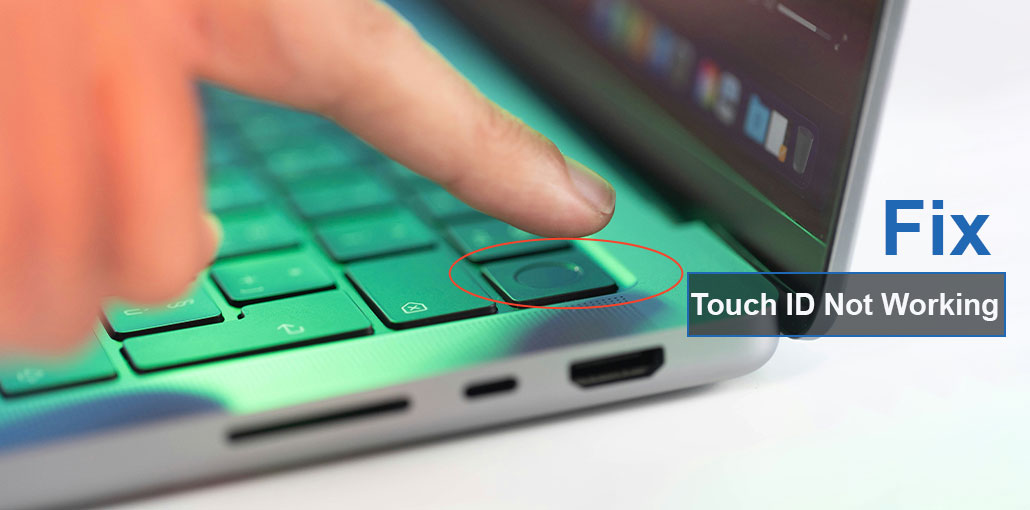
When I went online to find out if others were having issues with their touchpads not working correctly, I came across those who were equally dissatisfied like me. I came across posts from Mac users: Why is my Touch ID not working on Mac. How do I set up my fingerprint on a Mac? What exactly is Touch ID, and why is it so hateful of my hand?
I set out to resolve the Touch ID not working on Mac issue once and for all. I tried several techniques and some solutions I will discuss in this article.
What is Touch ID on Mac?
Apple Touch ID is a biometric feature that lets you access your Apple devices with your fingerprint. If you have a Mac with Touch ID, you should be able to put your finger on the scanner instead of typing in your password to do things like turning on, logging in, purchasing, and automatically filling passwords across all platforms.
Fingerprints are more difficult to recognize than faces and are known for their problems.
Why Is Touch ID Not Working on Mac?
Whatever great a feature may be, there are times when it doesn’t function properly. If you’re having issues with your Touch ID, there could be many reasons for Touch ID not working on Mac.
- Dirty or damaged fingerprint sensor
- Wet, dry, or worn-out fingerprints
- macOS bugs or update issues
- Incorrect system settings
- SMC or system-level glitches
- Conflicts with third-party apps
- Hardware issues (especially with external keyboards)
???? In many cases, it’s not just one issue—but a combination.
Also read: MacBook Pro Touch Bar Flickering: 7 Quick Fixes That Save Money
How to Fix Touch ID Not Working on MacBook
There are numerous solutions for your Touch ID not working on MacBook problem, which can be classified into hardware, physical, or software options. I’ll begin with physical.
1. Get ready for Touch ID on MacBook
Ensure your hands are in optimal condition so Touch ID on your MacBook will work effectively.
Here are some tips:
- Make sure to dry and cleanse your fingerprints before every use.
- Make sure to moisturize your hands frequently. However, not before scanning.
- Your finger should be warm for a breath.
- Multiple fingers can be stored. The middle finger is a suitable finger to use for Touch ID.
- Be sure to cover all angles when storing your fingerprint.
You can examine someone else’s fingerprint. If it is consistent enough, your finger may be the cause of the Mac Touch ID not working problem. Unfortunately, there are some instances where people’s fingerprints are damaged or worn down and hard to see.
2. Clean the Touch ID scanner
If your fingertips are greased or the scanner appears filthy, it may not be able to detect your fingerprint. Take a microfiber cloth and wipe the scanner thoroughly. Find the clothes designed to clean electronics — they’re the best. Whatever your cleaning routine is, do not use Lysol and bleach.
Additionally, you should take a closer look at the scanner for any scratches interfering with its performance.
3. Check Your Keyboard
If you own a wireless keyboard with a Touch ID scanner, like the Magic Keyboard, I recommend you start this test at a very early stage of your journey.
Try one of these solutions, which could help:
- Check your Mac can work with Touch ID, even if your keyboard isn’t.
- Make sure you’ve completely charged the keyboard.
- Clean the keyboard in the same way you would clean your scanner.
- Switch off the keyboard and connect it to your computer via USB, and then switch it back on. If it begins to work and is fully charged, you’ll be able to restart wireless operation.
For more detailed information, read the keyboard isn’t working guide.
4. Disable and Re-Enable Touch ID
This is a simple fix that involves switching Touch ID off and on again. This can be helpful if you’re not sure how to turn on Touch ID on a MacBook Pro or another Mac in the first place. Make sure you have your password to enable Touch ID.
How to disable and turn on Touch ID in your Mac:
- Select the Apple icon on the Menu Bar and go to System Settings.
- Choose Touch ID & Password.
- Turn off the power. Use Touch ID to unlock your Mac.
- Select the Apple icon on the menu bar and then log out.
- Log in again using your password.
- Repeat steps 1 and 2. Then turn on your Mac. Use Touch ID to unlock your Mac.
This actually works more often than you think, since your computer needs a new start to perform this function.
5. Remove and Re-Add Fingerprints
When the Mac has issues with your fingerprints, try deleting the saved prints and then re-inserting them. This could help resolve the issue and help get your fingerprints working properly.
How to do:
- Open Touch ID settings
- Delete existing fingerprints
- Restart your Mac
- Add fingerprints again (cover all angles)
If this fails, then proceed to the next step. If you can not finish Touch ID setup, you might have an OS or SMC issue specific to you.
6. Update macOS
If you’ve recently updated your macOS, it could be the reason for the issue. But if you haven’t updated in some time, failing to do this could be the cause of the issue.
In this case, click the Apple icon on the bar menu > About This Mac and Software Update, and follow the directions. If there’s no OS update there, it won’t show up.
After updating your system, it will reboot, and other aspects could have changed. If this method isn’t working, it’s worthwhile to update your macOS for a variety of reasons!
Also read: MacBook Won’t Turn On? 7 Powerful Methods to Start It Again
7. Boot Your Mac in Safe Mode
There’s plenty of background activity running on your Mac that you aren’t aware of. Background processes and other temp files that are similar to fluff could impact Touch ID performance in safe mode, which allows users to start their computer without processes that can compromise software and functionality.
To start using safe mode, determine if you are running an Intel or Apple processor. It is possible to check this by clicking on the Apple icon within the bar menu > More About This Mac and then looking at the chip or Processor.
For Intel Macs:
- Restart and hold Shift
For Apple Silicon:
- Hold the power button → Select disk → Hold Shift → Safe Mode
Even if Touch ID is working again after you restart in Safe Mode, checking your storage for issues is a good idea. Unorganized files and clutter can impact system performance and create similar problems for Touch ID in the future. Using decluttering software to clean up the system, as described in the next section, will help to prevent problems and ensure a smooth operation.
8. Reset SMC
The SMC (System Management Controller) is responsible for functions such as power management, temperature management, battery charging, and the Apple Touch ID power sensor. When the SMC is experiencing issues, then the sensor is likely to be affected as well.
To reset the SMC, first you need to know what chip you’re using. This can be found by clicking on the Apple icon on the bar menu > About This Mac > More information > System Report > Controller (for Intel Macs) or iBridge (for Macs with T2-equipped chips) to determine if you have a T2 chip in the list. You can also search on the internet using your model number and the year.
For Macs with T2 Chip:
- Shut down your Mac
- Press and hold the power button for 10 seconds
- Release and wait a few seconds
- Turn your Mac back on
For Macs without T2 Chip:
- Shut down your Mac
- Press and hold: Shift + Control + Option + Power button
- Hold for 10 seconds
- Release all keys and restart
9. Reset Secure Enclave
Personally, I think it should be the last option to fix the Touch ID not working on Mac issue. It’s not a great idea, especially if you’re using T2 chips (because it can wipe the contents of your Mac). I suggest you do all of the above, and think about how important your fingerprints are to you, and if you have to be a fighter, then do this.
Cleaning your Secure Enclave data erases your biometrics and other security details, so you can fully reset your computer. Therefore, you should back up your entire system in the initial step. However, I would suggest doing this regardless of what chip you are using.
Steps:
- Back up your Mac using Time Machine
- Shut down your Mac
- Turn it on and hold Command + R (Recovery Mode)
- Open Terminal from the menu
- Type: xartutil –erase-all and press Enter
- Restart your Mac
- Restore your data and re-add your fingerprints
When to Contact Apple Support
Once you have done the above fixes, but Touch ID not working on Mac, then you must bring the matter to Apple support.
- The sensor may be damaged
- Internal hardware may be faulty
In this case, professional repair is the best option.
Wrap up: Solved Touch ID not working on Mac
Issues related to Touch ID can affect your ability to use your Mac. However, it may be typically more of a nuisance than a serious problem. There are solutions to fix Touch ID not working on Mac. The techniques discussed in this article, like resetting the SMC and cleaning your computer, can help with common problems.
FAQs: Touch ID not working on Mac
Why is my Mac not reading my fingerprint anymore?
This usually happens when: Your finger is wet or dirty The sensor is not clean Fingerprint data is corrupted Cleaning the sensor and re-adding your fingerprint can help.
Why is Touch ID not working on Mac after an update?
If Touch ID is not working on Mac after an update, it’s usually due to temporary software bugs or reset settings. Updating again or re-adding your fingerprint often fixes the issue.
Can I use Touch ID with an external keyboard?
Yes, but only with supported devices like Apple’s Magic Keyboard with Touch ID. If it’s not working, check Bluetooth connection and battery.
Is it normal for Touch ID not working on Mac sometimes?
Yes, occasional issues happen. Even when Touch ID is not working on Mac temporarily, it’s often due to finger placement or minor sensor issues.
How can I fix Touch ID not working on Mac quickly?
To fix Touch ID not working on Mac, try cleaning the sensor, restarting your Mac, and updating macOS. These steps resolve most issues quickly.




Leave a comment