

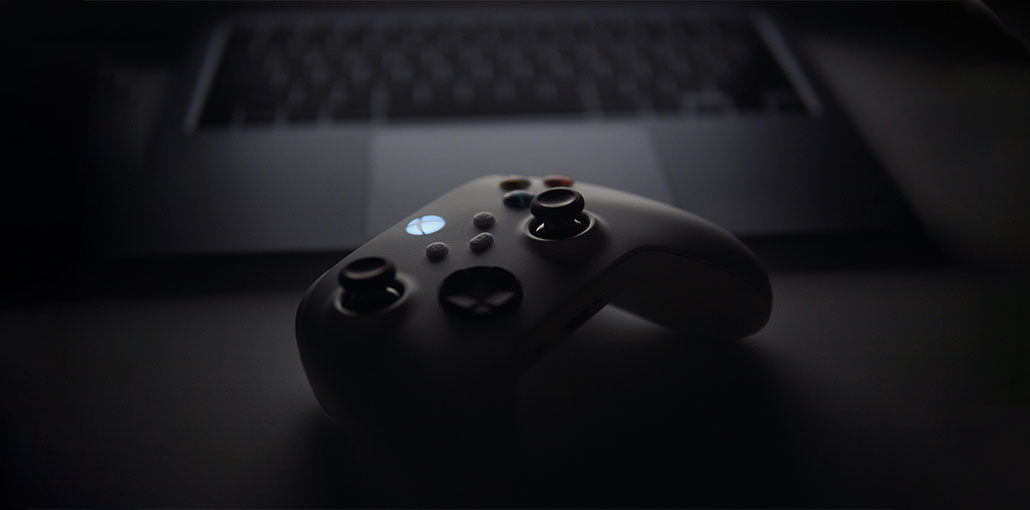
The demand for video games continues to grow with each passing day, and the results of this increase can be observed on the market.
There is a greater variety of gaming consoles available on the market right now. Of these, the Xbox is the most popular gaming console. It’s sturdy and durable.
Although they’re robust, they’re not always compatible with other systems. The Xbox controller light is blinking or flashing randomly during the game.
If the battery is low, and you are using the Xbox controller and trying to connect to your TV or PC, the lighting will flash. However, if the light flashes continuously or the power button isn’t in place, there could be an issue.
You might be wondering what is causing the controller to fail.
The Xbox controller blinking problem has several factors, including firmware updates and network issues, which I’ve fixed in this article. I’ve also discussed various possible solutions to the same.
Why is My Xbox Controller Blinking?
The average gamer can feel the frustration you feel when your game controller begins acting strangely during gaming sessions, interfering with the entire game.
Whether you’re using the latest Xbox Series controllers or the Xbox One controller, you’ll notice the light blinking often.
If your Xbox controller is trying to connect to an Xbox console or PC when the lights are flashing fast or blinking slowly, its mean the battery has a problem.
Although a variety of reasons could cause your Xbox controller blinking/flashing, the most common causes are:
Common Reasons for Xbox controller blinking or flashing
- Weak or broken connection between the controller and console
- Low or drained batteries
- Controller paired with another device (PC or mobile)
- Bluetooth interference from nearby devices
- Faulty USB cable or power supply
- Hardware malfunction
- Outdated controller or console firmware
Also read: PS5 Controller Drift? Try 7 Easy Fixes Before Replacing It
How to Fix Xbox Controller Blinking Issue
After we’ve identified the problems that may result in the Xbox controller blinking abnormally, we can explore ways to resolve Xbox controller blinking issue.
1. Check Pairing and Controller Range
More often than you’d think, the reason for your controller blinking is a pairing issue.
The wireless Xbox controller can span a distance of 19-28 feet, after which it can maintain the connection. Once you go beyond this distance, the controller will likely disconnect immediately. This range decreases if your console is enclosed by walls or is facing in the opposite direction.
Due to issues in pairing, you may notice your Xbox controller blinking or flashing. It could be due to being beyond the range of your console or already connected to another console.
You may try pairing your controller again to confirm that it will be properly connected to the console.
To do so,
- Click the Pair button on your Xbox.
- Click the pair button on the controller after 20 seconds.
- Your controller and console will now be paired.
- Verify the controller’s Bluetooth connection with another device if it is not paired to the console.
If the Xbox console was the final device connected to your controller, you can reconnect it by double-pressing the coupling button.
You can also see the number of controllers that you have on your console
The steps are as follows:
- Visit your console’s settings.
- Choose devices for both connections.
- Select the Accessories menu.
You’ll find all the paired controllers for your console.
Verify that your controller is listed in the paired list; If not, you can sync one of the controllers paired with a different device to make room for the pairing slot.
If your controller is linked to another Bluetooth device, such as a computer or mobile device, then first remove it from that device.
To do so,
- Click on the settings.
- Select the Bluetooth and devices option.
- Find the controller you want to remove from the devices list and then remove it.
2. Reconnect the Console and Cables
Sometimes, the most basic solutions are to fix the Xbox controller blinking issue. By unplugging and replugging the console from the cable, you may be able to solve your controller issues.
Follow the steps below to make sure your console and network connection are in good working order:
- Remove the cable from your console, and then check the console port and the cable connector for dirt or debris. Clean up any dirt or debris and reconnect them the same way as before, ensuring that the connection is strong.
- Unplug the router’s network cable. Check dirt and debris on the connector and socket. Turn off all networking equipment, and then reconnect the wires.
- Then connect your console and modem, without connecting to your router, to verify their network capabilities.
- Reset the internet connection, and check if the router is not working.
If the test for the router connection fails, it could be due to faulty equipment or firmware.
3. Use a Wired Connection Instead of Wireless
If your Xbox controller is not pairing, you can connect with a USB micro cable. This could help you fix Xbox controller flashing and blinking lights while also charging.
The controller’s charging could help solve the Xbox controller blinking issue.
4. Power Up Your Xbox Controller
The light that blinks slowly displayed on your Xbox controller might be a sign of low battery life.
The signal from your controller is weak if your battery is not fully charged.
You can now charge your old batteries or replace them to stop the Xbox controller blinking issue.
There are several methods to charge your controller’s batteries. You can use a micro USB cable and an accessory kit called Play and Charge, or even a power bank.
If the light is blinking, even though battery are charged, remove the batteries and wait for 15 seconds before replacing the batteries to determine whether the issue is solved.
When replacing old batteries, you can utilize standard AA batteries replace them. The batteries can be taken off the controller and charged.
How to replace the battery on Xbox controller:
- The controller should be turned backwards. Press the battery cover back in the direction of the arrow on the back.
- Place the batteries in accordance with the ” +” and ” -” symbols.
- When you have charged and replaced the batteries, put the cover back on.
- You can view the battery capacity on your controller’s screen by clicking the Xbox button, and you can see it in the top right corner.
5. Restart your Xbox Console
If the issue is not resolved after a battery change or pairing again, you may need to try the old methods.
Restarting your Xbox console can help resolve the Xbox controller blinking issue.
To start your Xbox,
- Long-press the power button on the console.
- This will shut off the power to your Xbox console. Unplug the power cable.
- Wait 20 to 30 minutes before plugging in the power cable back into the.
- Verify if you can see if the Xbox controller is blinking or not.
Also read: Why Is My PS4 Controller Not Connecting? 6 Easy Fixes Guide
6. Firmware Updates
Outdated firmware can cause the controller’s functions be damaged. You need to ensure that your Xbox system’s software is updated. Correctly updated software increases the efficiency of your controller and also improves connectivity.
You can upgrade the firmware of your controller using two methods.
Wireless Firmware update
The latest controllers can only be upgraded wirelessly.
- Using the Xbox button, go into the settings menu.
- Select the Devices and connection option.
- Select the option Accessories. option.
- Click on three dots to look for software upgrades.
- If updates are available, select the firmware version, then follow the prompts.
Update utilizing USB
- All controllers except those with the newer ones require a USB to update the firmware.
- Connect your USB cable to the controller and ensure it is connected until the update.
7. Contact Xbox Support
If, after completing all the troubleshooting procedures mentioned, however, your Xbox controller still blinks, it could be damaged. If this is the case, you should contact Xbox support for professional assistance and then get your controller fixed.
You may replace the controller while it’s under warranty, so take it to an Xbox Service Center and follow their suggestions.
Conclusion
Xbox controller blinking may not be the biggest issue you encounter. However, it is a hindrance to the enjoyment you get from gaming.
In this article, I’ve discussed every possible solution that might be used to solve the issue. If none of this works for you, it’s recommended that you contact Xbox support for expert assistance.
FAQs: Xbox Controller Blinking
What does a blinking light on an Xbox controller mean?
A blinking light means the controller is trying to connect or sync with an Xbox console or PC. Fast blinking indicates pairing mode, while slow blinking often points to a low battery or weak connection.
Why is my Xbox controller blinking but not connecting?
If your Xbox controller is blinking but not connecting, it may already be paired to another device, be out of range, or affected by wireless interference. Remove it from other Bluetooth devices and pair it again.
Can Bluetooth interference cause Xbox controller blinking?
Yes, nearby Bluetooth devices, Wi-Fi routers, or wireless accessories can interfere with the controller’s signal and cause blinking or connection drops.
Why is my Xbox controller blinking on Xbox Series X or Series S?
This usually indicates pairing issues, interference, or outdated firmware. Updating the controller and re-syncing often resolves the issue.


Leave a comment