

You might be considering switching to the Apple iPhone, but how are you handling your Android contacts? There are many ways to overcome this hurdle and make the switch to the latest iPhone even simpler.
In this tutorial, we’ll show you how to transfer contacts from Android to iPhone so that you can save the contacts you’ve collected throughout the years.
If you’re also thinking of switching from Android to iPhone, and you have no idea how to transfer data from Android to iPhone.
How to Transfer Contacts from Android to iPhone:
How to Transfer Contacts from Android to iPhone Using Move to iOS
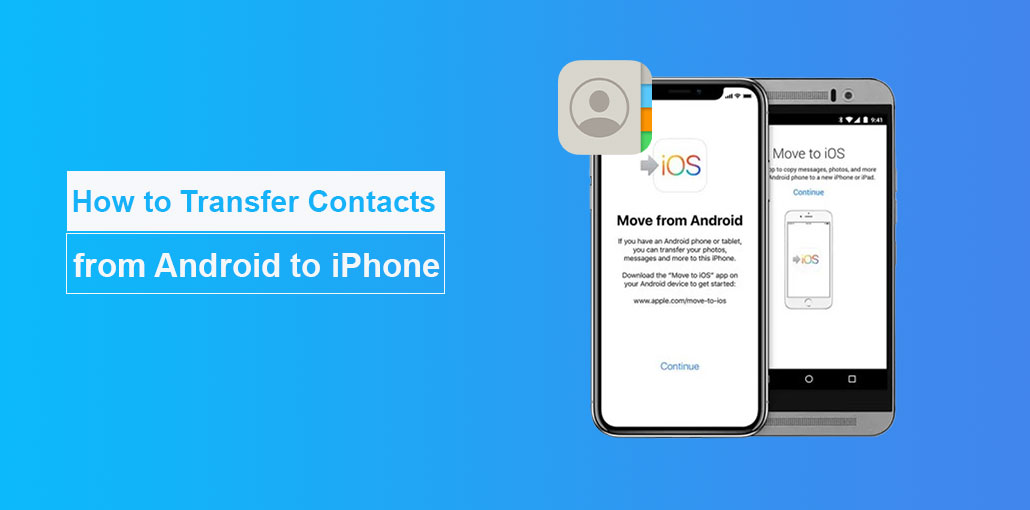
Apple comes with an app specifically designed for the contacts transfer and other data between mobile devices titled ‘ Move to iOS’. This will transfer photos, contacts, messages, bookmarks, and even accounts.
This method should only be used on a new iPhone. If you’re trying to transfer contact data to an iPhone that is already configured, here are the steps on how to migrate Android contacts to iPhone.
- You’ll have to install the “Move into iOS’ app on your Android phone (it must be running Android 4 or greater).
- When you install your new iPhone, you can begin the setup process until you are at the section ‘Apps & Data.’
- From there, choose “Move Data From Android.’ A security code will be displayed on the screen.
- To return to the Android device, you can open the “Move into iOS’ app and use this code when you are asked.
- Choose the data you wish to transfer (make sure Contacts is selected)
- Contacts and information will be transferred to your new iPhone. This process could take 10 to 15 minutes to complete.
Also read: How to Clone an iPhone: Easy Methods to Transfer Data Safely
How to Transfer Contacts from Android to iPhone Using SIM Card
Additionally, you can transfer your contacts from an iPhone to an Android through a SIM card.
- Backup your contacts to the SIM card by accessing the ‘Contacts’ menu in your Android phone by pressing the three dots, and choosing ‘Manage Contacts >Import or export contacts.’
- Select ‘ Export’ after which, once it’s done, you can transfer the SIM card to your iPhone. If an electronic SIM, instead of a physically inserted SIM card, could require a QR-code to transfer your contacts. Contact your mobile service provider for more information regarding this
- Visit your iPhone’s settings menu, and then choose ‘ Contacts’ > ‘ Import SIM contacts.’
How to Transfer Contacts from Android to iPhone via Google Account
Your Google Account is another method to transfer contacts from Android to iPhone. This method uses the cloud to store your contacts and transfer them between devices. but you need is an Internet connection.
- If you are using an Android device Go to ‘ Settings’ > ‘ Google’ > ‘ Backup.’
- To toggle ‘ Contacts’ by pressing on it (if it’s already switched, you may bypass this step)
- Transfer into the iPhone and then complete the setup if it wasn’t done before
- Once you have completed the setup, go to ‘ Settings’ and then ‘ Mail’ > ‘ Accounts’ > ‘ Add Account.’
- Fill in your Gmail account to sync your contacts from the Cloud
After transferring the contact not show on the iPhone. Try these methods to fix it.
How to Transfer Contacts from Android to iPhone Using a VCF File
A VCF (Virtual Card Format) file stores contact details and can be transferred to other destinations, e.g., the new phone.
This technique requires more knowledge and experience, but it’s an effective method to transfer contacts from Android to iPhone without cables or other devices.
- Start the ‘Contacts’ application for the Android phone
- Click on the 3 dots and then select”Export”. Export’ option (this could differ based on the model of your phone)
- Choose ‘ Internal storage when you are asked to select the destination
- Your phone is now creating the VCF file. Search for it using your Android File Browser (you can search for ‘My Files’ in the phone’s menu of apps)
- Click on the VCF file, then select ‘ Share’. If you are prompted, select ‘ Email’ as the share option and then email it to yourself.
- On your iPhone, log in to the email account you sent the VCF files to and then download the file.
- After opening the VCF file, your iPhone is going to ask you to add all contacts. Follow the steps to transfer the contact data
Also read: Top 15 Website to Transfer large Files
How to Transfer Contacts from Android to iPhone via Bluetooth
Transferring contacts from Android to iPhone through Bluetooth. It depends on the Android smartphone model to determine if this option is offered.
Bluetooth may limit the number of people you can transfer at a time, so this approach is ideal for a limited contacts list.
- Visit the Contacts app on your Android handset’s Contacts application.
- Tap the number and then choose 3 dots, or the ‘ Information option (usually represented by a lower case letter ‘i ‘)
- Select ‘Share’. “Share’, then tap ‘ Bluetooth’. If it is available
- Find your iPhone within the listing of gadgets that you can connect to
Transfer Contacts from Android to iPhone Using Third-Party Apps
There are third-party applications you can use to transfer data between Android and iPhone, such as the Contact Transfer and Droid Transfer. Connect your Android device to your PC or laptop and follow the instructions to back up your contacts. Once you’ve done that, log into iTunes and transfer the contacts to your iPhone.
Conclusion
Now you know how to transfer contacts from Android to iPhone with the Google account, SIM card, and data-transfer apps. It’s a simple process. SIM card transfer is simple; however, it’s only possible when you have a working SIM on both Android and iPhone, and it is only used to transfer contacts. If you’re comfortable using cloud sync to transfer contacts, then you can use a Google account.
FAQs: How to Transfer Contacts from Android to iPhone
Can I transfer contacts from Android to iPhone after setup?
Yes, you can still transfer contacts after setup using methods like Google sync, VCF file, or third-party apps.
Will all my contact details transfer to iPhone?
Yes, most methods transfer full contact details, including names, phone numbers, emails, and addresses. However, SIM card transfers may have limitations.
Is internet required to transfer contacts from Android to iPhone?
Internet is required for cloud-based methods like Google sync and Move to iOS. However, SIM card and VCF file methods can work offline.
How to transfer contacts from Android to iPhone without SIM card?
You can transfer contacts without a SIM card by using your Google account or exporting contacts as a VCF file and opening it on your iPhone.
Can I transfer all data from Android to iPhone?
Yes, you can transfer most of your data from Android to iPhone, including contacts, messages, photos, videos, and accounts. However, some app data and system settings may not transfer completely.





Leave a comment