

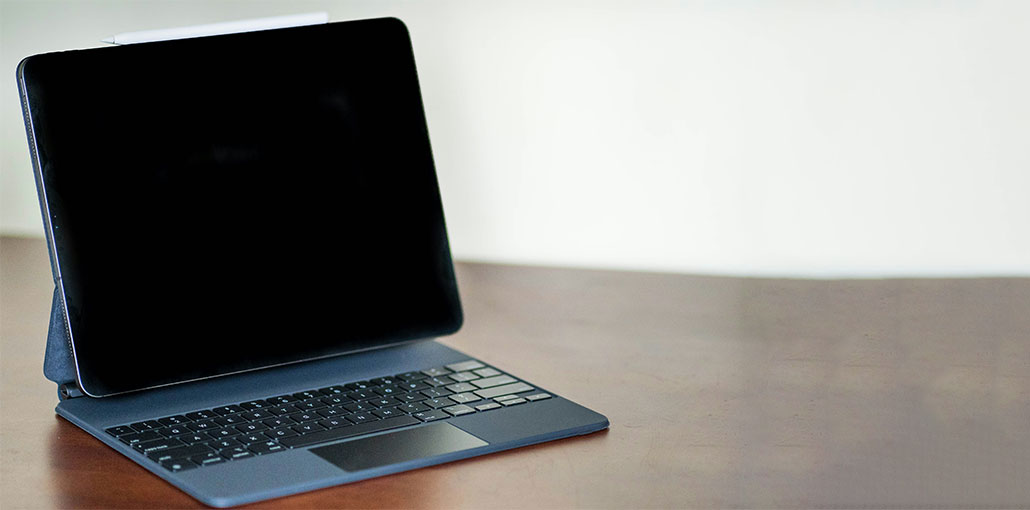
Apple smartphones come with one of the most advanced smart keyboards. The keyboards are beautifully designed with smooth touch and amazing features. Most of them have reported that the iPad keyboard doesn’t respond to touch when typing a text.
Whatever the reason for the issue, and how to solve the iPad keyboard not working properly. We recommend the best method to solve the keyboard issue. Stay tuned, as we discuss 10 easy ways to resolve iPad keyboard not working issues.
Why is My iPad Keyboard Not Working?
Apple’s smart devices are designed well and have all the features in the right order. Therefore, if you have iPad keyboard not working, you may be experiencing one of the following:
1. Hardware Issues
Physical damage can stop your keyboard from working properly. Common problems include:
- Cracked screen or unresponsive touch
- Damaged connector (Smart Connector or port)
- Faulty external keyboard
In such cases, visiting an authorized Apple service center is the best option.
2. Software or System Issues
Software glitches are the most common cause for iPad keyboard not working. These include:
- Outdated iPadOS
- Beta software bugs
- App conflicts
- Incorrect keyboard settings
The good news? These can usually be fixed in minutes.
Also read: How to Fix Apple Pencil Not Working on iPad (6 Quick Fixes)
How to Fix an iPad Keyboard Not Working
1. Check iPad Compatibility
As confirmed by Apple, the smart keyboard is available on specific iPad models. There are a few examples:
Supported models include:
- iPad (7th generation and newer)
- iPad Air (3rd generation and newer)
- iPad Pro models
If your iPad model doesn’t match, the smart keyboard won’t function. To check your model, please follow the steps below:
- Open Settings on your iPhone.
- Tap and swipe down to tap General > About.
Then, a new screen displaying the iPad model will pop up. This is a visual representation of the instruction:
2. Update Your iPadOS
Checking for software updates is a good way to fix the iPad keyboard not working issues. By doing this, you can easily eliminate the bugs or temporary glitches that are distorting the operation of your keyboard and incorporate the latest features included in the latest update.
Here’s how you can check for updates and install the latest version of iPadOS:
- GO to the settings.
- Choose the General tab and click on the Software Update button.
- Tap Download and Install
3. Check the Keyboard Connection Port
Have you tried using an external keyboard on your iPad and are experiencing iPad keyboard not connecting issues? There’s a chance that the connection port to the keyboard is damaged or contains odd objects, such as dust, debris, and so on. The only thing you need to do is remove the keyboard from your tablet and examine the ports for unusual objects. If you spot any, remove all ports and wash them clean.
4. Disconnect and Reconnect Keyboard
If the iPad keyboard does not function after applying the previously mentioned steps, you can try disconnecting, cleaning, and reconnecting the keyboard to your external device. This should solve the issue, and your keyboard should be working properly.
5. Using iPad Repair Tool
Are you still experiencing the iPad keyword not working issue after you’ve tried the solutions above? An iPad Repair Tool is exactly what you require to restore your device to its normal state. With this application, you can quickly resolve any system-related issues that are causing the iPad to fail.
6. Restart iPad
Another easy solution to your iPad keyboard not working issue is simply restarting your iPad. If you restart your iPad and the system is automatically refreshed, it will restart. Any bugs or glitches causing the slow iPad are fixed when you do this.
iPad restart is a simple procedure. Follow these steps to complete this:
- Go to Settings > General > Shut Down
- Turn your device back on
7. Resetting the Keyboard
Are you experiencing iPad keyboard not working issues after restarting it? It’s time to change the default keyboard mode. We recommend this option because any change to the keyboard settings can trigger the issue mentioned above.
Before discussing the process to follow, a keyboard reset deletes any changes you’ve made to your device previously. If you’re okay with losing these adjustments, then follow these steps to reset the iPad’s keyboard:
- Go to Settings, select the General tab to open the screen.
- Navigate to the next screen and choose Reset or Transfer iPad to reset.
- Then, tap Reset Keyboard Dictionary and provide the security code required when prompted.
Also read: iPad Black Screen but Won’t Turn On? 9 Easy Fixes You Must Try
8. Remove Third-Party Keyboards
Sometimes, keyboards from third-party manufacturers could create problems for you, causing your iPad keyboard not working issue. The keyboards you install can affect the operation of the built-in keyboard. Deleting the additional keyboard is the only option to correct this.
You can follow the steps to delete all keyboards on your iPad:
- Go to Settings and Tap General.
- Click on Keyboard and then select the Keyboard again.
- Tap Edit and delete extra keyboards
9. Factory Reset iPad
A factory reset is another simple solution for an iPad keyboard not working. By using this method, you can quickly erase any wrong settings you’ve created in the past as well as delete applications that are causing your iPad to behave strangely.
This option allows you to reset your iPad to its default settings to ensure proper operation. To restore your iPad to default settings or factory settings, follow the steps below:
- Go to Settings and tap on General
- Tap Transfer & Reset iPad
- Click Reset > Erase all Content and Settings to reset your iPad to factory settings. If you are prompted to enter the iPad passcode, please use the correct password to reset it.
10. Contact Apple Support
If the iPad smart keyboard not working after applying the above solutions, then the issue is complex. There’s nothing you can do other than go to the nearest Apple store in your area to seek a solution.
What If the On-Screen Keyboard Is Missing?
Sometimes the iPad keyboard does not show. Try this:
- Tap inside a text field again
- Disconnect any external keyboard
- Check if a third-party keyboard app is interfering
- Reset all settings (without deleting data)
Final Words
With these solutions, you can fix the iPad keyboard not working issue. We’ve got 9 simple solutions you can use at your own home.
FAQs: iPad Keyboard Not Working
Why is my iPad keyboard not showing on screen?
This usually happens when an external keyboard is connected or due to a system glitch. Disconnect external devices and tap on a text field to make it appear.
Why is my Bluetooth keyboard not connecting to my iPad?
It could be due to low battery, Bluetooth issues, or pairing errors. Try turning Bluetooth off and on, then reconnect the keyboard.
Does resetting my iPad fix keyboard problems?
A factory reset can fix deep software issues, but it should be used as a last resort after backing up your data.
How do I fix an unresponsive iPad keyboard?
You can fix it by restarting your iPad, updating iPadOS, resetting keyboard settings, or reconnecting your external keyboard.








Leave a comment