

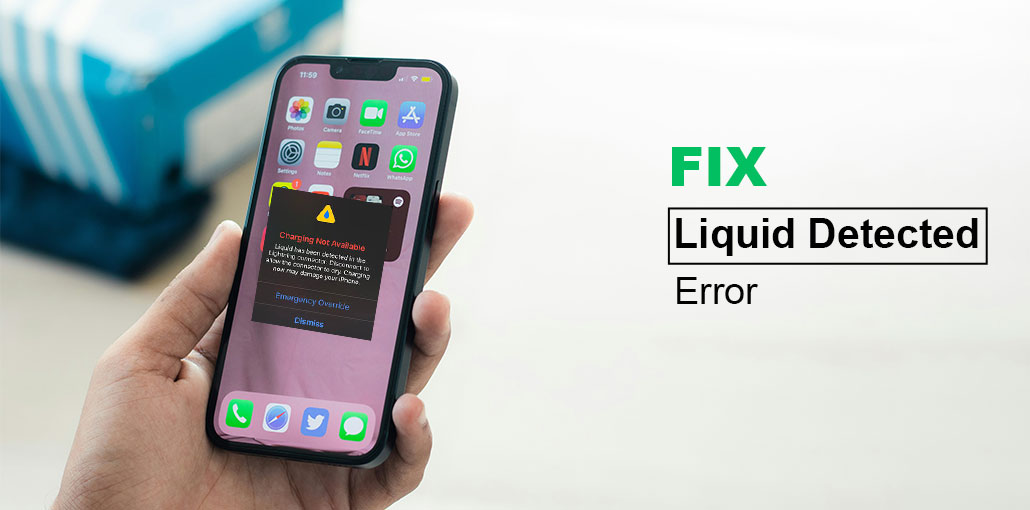
Apple frequently releases beta versions to test and ensure the new versions are user-friendly and free from bugs. However, the “Liquid Detected in Lightning Connector” message has been causing concern for iPhone users on forums such as Reddit. Let’s get some clarity on the water detected in charging port issue.
What Does Liquid Detected in Lightning Connector Mean?
If users plug in cables that are wet or have water in the charging port, the pins on both sides may be damaged. The phone could display one of two messages regarding the urgent actions you can use in these situations.
The reason the message pops up is that when a sensor detects liquid, after you have connected an accessory. The iPhone suggests that you dry the item and try it again.
In any case, you may choose to disregard the message and make your phone call. It could be risky for the phone, but many people are willing to take a risk in times of emergency. Another alternative is the wireless charger. Ensure the back of your phone is clean before placing it on the Wireless charger.
Also read: Call Failed iPhone: 9 Quick Ways to Fix It
How to Fix iPhone Liquid Detected in Lightning Connector
If you’re still receiving that “liquid detected in lightning connector not wet emergency override” message, you need to resolve the root of the problem. Here are some actions you can follow:
Before we guide you on how to proceed, we’ll review what you need to avoid immediately.
- Avoid using dry-air dryers or any other heating source to dry out the water.
- To try to squeeze out excess moisture, don’t put swabs or other cotton products inside the lightning connector.
- Most people put their smartphones in rice to absorb the moisture. Small rice particles could get into the phone and worsen the issue.
Let’s now take a look at what we must do if the “liquid detection in lightning connector” message:
1. Unplug the Accessory & Air Dry the Port
The first step is to follow the protocol for messages. Remove the charger from its lightning ports and allow it to dry. If liquid detected in charging port, I recommend keeping the device standing upright to prevent liquid damage. When doing this, it is important not to move the device or use it at the lightning port. It could damage the case.
2. Dismiss the Alert & Try Again Later
If a message stating “liquid detection in lightning connector” is displayed, the sensible first step is to dismiss the information first, and then seek out alternative options. The pop-up offers an option to eject the message and also perform the emergency bypass.
3. Restart Your iPhone
Restarting your phone can resolve technical issues. It’s not always the best method of restarting an iPhone, depending on the operating system that you’re using. Visit this page to verify compatibility with your iPhone model. This is the procedure to start your iPhone if you own an iPhone 8, iPhone SE 2nd Generation, or an earlier model.
4. Use Professional iOS Repair Software
Use iOS system repair software that can assist users in fixing various problems on iPhone, iPad, and iPod touch. The software has several impressive features and is easy to utilize. With its user-friendly interface, even new users can easily resolve their iOS device issues, such as liquid-detecting iPhones, in just a few clicks.
5. Contact Apple Store if Nothing Works
If the solutions we have discussed earlier don’t work in your case, you’ll have only one option: seek help from an expert. Don’t attempt to access your device, or poke it with anything, when the phone displays “Liquid detection in Lightning Connector.” It is the authorized person to handle the issue.
Also read: Why Is My Phone Charging Slow? Top Reasons and Solutions
Tips to Prevent Liquid Detected Alert in the Future
To avoid getting the “Liquid Detected in Lightning Connector” error message on your iPhone later, it’s essential to shield your device from damage caused by liquids. Here are some guidelines to keep your iPhone safe
- Use a waterproof or water-resistant case
- Avoid charging in rainy or humid environments
- Keep phone away from pools, sinks & beaches while plugged
- If your phone gets wet, power it off & allow the port to dry before charging
- Clean the charging port occasionally using safe methods
Conclusion
In conclusion, dealing with the “liquid detected in lightning connector” issue can be challenging. However, it’s not something to be worried about. The problem is typically caused by dirt, water, or even humidity. When you follow the correct method, you can resolve the issue and prevent future issues. Be sure to clean the charging port with care using the methods below.
FAQs: Detected in Lightning Connector
Why does my iPhone say Liquid Detected in Lightning Connector?
Your iPhone shows this alert when moisture or condensation is detected inside the charging port or on the Lightning accessory. It blocks charging to prevent short-circuit damage.
How do I fix Liquid Detected in Lightning Connector instantly?
Unplug the cable, keep the phone upright, and let it air-dry for 30–120 minutes. Do not use heat or insert objects. Try charging again after it dries.
Can I charge my iPhone even if liquid is detected?
Yes — only through Emergency Override, but it is risky and may damage the phone. Use it only when absolutely necessary.
Will a wireless charger work if liquid is detected in Lightning port?
Yes. Wireless charging still works because it doesn't use the Lightning connector — just ensure the back of your phone is dry first.
Can cold weather trigger Liquid Detected warnings?
Yes. Sudden temperature changes can cause condensation inside the port, leading sensors to read moisture even if no water is present.



Leave a comment