

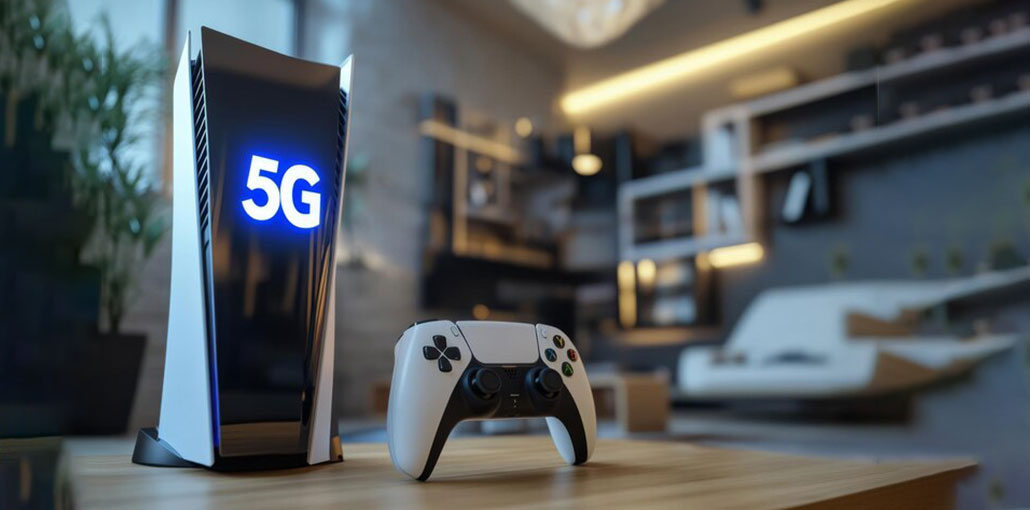
PS5 is Sony’s most powerful console, which offers an improved experience. Due to the game’s popularity, the demand for PS5 has outstripped the supply. However, some users also experience their PS5 not connecting to Internet sometimes. For those who play, this doesn’t matter. This article can help you solve your PS5 not connecting to internet.
Common Reasons for PS5 Not Connecting to Internet
If PlayStation 5 is having trouble connecting to WiFi, there could be multiple reasons for this. Here are some common reasons why my PS5 not connecting to internet.
- Weak or unstable WiFi signal
- Router or modem problems
- PlayStation Network (PSN) outages
- Incorrect network settings
- System software issues
- ISP (Internet Service Provider) problems
- NAT type or firewall restrictions
Identifying the root cause will help you resolve the issue faster.
Also read: PS5 Not Turning On? Easily Fix Power Issues at Home
How to Fix the PS5 Not Connecting to Internet issue
As you will see, there are several things to consider when your PS5 WiFi not working. Because there isn’t only one reason, you should try multiple troubleshooting techniques to resolve your PS5 not connecting to internet.
Here are some possible options to fix the PS5 not connecting to Internet issue.
1. Check PlayStation Network (PSN) Status
As we’ve mentioned, PlayStation Network servers may encounter problems sometimes, which can cause disruptions to online services. Most of the time, issues with servers aren’t long-lasting, therefore all you have to do is just wait for the issue be addressed. But you can determine if your area is affected by an outage or is experiencing a server issue by visiting the official PSN servers’ status webpage.
2. Restart Your Router
If your PS5 won’t connect to wifi, this could be because your router is inactive. To test this, turn the router off normally, then disconnect it from the power source for about 30 minutes. This should allow enough time to flush the router’s operating system, fixing any network issues that are causing your WiFi issue.
Steps:
- Turn off your router normally
- Unplug it from the power source
- Wait about 10–15 minutes
- Plug it back in and turn it on
- Try connecting your PS5 again
3. Check Your WiFi Password
If your WiFi password and username have changed in the last few days, and you forgot to update them on your PS5, this could be the reason why your PS5 won’t connect to internet.
Under Network Settings, try to set up your wireless connection to determine if you need to connect to your WiFi.
To reconnect:
- Go to Settings
- Select Network
- Choose Set Up Internet Connection
- Enter the correct WiFi password
- Make sure you’re connecting to the right network
4. Test the Internet Connection on PS5
If there aren’t any reported problems from the server side, and nothing has changed since restarting the router, then the following step you could test is your internet connection to determine the cause of the problem.
To do this, you must take these steps:
- Go to Settings.
- Go to Network.
- Go to Connection Status.
- Select Test Internet Connection.
After the speed test has completed, you can check where the issue is. There are three areas of failure that you’ll notice: PSN, Internet, and IP.
5. Move Your PS5 Closer to the Router
If the PS5 is in a different room, move towards the router and see whether there’s a difference.
Keep in mind that the signal strength of your WiFi is severely reduced by things such as concrete walls, thick glass, and metal.
If you are in a complex apartment and have routers near you that could impact the signal strength of your wireless connection. If reducing the distance between your router and console increases your online experience, this implies that the signal reaching your PS5 is degraded.
6. Use a Wired (LAN) Connection
If your PS5 not connecting to internet via home WiFi. You can use a LAN cable to connect your PS5 directly to your router. Ethernet cables are inexpensive, so you can always purchase an additional cable if you want to use the console in a different area.
Also read: PS5 Controller Drift? Try 7 Easy Fixes Before Replacing It
7. Change Your WiFi Channel
Routers are designed to use the default wifi channel as their connection. However, the same settings could be used by routers in your neighborhood. To check whether the channel you use for your wireless is too busy, check your router’s settings and choose an alternative channel.
If you’re not sure how to change the router’s channels, use the device manual, contact the router manufacturer, or seek assistance via your ISP (if the router was purchased via them).
8. Change DNS Settings
By default, your PS5 will use the DNS configurations your router assigns to it. But there may be instances where your own ISP’s DNS servers are troublesome.
To determine if you are experiencing an issue with your network due to DNS, try using a free DNS service from Google or a third-party DNS.
To alter the DNS settings of your PlayStation5:
- Go to Settings.
- Select Network.
- Select Settings.
- Select Set Up Internet Connection.
- Scroll to the bottom, and then select the option to Set up Manually.
- Select Use Wifi.
- Select DNS.
- Change the Primary DNS to 8.8.8.8.
- Change the Secondary DNS to 8.8.4.4.
- Select Done.
9. Factory Reset Your PS5
The above list method does not fix the PS5 not connecting to internet. So Yan can try to factory reset the PS5. However, this will result in the loss of your game. Before doing this, you can contact Sony support or have your PS5 restored or replaced by Sony, as it could be caused by a hardware malfunction.
- Open your PS5 and then go to Settings.
- Select Reset Option on the right side and choose Reset Your Console.
- Select Reset to confirm your choice.
After resetting, you can restart your PS5 and test your Internet connection.
Bottom Line: Fix PS5 not connecting to internet issue
This article provides several solutions to solve the “PS5 not connecting to Internet” issue. You can try all the above solutions to fix PS5 WiFi issue.
FAQs: PS5 Not Connecting to Internet
Why is my PS5 not connecting to WiFi?
Your PS5 may fail to connect to WiFi due to a weak signal, incorrect password, router issues, or PlayStation Network (PSN) server outages. Sometimes, NAT type or DNS settings can also block the connection.
Does PS5 need 5GHz WiFi to connect properly?
No, PS5 can use 2.4GHz, but 5GHz provides faster speeds and more stable connections for gaming.
Does using a VPN affect PS5 connectivity?
Sometimes. VPNs can slow speeds or block PSN access. Disable the VPN to test if it resolves connection issues.
How do I fix PS5 WiFi connection?
Restart your PS5 and router, move closer to the router, use an Ethernet cable, update system software, or change DNS settings to improve connectivity.




Leave a comment