

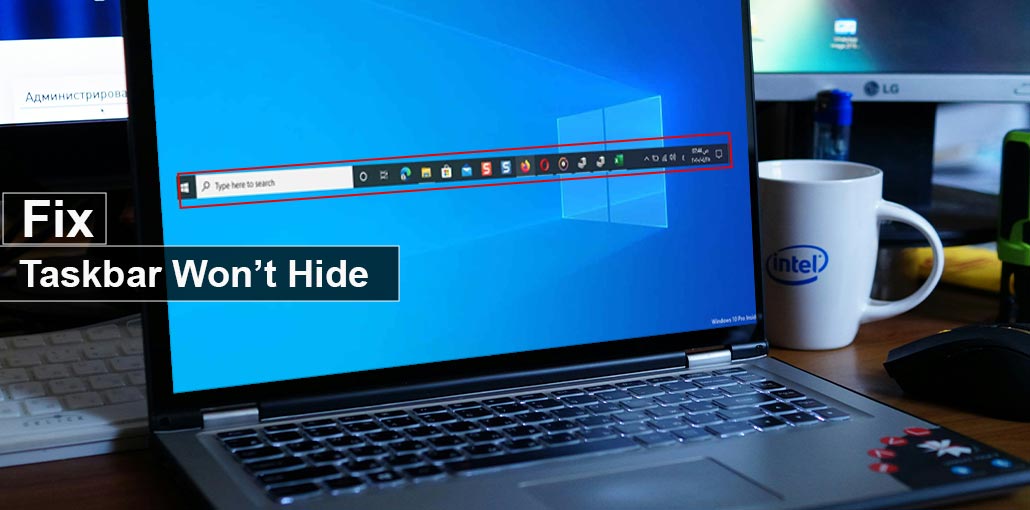
The Taskbar in Windows is an important component that lets you access the apps you regularly use. The tool features that can enhance your user experience. One of the most useful auto-hide features. When this feature is enabled, the Taskbar automatically hides when it is not being used. But sometimes, you might be faced with the ” Windows Taskbar won’t hide” problem.
In this article, we’ll discuss ways to fix the Taskbar won’t hide in games/full-screen error and allow users to conceal it effectively and use the entire screen.
What Causes the Taskbar Not to Hide?
Before jumping into fixes, it’s helpful to understand the root causes of auto hide taskbar not working. The taskbar usually refuses to hide due to:
- Pending notifications
- Background apps needing attention
- System glitches (Windows Explorer issues)
- Incorrect taskbar settings
- Conflicting third-party software
- Outdated Windows version
Also read: Windows Search Bar Not Working: Complete Guide to Fix It
How to Fix the Taskbar Won’t Hide issue
1. Make Sure Auto-Hide is Enabled
You can use the entire screen with Windows 10/11 because it offers the most effective options to hide the Taskbar when Windows are active. Windows Taskbar not working or not showing is a common problem. In this case, it is important to ensure that the Taskbar’s auto-hide is turned on before using more complex methods. The steps are as follows:
- Click”Taskbar settings” by clicking on “Taskbar settings” by right-clicking on the Taskbar.
- Turn on the “Automatically hide the taskbar” option in “Taskbar Behaviors.” After that, the Windows Taskbar will automatically hide.
2. Restarting Windows Explorer
One of the quickest ways to fix the Windows 11 taskbar issue is to restart Windows Explorer, which removes the temporary glitch for this issue. If you want to fix the problem of the Windows Taskbar not hiding, you can restart Windows Explorer by going through the following steps:
- Hit the “Windows + X” shortcut to open the “Power User” menu and choose “Task Manager” from the menu.
- Click “Restart” after right-clicking on “Windows Explorer.”
After that, you must determine if you’re having issues. If not, you’ll need to disable and re-enable the auto-hide Taskbar to resolve the issue.
3. Check for Conflicting Software
Another reason the Windows Taskbar won’t hide is when competing software or an app is installed on your system. In such a case, the symbol of the app that appears on the Taskbar will be illuminated. Follow these steps:
- Click the glowing symbol of software in the Taskbar, and then you’ll see the app’s alert or notification.
- The Taskbar must be automatically hidden.
While you’re at it, you could also decide to look over the OS tray’s symbols disguised to determine if some of the background-running apps need your focus.
4. Disable App Notifications
Notifications are the primary reason behind the “Taskbar won’t hide errors.” Many applications display various notifications, for instance, when you install a file from Chrome. The icon will inform users of the progress made in the Taskbar, remain visible, and activate it to go under the radar.
The Taskbar that displays the full-screen game is a significant feature for gamers. To get rid of this issue, you must block notifications, which allows the Taskbar to disappear. Follow these steps to correct the issue:
- Click the “Start” button and then click on the “Settings” symbol.
- After you have “Settings” open, search for “Notification & Action Settings” using the search bar.
- Scroll down a little bit and search for “Get notification from these senders.”
- Turn off the options in the “Get notification from these senders” setting.
After following the above steps and then turning off the app notification, you can solve the issue of “Taskbar won’t hide errors.”
5. Taskbar Showing in Full-Screen Games
Gamers often face the ” Taskbar won’t hide in full screen issue, where the taskbar appears during gameplay. Follow these steps to fix this issue:
- Press F11 (for browsers or some apps)
- Restart the game
- Run the game in exclusive full-screen mode (not borderless)
- Disable notifications (important!)
Many games don’t fully hide the taskbar if notifications are active.
Also read: Can’t Type in Windows Search Bar? Easy Fixes for Windows 10/11
6. Update Windows
One of the simplest ways to fix the Taskbar won’t hide error is to upgrade your Windows PC. Updating your Windows to the latest version fixes this issue. Follow these steps to upgrade Windows:
- Select the “Windows” button, and choose “Settings.”
- After it appears that the “Settings” window opens, click the “Update & Security” option.
- This window will be displayed.
The update system can help fix the issue if the updates are available.
How to Prevent Taskbar Issues in the Future
To avoid this problem again, follow these best practices:
- Keep Windows updated
- Limit unnecessary startup apps
- Regularly restart your PC
- Manage notifications wisely
- Avoid installing unreliable software
Wrap Up
If you are looking to clear additional screen space, you must activate the awesome feature of auto-hiding the Taskbar option. This feature stops working for different reasons. However, you can resolve the Taskbar won’t hide issue by trying the solutions listed above.
FAQs: Windows Taskbar Won’t Hide
Why won’t my taskbar hide even when auto-hide is on?
This usually happens due to pending notifications, background apps, or system glitches. Apps like browsers or messaging tools may keep the taskbar active until you interact with them.
Why is my taskbar showing in full-screen mode?
The taskbar may appear in full screen if: Notifications are active The app isn’t in true full-screen mode A background process is interfering Switching to full-screen (F11) or disabling notifications usually fixes it.
Can notifications stop the taskbar from hiding?
Yes, notifications are the most common cause. Any app alert (downloads, messages, updates) can keep the taskbar visible until you dismiss it.
How do I restart the taskbar in Windows?
Restarting the taskbar is done by restarting Windows Explorer: Press Ctrl + Shift + Esc Find Windows Explorer Click Restart This resets the taskbar instantly.
How do I fix the Taskbar won't hide issue in Windows 11?
Enable auto-hide in taskbar settings, restart Windows Explorer, clear notifications, and update Windows. These steps fix the issue in most cases.



Leave a comment