

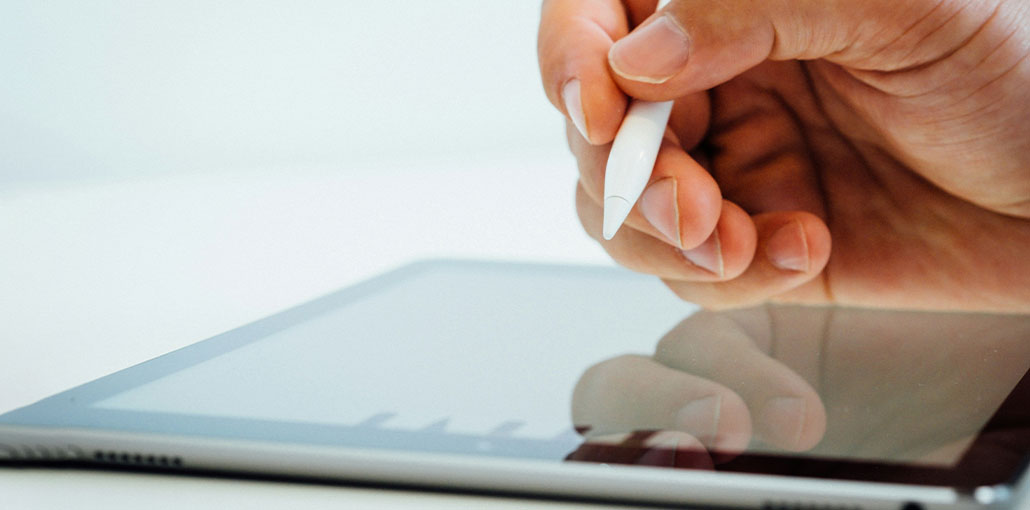
Some user have reported issues with their Apple Pencil not working even when it’s connected by Bluetooth. As it turns out, most of the time, it is usually due to a loose nib. This means that when you try to communicate with your iPad and your Apple Pencil, none of the interactions register. But this is not always the case, as many other factors may be reasons. In this article, we show how to fix the Apple Pencil not working issue, so just follow the steps.
Apple products are known to work straight out of the box, without any configuration. But when this endeavor is hindered by something, then the entire experience can be quite a hassle. There are many possible reasons why is my Apple Pencil not working with your iPad, and even in the most unlikely scenario, the issue with the hardware malfunction. In this case, there’s nothing you can do other than go to an Apple store. Additionally, the Apple Pencil not working issue could be due to a Bluetooth connection problem.
With that said, there’s a high possibility that the issue may be caused by a connection issue that can be resolved quickly. So, let’s begin by examining the various ways you can use to solve the Apple Pencil not working problem.
Why Is My Apple Pencil Not Working?
Everyone will wonder why their Apple Pencil is not working if it stops working suddenly. We explore the fascinating world of the mind, breaking down psychology concepts into simple are some possibilities for what may be causing the issue with your iPencil.
- Low or dead battery
- Bluetooth connection issues
- Incompatible iPad model
- iPadOS software bugs
- Damaged Pencil tip or hardware
- Apple Pencil not properly paired
Luckily, most iPad pencil problems are easily solved by yourself, without needing a tech expert. However, if you want to resolve it, then go to another section to try these suggestions.
Also read: iPad Black Screen but Won’t Turn On? 9 Easy Fixes You Must Try
How to Fix Apple Pencil Not Working
1. Charge the Apple Pencil
Before we begin, ensure that your Apple Pencil is fully charged and the problem isn’t due to an insufficient charge. If your pencil is fully charged but you’re encountering issues, then you should follow the next process.
2. Check Apple Pencil Compatibility
When your Apple Pencil not pairing with your iPad. There are two generations of Apple Pencils, and both can be used with various models of the Apple iPad.
Its 1st Generation Pencil is compatible with all iPads launched between 2015 and the year 2020.
If you own an iPad released after 2020, it is most likely to work with the 2nd generation Apple Pencil.
You can get more information about Apple Pencil-compatible devices from the official Apple website.
3. Tighten the Pencil Nib
The first thing you must take care of when you run into the issue described above is to check that the nib of your pencil isn’t loosened. It turns out that Apple Pencils come with an elongated nib that is responsible for transmitting the finger’s touch to your iPad. In some instances, nibs may become loose over time, and the Apple Pencil not working or not touch your iPad properly, even if it’s connected.
If this happens, you’ll need to tighten the point of the Apple Pencil to see if it solves the issue. We suggest removing the nib before placing it again. After you ensure the nib is completely fitted and tight, if the issue persists, proceed to the next step.
4. Enable Bluetooth Manually
Why is my Apple Pencil not connecting? According to the report, in some user complaints, the issue was triggered when users used the quick pop-up window to turn on Bluetooth for connecting their pencil. When you try to turn on Bluetooth through the Settings menu, the issue is resolved, and you can use the Apple Pencil without any problems. Thus, you must test the same method to see if that gives the desired results. To accomplish this, follow these steps:
- To begin, you go to Settings on your iPad.
- Then, go towards Bluetooth and disable it.
- After that, you can now connect your Apple Pencil.
- After inserting your pencil, immediately go back to settings and then turn on Bluetooth. Do not click on the pop-up window to enable Bluetooth.
- Once you’ve completed that, wait for the tablet to recognise the Apple Pencil.
- Try to determine if this resolves your issue. If it fails, initially take it two or three times. If you’re not successful, then move to the next technique.
Also read: iPad Running Slow? Easy Ways to Speed It Up
5. Perform a Hard Reset
Another method to solve the Apple Pencil not working issue is by performing a hard reset. A hard reset is a forced restart of your device instead of the typical procedure. This means that you don’t have to be worried about losing any information, as none of the data will be erased.
After you’ve performed the hard reset, reconnect your Apple Pencil to your iPad, and hopefully, this will resolve the issue. For this, follow these steps:
- To begin, you need to hold and release the Volume up button.
- Then, hold and then release the button to turn down the volume. button.
- After you’ve done this, press and hold the power button on your phone. Continue to hold that Power button for a while until you can see an Apple Logo appearing on the screen.
- Once the Apple logo appears on screen, you can release your power button.
- Wait for your device to reboot.
- When your iPad restarts again, you can open your Settings app.
- Tap on the Bluetooth button.
- Select your Apple Pencil and then press the Forget This Device option.
- Once you’ve done that, connect the Apple Pencil to your iPad and then pair it up again.
- Once you’ve paired the Pencil again, check if your Apple Pencil is working.
6. Replace the Apple Pencil Tip
If none of the methods above have worked for you, it’s very likely that the point of your Apple Pencil might have depleted and needs replacement. The tip may wear away over time; eventually, you’ll need to replace the used-up tip of your pencil to get your pencil work again.
If the tip is depleted, the finger movements won’t be properly transmitted to your iPad. This means that the Apple Pencil not working properly. It is easy to change the tips of your Apple Pencil at the closest Apple store.
Final Thoughts
Finally, if the Apple Pencil not working issue persists even after changing the pencil’s tip, the issue is likely due to a hardware problem. Therefore, you’ll be required to visit a nearby Apple store and ask them to check the issue.
FAQs: Apple Pencil Not Working
Why is my Apple Pencil not working even though it’s connected?
This usually happens due to a loose or worn-out nib, Bluetooth glitch, low battery, or a temporary iPadOS software issue.
How do I re-pair my Apple Pencil with my iPad?
Go to Settings → Bluetooth, tap the “i” icon next to Apple Pencil, choose Forget This Device, then reconnect the Pencil to pair it again.
Can Apple Pencil stop working because of dirt or dust?
Yes. Dirt around the nib or charging connector can affect performance. Gently clean the Pencil and connector area.
What should I do if my Apple Pencil still doesn’t work?
If all troubleshooting fails, visit an Apple Store or Apple Authorized Service Center for professional diagnosis.









Leave a comment