

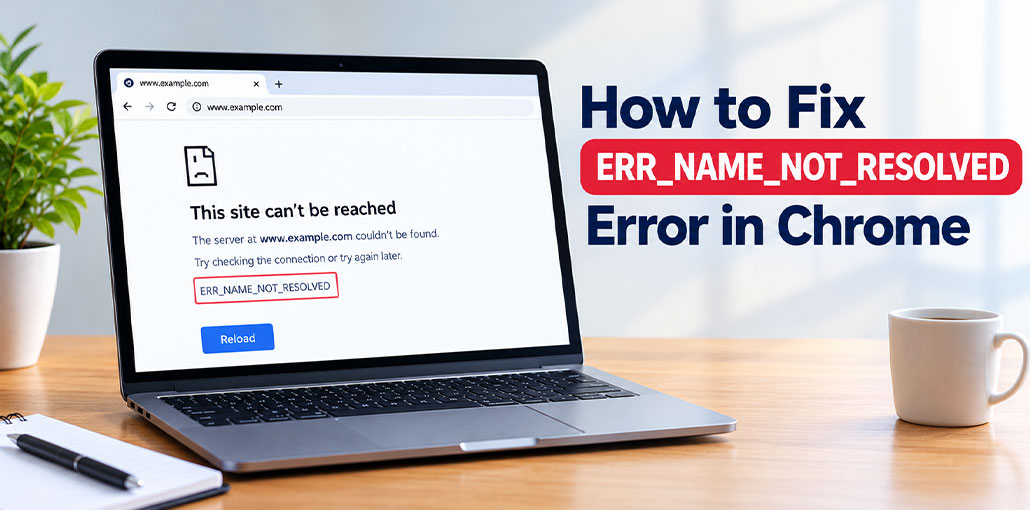
When browsing the internet, you may sometimes encounter the ERR_NAME_NOT_RESOLVED error in Google Chrome. This error prevents you from opening a website and usually appears with the message “This webpage is not available.” It commonly occurs when your browser cannot find the IP address associated with a website’s domain name.
Fortunately, you can fix the ERR_NAME_NOT_RESOLVED error using a few simple methods. In this guide, we will explain the common causes of this problem and how to resolve it in Windows 10.
What Is ERR_NAME_NOT_RESOLVED?
The ERR_NAME_NOT_RESOLVED error means that Google Chrome cannot resolve a website’s domain name to its corresponding IP address. This process is handled by the Domain Name System (DNS), which helps your browser locate websites on the internet.
If the DNS server cannot find the correct IP address, Chrome may display this error instead of loading the requested webpage.
What Causes the ERR_NAME_NOT_RESOLVED Error?
Several factors can cause the ERR_NAME_NOT_RESOLVED error, including:
- DNS server problems or incorrect DNS settings.
- Corrupted browser cookies or cached files.
- Outdated or incorrect network configurations.
- Firewall or antivirus software restrictions.
- Router or internet connection issues.
- Temporary problems with the website’s DNS records.
Identifying the possible cause can help you choose the right troubleshooting method.
Also read: 7 Quick Solutions for ERR_TIMED_OUT Error in Google Chrome
How to Fix ERR_NAME_NOT_RESOLVED in Windows 10
Try the following methods to resolve the ERR_NAME_NOT_RESOLVED error in Google Chrome.
1. Change Your DNS Address
Changing your DNS server may help if your current DNS server not responding correctly. You can use Google Public DNS to check whether this resolves the issue.
Follow these steps:
- Open the Control Panel and select Network and Internet.
- Click Network and Sharing Center.
- Select Change adapter settings.
- Right-click your active internet connection and choose Properties.
- Select Internet Protocol Version 4 (TCP/IPv4) and click Properties.
- Choose Use the following DNS server addresses.
Enter these addresses:
Preferred DNS server: 8.8.8.8
Alternative DNS server: 8.8.4.4
- Click OK to save the changes.
Open Chrome again and check whether the ERR_NAME_NOT_RESOLVED error has disappeared.
2. Clear Browser Cookies and Cache
Corrupted or outdated browser data can sometimes interfere with website access. Clearing cookies and cached files may help resolve the problem.
- Open Google Chrome.
- Enter chrome://settings/clearBrowserData in the address bar.
- Press Enter.
- Select Cookies and other site data and Cached images and files.
- Click Delete data or Clear data, depending on your Chrome version.
After clearing the data, reload the affected website. Note that clearing cookies may sign you out of some websites.
3. Flush and Renew DNS
Flushing the DNS cache removes stored DNS records that may be outdated or incorrect. Renewing your network configuration can also help resolve connectivity problems.
- Search for cmd in the Windows search box.
- Right-click Command Prompt and select Run as administrator.
- Run the following commands one at a time:
ipconfig /flushdns
ipconfig /renew
ipconfig /registerdns
- Wait for each command to finish.
- Restart Chrome and try opening the website again.
If a command returns an error, review the message before continuing.
Also read: How to Fix Chrome Freezing Issues on Android Phones
4. Check Firewall and Antivirus Settings
Your firewall or antivirus software may sometimes block a website or interfere with network connections.
Check your security software for blocked websites or network restrictions. If necessary, review its settings and allow access for trusted websites or applications.
Avoid disabling your security protection entirely. If no blocking rule is found, try another troubleshooting method.
5. Restart Your Router
A temporary router or internet connection problem can also cause the ERR_NAME_NOT_RESOLVED error.
Turn off your router and unplug its power cable. Wait for a few minutes, reconnect the cable, and turn the router back on. Once your internet connection is restored, open Chrome and visit the affected website again.
Conclusion
The ERR_NAME_NOT_RESOLVED error in Google Chrome can prevent you from accessing websites, but it is often easy to troubleshoot. Changing your DNS address, clearing browser cookies and cache, flushing DNS, checking security settings, and restarting your router are useful solutions to try.
If the problem continues, check your internet connection or contact your internet service provider for further assistance.
FAQs: ERR_NAME_NOT_RESOLVED
Why does only one website show ERR_NAME_NOT_RESOLVED?
The website may have incorrect DNS records, an expired domain, or a temporary DNS problem.
Does clearing Chrome cache fix ERR_NAME_NOT_RESOLVED?
Clearing cached files may help in some cases, but DNS and network issues may require additional troubleshooting.
Can changing DNS fix ERR_NAME_NOT_RESOLVED?
Yes, switching to a reliable public DNS server, such as Google Public DNS, may resolve the error if your current DNS server is causing the problem.
How can I prevent ERR_NAME_NOT_RESOLVED from appearing again?
Keep your network settings correct, use a reliable DNS server, maintain your router, and ensure your internet connection is working properly.









Leave a comment