

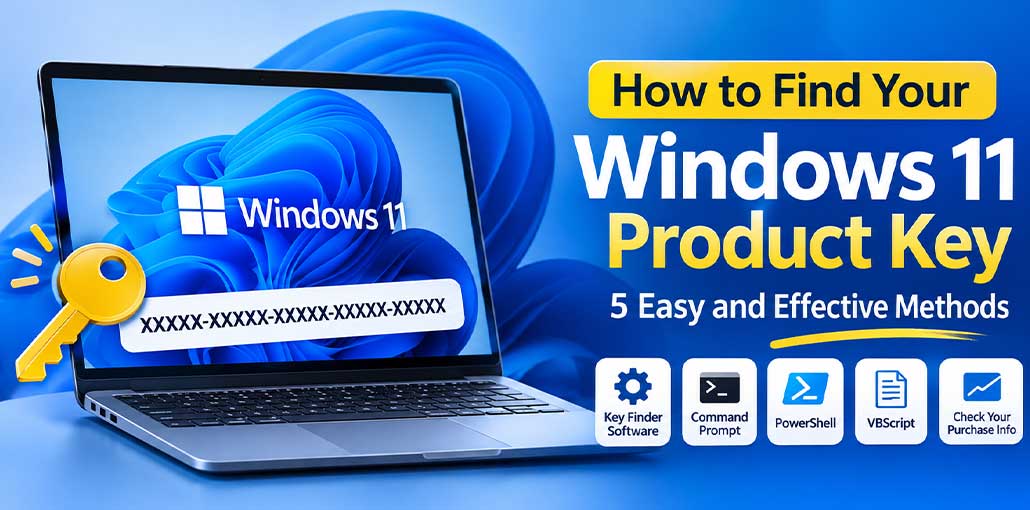
Have you updated your older version of Windows to Windows 11? Or will you be reinstalling the OS on your new computer? This is where the problem lies — how to locate your Windows product key. Continue reading, as we guide you through a few Windows 11 product key finders.
Method 1: Use Third-Party Software to Find Your Windows 11 Product Key
Most guides try to teach you about manual techniques. These solutions are actually effective but require more than 3 steps and are time-consuming. Product Key Finder is a user-endorsed product key tool with only 2 easy steps that you can use right now to get a Windows 11 Product key without wasting time.
Follow these steps:
- Install Product Key Finder (EaseUS Key Finder) on your Windows 11 computer.
- Launch the application.
- Click on the Windows tab in the Registry Key section.
- Wait for the software to scan your system.
- A Windows product key will pop up on the screen.
You can copy, save as a PDF, or print the displayed key.
It can be very helpful for people who are more likely to use a graphical interface rather than manually type commands.
Also read: How to Fix Activate Windows Watermark in Windows 10
Method 2: Find Your Windows 11 Product Key Using Command Prompt
Command Prompt is a built-in Windows utility that allows users to perform various system-related tasks. Additionally, it can be used to determine if a Windows product key exists on your computer.
Here is how:
- Click Windows + S to start Windows Search.
- Enter CMD into Search.
- Right-click on Command Prompt and click Run as administrator.
- Type the following command:
wmic path SoftwareLicensingService get OA3xOriginalProductKey
- Press Enter to run the command.
If the computer’s firmware contains an OEM product key, it will be displayed in the Command Prompt window.
Copy the displayed key and store it in a safe place
Method 3: Retrieve Your Windows 11 Product Key Using VBScript
You can also get the Windows licensing information from the system registry by using VBScript. This approach is helpful when users want to generate a backup of their installed product key.
Follow these steps:
- Start Windows Search and search for Notepad.
- Right-click on Notepad and choose Run as administrator.
- Create a new document.
- Copy a valid and trusted VBScript that uses the Windows DigitalProductId and converts it to a readable product key
- Click on File and then Save As.
- Change the file type to All Files.
- Save the file with the name WindowsKey.vbs.
- Find the script you have saved and double-click it to run.
If the script works on your Windows system, it will show a dialog with the product information. To save information for later use, you can save it in a text file.
When running code from , always check the script before doing so and never run code from untrusted sources.
Method 4: Find Your Windows 11 Product Key in PowerShell.
PowerShell is another built-in Windows utility that can help retrieve an embedded OEM product key.
To try this method:
- Press Windows + S.
- Search for PowerShell.
- Right-click on Windows PowerShell and select Run as administrator.
- Click OK to verify the User Account Control prompt.
- Type in the following command:
(Get-CimInstance -ClassName SoftwareLicensingService).OA3xOriginalProductKey
- Press Enter.
PowerShell will try to read the product key from the computer’s BIOS. If an embedded key is present in the database, it will be shown in the output.
This approach is helpful because it does not require using older WMIC commands but uses the modern CIM interface.
Also read: How to Find Your BitLocker Recovery Key: 6 Best Methods
Method 5: Check Your Computer, Packaging, or Purchase Email
If the above methods don’t show your product key, you can check the original purchase information.
For preinstalled Windows computers: Check a Windows license sticker or check the computer packaging or documentation for product information. Some older units may also have a Certificate of Authenticity sticker.
For digitally purchased Windows licenses: Check your e-mail account for the Windows confirmation email from Microsoft or the retailer that purchased Windows. You can also view the order history and order details.
Note that not all Windows purchases have an obvious 25-character key. A few licenses are digital and tied to your Microsoft account or device hardware.
Final Thoughts
This guide covers several reliable ways to find your Windows 11 product key, including dedicated key finder software and built-in Windows tools. Choose the method that best suits your needs and securely save your product key for future use.
FAQs: Windows 11 Product Key
Is a Windows 11 digital license the same as a product key?
No. A product key is a 25-character code, while a digital license is an activation method linked to your device's hardware or Microsoft account. A digital license allows Windows to activate without manually entering a product key.
How can I recover a lost Windows 11 product key?
You can check your purchase confirmation email, Microsoft account order history, original packaging, or computer firmware. You can also use a trusted product key finder tool to retrieve stored licensing information.
Is it safe to use third-party Windows 11 product key finder software?
Generally, yes, if you download the software from its official website and use a reputable provider. Avoid unknown websites and suspicious downloads. Always review the permissions requested by the software and scan downloaded files before installation.
Can I transfer my Windows 11 product key to another computer?
It depends on your license type. Retail Windows licenses can generally be transferred to another device after removing the license from the previous one. OEM licenses are usually tied to the original computer and cannot be transferred independently.





Leave a comment