

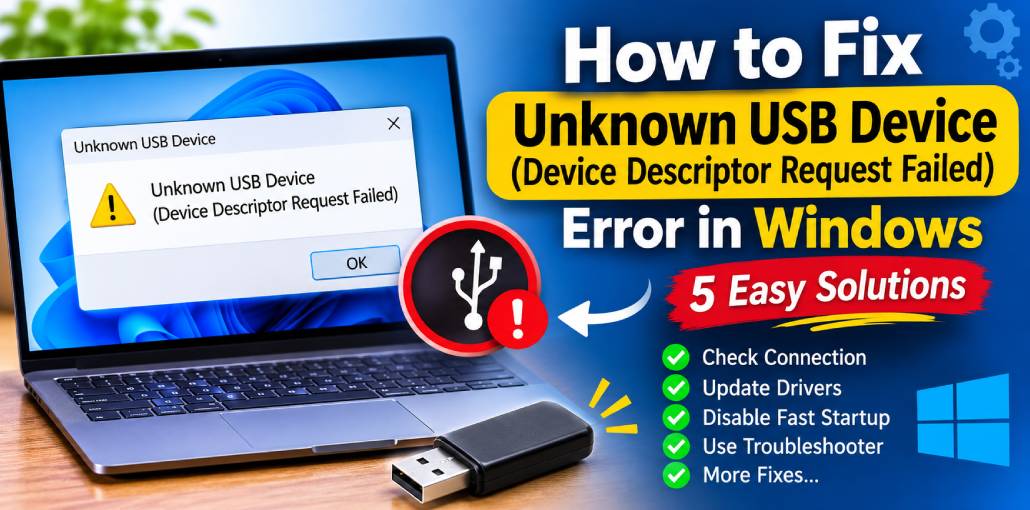
Connecting a USB device to your Windows computer should be simple. However, sometimes it can cause problems. If you connect a USB drive, keyboard, mouse, or any other external device and Windows does not recognise it, and you get the Unknown USB Device (Device Descriptor Request Failed) error:
This does not mean the USB port is damaged or your device is no longer working. It just means that Windows cannot retrieve the information needed to identify the USB device.
There can be several reasons behind the Unknown USB Device (Device Descriptor Request Failed) error, ranging from faulty USB connections and damaged cables to outdated drivers and system-related problems. Fortunately, there are a few effective ways to troubleshoot and resolve it.
In this guide, we’ll explore the common causes of the Unknown USB Device error and explain five practical solutions to help you get your USB device working again.
What Causes the Unknown USB Device (Device Descriptor Request Failed) Error?
Before jumping into the solutions, it’s important to understand why Windows displays the Unknown USB Device (Device Descriptor Request Failed) error.
- Faulty or damaged USB ports.
- Damaged USB cables or devices.
- Outdated or corrupted USB drivers.
- Windows system errors or corrupted files.
- USB power management issues.
Now that you understand the possible causes, let’s move on to the solutions.
5 Ways to Fix Unknown USB Device (Device Descriptor Request Failed) Error
Try the following five fixes to troubleshoot the Unknown USB Device (Device Descriptor Request Failed) error on your Windows PC.
1. Run the Hardware and Devices Troubleshooter
Windows includes built-in troubleshooting tools that can identify and resolve various hardware-related problems. The Hardware and Devices troubleshooter is one such utility that can help detect issues involving USB ports and connected devices.
You can run this troubleshooter to identify potential hardware problems and apply the recommended fixes.
Follow these steps:
- Press Windows + R together to open the Run dialog box.
- Type the following command:
- msdt.exe -id DeviceDiagnostic
- Press Enter to launch the Hardware and Devices troubleshooter, if available on your Windows installation.
- Click Next to begin the troubleshooting process.
- Allow Windows to scan your computer for hardware-related problems, including issues with USB ports and connected devices.
- Follow the on-screen instructions and apply any suggested fixes.
- Once the troubleshooting process is complete, reconnect your USB device and check whether Windows recognizes it.
Note: The traditional MSDT troubleshooter may not be available on newer Windows versions.
Also read: 7 Solutions to Fix I/O Device Error on External Hard Drive
2. Check Your Connected Device for Faults
As discussed earlier, hardware problems are common reasons behind the Unknown USB Device (Device Descriptor Request Failed) error.
Therefore, before changing Windows settings or reinstalling drivers, make sure your USB device and its connection are working properly.
Here’s what you should do:
- Check the USB connection: Make sure your device is properly connected to the USB port. A loose connection can prevent Windows from detecting it correctly.
- Try another USB port: Disconnect the device and connect it to a different USB port. If you’re using a desktop computer, try connecting it to one of the rear USB ports instead of the front ports.
- Test the device on another computer: If the error continues, connect your USB device to another computer. This will help determine whether the problem is with the USB device itself or your Windows PC.
These simple checks can help narrow down the source of the Unknown USB Device (Device Descriptor Request Failed) error.
If the USB device shows the same error on another computer, it may have a hardware fault. In that case, consider contacting the device manufacturer or service provider.
However, if the device works properly on another computer, the issue is more likely related to your Windows system. Proceed to the next fix.
3. Turn Off Fast Startup on Your PC
If the Unknown USB Device (Device Descriptor Request Failed) error appears when you start or restart your computer, Windows Fast Startup could be contributing to the problem.
Fast Startup is designed to reduce boot time by saving certain system information during shutdown. However, in some situations, it may interfere with connected USB devices.
Disabling this feature can help resolve USB recognition problems.
Follow these steps:
- Press Windows + R to open the Run dialog box.
- Type control and press Enter to open Control Panel.
- Change the View by option to Large icons.
- Find and open Power Options.
- In the left panel, click Choose what the power buttons do.
- Select Change settings that are currently unavailable.
- Windows may ask for administrator permission. Provide it if required.
- Find the Turn on fast startup option and uncheck it.
- Click Save changes.
- Restart your computer and check whether the USB device is recognized.
If Fast Startup was causing the problem, disabling it may resolve the error.
4. Uninstall the USB Port and Check for Hardware Changes
Sometimes, Windows fails to detect or initialize a USB port correctly. As a result, the connected device may appear as an Unknown USB Device in Device Manager.
In such situations, uninstalling the problematic device entry and scanning for hardware changes can help Windows detect it again.
Here’s how to do it:
- Press Windows + R to open the Run dialog box.
- Type devmgmt.msc and press Enter to launch Device Manager.
- Find and expand Universal Serial Bus controllers.
- Look for the entry displaying Unknown USB Device.
- Right-click the problematic entry.
- Select Uninstall device and confirm the action if prompted.
- Once the device entry is removed, go to the Action menu at the top of Device Manager.
- Click Scan for hardware changes.
- Windows will scan for connected hardware and attempt to detect and reinstall the removed device entry.
Once the process is complete, reconnect your USB device and check whether the error has disappeared.
Also read: Seeing “No Bootable Devices Found” on Windows? Here’s the Fix
5. Update USB Drivers for the Connected Port
If the previous solutions haven’t resolved the Unknown USB Device (Device Descriptor Request Failed) error, outdated or corrupted USB drivers could be responsible.
Drivers allow Windows to communicate with connected hardware. When a USB driver becomes outdated, incompatible, or corrupted, Windows may fail to recognize the connected device correctly.
You can update the USB driver directly through Device Manager.
Follow these steps:
- Open Device Manager by pressing Windows + R, typing devmgmt.msc, and pressing Enter.
- Expand Universal Serial Bus controllers.
- Locate the problematic USB device or relevant USB controller.
- Right-click it and select Update driver.
- Choose Search automatically for drivers.
- Follow the on-screen instructions to complete the process.
- Restart your computer and check whether the USB device is working.
Note: Manually updating drivers can be time-consuming, especially when multiple drivers need attention. Windows also does not provide a built-in automatic schedule for regularly checking every installed driver for updates. So, you can use driver updater software.
Final Word
The Unknown USB Device (Device Descriptor Request Failed) error can prevent you from using important USB devices, but it doesn’t always indicate a serious hardware failure.
The issue you are facing could be related to a few different things, such as faulty USB connections, damaged devices, Windows settings, Fast Startup, or outdated USB drivers.
Firstly, run the Hardware and Devices troubleshooter to see if that can help. If not, disable Fast Startup, remove the problem USB device, and update your USB drivers.
These five troubleshooting methods can help you identify the underlying cause and restore normal USB connectivity.
Try these solutions and let us know in the comments which method worked for you.
FAQs: Device Descriptor Request Failed
What does Unknown USB Device (Device Descriptor Request Failed) mean?
It means Windows cannot retrieve the necessary information to identify and recognize the connected USB device.
How do I know if my USB device is damaged?
Connect it to another USB port or computer. If the same error appears, the device or its cable may be faulty.
Why does my USB device keep disconnecting and reconnecting?
This may happen because of a loose connection, faulty cable, unstable power supply, outdated drivers, or USB power management settings.
Is Device Descriptor Request Failed a serious error?
Not necessarily. It is often caused by driver or connection issues, although a damaged USB device or port can also trigger it.



Leave a comment