

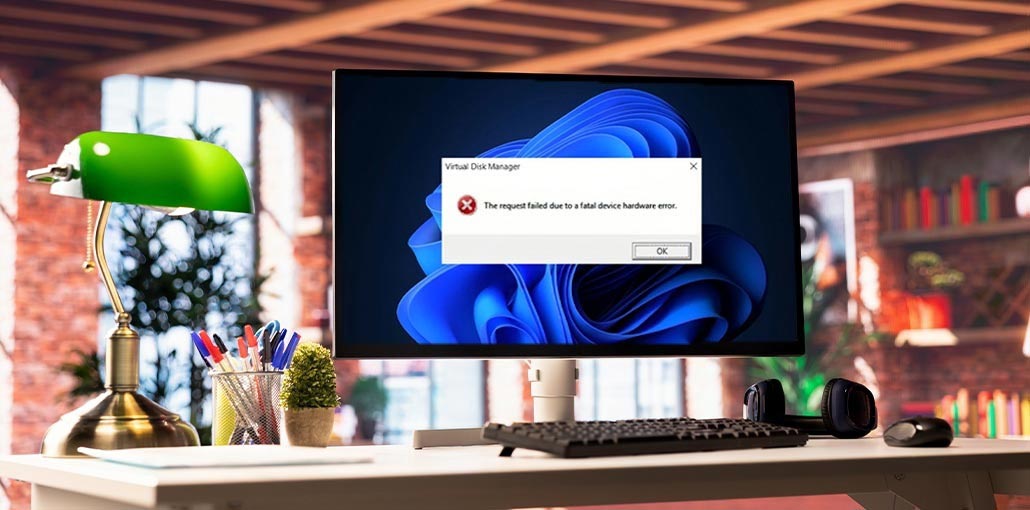
An error message such as ” The request failed due to a fatal device hardware error” typically indicates that a hardware issue is preventing the device from communicating with the OS. A bad connection, damaged sectors on the drive, or an issue with the drive itself might be the reason behind this. However, it’s not as dire as it appears. Learn more about ways to resolve this issue and recover your files.
What Does This Error Mean?
What exactly does the “fatal device hardware error’ mean? This typically occurs when the OS can no longer connect to the hard drive or perform read and write operations on it.
What caused this error? How can you determine if you’re having this problem within your system? Take a look at the following table:
Common Causes of The Request Failed Due to a Fatal Device Hardware Error
- Loose or faulty USB cable or connection
- Damaged or failing hard drive
- Too many bad sectors on the disk
- Corrupted file system or system errors
- The hard drive is dying
Symptoms:
- “X is not accessible: The request failed due to a fatal device hardware error when initializing the disk.
- “Error 0x800701E3: The request failed due to a fatal device hardware error” on the external hard drive.
- “Virtual Disk Manager: The request failed due to a fatal device hardware error” on the SSD.
Also read: How to Fix Driver Power State Failure in Windows 11/10
How to Fix The Request Failed Due to Fatal Device Hardware Error
How do I solve “the request failed due to a fatal device hardware error” on my external hard drive? Here we’ve listed 5 efficient ways to assist:
1. Check Hard Drive Connection
- Examine the connections to the cable are loose. If they are, push them back firmly to the port.
- Try disconnecting and reconnecting the external drive, or switching to a different USB port.
- Change your USB cable to a new one.
- Attach the drive to a second computer, if you can, and determine whether the problem is related to the PC or the drive.
- If they don’t solve the issue, look into the following options.
2. Verify SMART Status
SMART is shorthand for Self-Monitoring Analysis and Reporting Technology. Checking a drive’s SMART attributes will help you determine whether the drive is damaged and determine the severity of the issue.
This is the method to determine the hard drive’s SMART status :
- Press Windows + keys to access the Quick Links menu, then choose”Command Prompt (Admin).
- Type wmic diskdrive get status and then press Enter.
- The command returns four different statuses: “OK”, “Bad”, “Unknown”, and “Caution”.
Results Explained:
- OK: Drive is healthy
- Bad /Unknown: Serious hardware issue
- Caution: Drive is at risk of failure
3. Check and Repair Bad Sectors
Bad sectors aren’t as bad as you imagine if they are spread over your hard drive. We frequently use the Windows DiskPart utility to check and repair file system corruption and bad sectors of the hard disk. It’s a great tool, worth testing for all issues with hard disk inaccessibility.
This is how to run the Diskpart command to correct errors:
- Press Windows + S keys, type cmd in the Search box.
- Right-click Command Prompt, select “Run as Administrator”.
- Enter chkdsk F: or chkdsk F: /r/x, and press Enter.
(F is the drive letter on the troublesome HDD; therefore, change your letter to match your drive before entering your command.)
The syntax for a check disk is:
- /f fixes system errors.
- /r finds poor sectors and retrieves readable information.
- /xforces the volume to demount first, if necessary.
4. Update Disk Driver
If the device driver is outdated, it could cause a fatal device hardware error. Thus, updating the driver could solve the problem.
- Press Windows + S keys, and type Device Manager in the search box.
- Expand “Disk drives.” Find and verify the condition of the hard disk with a fatal device error.
Examine if the problem is covered by the yellow exclamation mark illustrated below. If so, you should update the disk driver.
- Right-click the problematic hard drive, and then select “Update driver”.
- Click “Automatically search for driver software online” and then wait for the process to finish.
Then, restart your computer to see whether you can access the drive.
Also read: 10 Best Hard Drive Repair Software to Fix Errors and Recover Data
5. Send Problematic Device for Repair
If you’ve tried the method discussed above but still find the request failed due to a fatal device hardware error
with the drive, the final option is to send it for repair. Most likely, you’ll try these options.
- Contact the hardware manufacturer to get help.
- Locate a local repair center and send your device for repair.
How to Prevent This Error in the Future
A few simple habits can help you avoid ‘the request failed due to a fatal device hardware error’ in the future:
- Always eject drives safely
- Avoid sudden shutdowns
- Keep backups of important data
- Don’t overload old hard drives
- Use surge protectors for desktop systems
- Regularly check disk health
Final Thoughts
Be aware that if you encounter problems with the storage device, you must stop using the device first. In this article, we’ve discussed why the request failed due to a fatal device hardware error, the most common signs, and six methods proven to restore your device to its normal state.
FAQs – The Request Failed Due to a Fatal Device Hardware Error
Can I fix a Fatal Device Hardware Error without losing data?
Yes, in many cases you can fix the request failed due to a fatal device hardware error
without losing data by checking connections, repairing bad sectors, updating drivers, and backing up files immediately before the drive condition worsens.
Can SSDs also show Fatal Device Hardware Errors?
Yes. SSDs can also experience this issue due to firmware corruption, failing memory cells, or hardware damage.
Does this error mean my hard drive is permanently damaged?
Not always. Sometimes the issue is caused by cable problems, corrupted drivers, or temporary disk errors. But if the drive continues failing, it may need replacement.
What should I do first after seeing a Fatal Device Hardware Error?
Immediately stop using the drive, back up important data if accessible, and begin troubleshooting to prevent further damage.








Leave a comment