

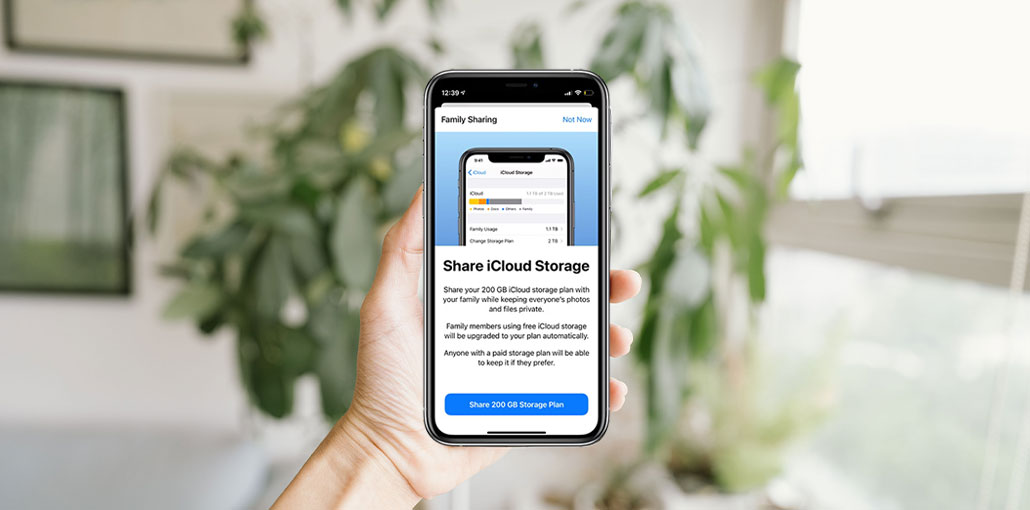
When you create a new Apple ID, you automatically receive 5GB of free iCloud storage. However, this limited space can fill up quickly. Likely, Apple allows users to share iCloud storage with family members, including parents and children. This makes it easier for the entire family to store and back up their data without buying additional storage plans.
Keep reading this guide to see how to share iCloud storage with family and everyone can sync and back up their files easily with the same storage plan.
How to Share iCloud Storage with family on iPhone/iPad
With Apple’s Family Sharing feature, you can share iCloud storage with family members or friends. You may want to know, though, a few preparations and important tips before you start.
You can share your iCloud storage plan only if you have 200GB of space or more. If you are already on the 50GB tier, then you need to upgrade your subscription before sharing it.
If you’re concerned about your privacy when you share iCloud storage with Family, there’s no need to worry. Each family member has their own account, and all private data is kept private.
Also read: How to Free Up iCloud Storage on Mac and iPhone: 5 Best Methods
How to Set Up Family Sharing
To share iCloud storage with family members, you must first enable Family Sharing. If it’s already enabled, you can proceed to the next step. Otherwise, you can follow the steps below. Add the family members you want to share your iCloud storage with to your Family Sharing group.
On your iOS device, open the Settings app > Tap your profile > Select Family Sharing > Tap Set Up Your Family and follow the on-screen instructions to complete the setup.
To invite a family member, go back to Family Sharing > Tap Add Member > Enter your family member’s email address and follow the on-screen instructions to send the invitation.
How to Add a Family Member to a Shared iCloud Storage Plan
It’s easy and simple to add a family member to your shared iCloud storage account. If your family members are sharing Apple’s free 5GB iCloud plan, they will automatically be added to your family plan. You can manually add family members by following the steps below.
Step 1. On the iCloud family organizer’s device, open the Settings app > Tap [your name] > Select Family Sharing.
Step 2. Tap on iCloud Storage > Select Let Your Family Know
Step 3. Tap Send to invite other family members to share iCloud storage. After sending the invitation, press Close to complete.
How to Accept an Invitation to Join a Shared iCloud Storage Plan
You can accept an invitation to share iCloud storage plan with family member by following the steps below.
On your family member’s iOS devices, open the Messages app and tap the iCloud invitation in the message > Tap Accept to join the shared iCloud storage plan via Family Sharing.
Also read: Top 6 iCloud Drive Alternatives
Common Problems and Solutions
While Family Sharing is convenient for sharing iCloud storage and other Apple services, you may experience some problems when using Family Sharing.
Fortunately, most of these issues can be easily resolved. Let’s take a look at some common problems and potential solutions:
- Family Member can’t see Shared Storage: This can happen if a family member has not accepted the invitation or the shared storage plan is not activated under iCloud > Family Usage. Signing out of/back into iCloud can solve the issue.
- Storage Not Updating: Sometimes, it may take a few minutes for iCloud storage to reflect the changes. If you don’t see the storage information changing, restart your device or update it in Settings under iCloud > Manage Storage.
- Invitation Not Received: Be sure to send the invite link to the correct Apple ID and that the family member has checked their Spam folder. If you don’t receive the invitation, resend it again using the Family Sharing settings.
- Can’t Update iCloud Storage Plan: Make sure that you’re signed in to the family organizer’s Apple ID, confirm a valid payment method connected to the account, and check for any overlap with other Family Sharing groups.
Conclusion
We hope this guide has helped you to understand how to share iCloud storage with your family. Use the easy steps above to share your storage plan and let family members back up their data without purchasing extra iCloud storage plans.
FAQs: Share iCloud storage with family
Can family members see each other's iCloud photos and files?
No. Each family member uses their own Apple Account, so personal photos, documents, backups, and other data remain private.
Do all family members need to purchase an iCloud storage plan?
No. The family organizer can share an eligible iCloud+ storage plan, allowing family members to use the shared storage without purchasing separate plans.
What iCloud storage plan is required to share storage with family?
You need an eligible iCloud+ plan, such as the 200GB, 2TB, 6TB, or 12TB plan.
How to share iCloud storage with family members on iPhone?
To share iCloud storage with family members, open Settings, tap your name, select Family Sharing, and choose Subscriptions > iCloud+. Follow the on-screen instructions to share your storage plan.






Leave a comment