

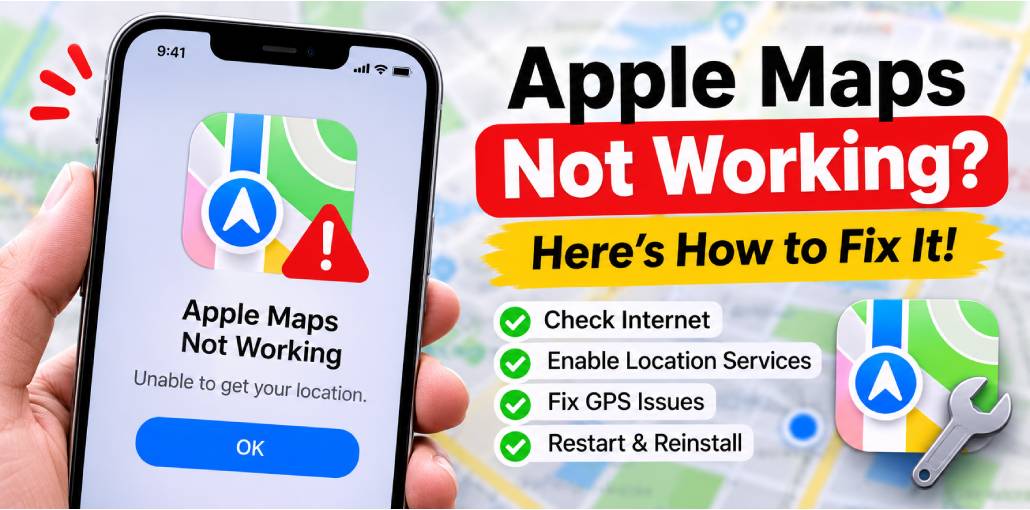
While Apple Maps is generally very useful, providing real-time traffic info and helpful turn-by-turn navigation using the Siri voice, if you have issues with the app, it can be frustrating. If locations aren’t appearing, you’re getting incorrect directions, or the app won’t load, there are some common reasons why Apple Maps not working. The good news is they are easy to fix.
Let’s go through what really happens when Apple Maps not working.
Why Is Apple Maps Not Working?
Apple Maps not working may happen on your iPhone for several reasons, including:
- Weak or unstable internet connection.
- Disabled Location Services.
- Weak or inaccurate GPS signals.
- Outdated iOS software.
- Temporary app glitches.
- Incorrect date and time settings.
- Misconfigured navigation or sound settings.
- Apple Maps server issues.
- Corrupted app data or software bugs.
Also read: Share Location Unavailable on iPhone? 12 Ways to Fix It
How to Fix Apple Maps Not Working on iPhone
1. Check Your Internet
Weak Wi-Fi or poor mobile data is a common reason Apple Maps not working. Maps and route information need an active connection.
Move closer to your WIFI or disconnect and reconnect to your wireless network. On cellular data, turn off 5G and switch to LTE or move to areas with a stronger 5G signal. If you have a large download going on in the background, stop it, as it may be consuming your bandwidth.
The thing is, even a strong connection can drop for a while. A Quick disconnect and reconnect helps.
2. Enable Location Access on Your iPhone
Apple Maps not showing current location often happens because you have turned Location Services off or limited.
Open Settings, then tap Privacy & Security, then Location Services. Make sure it’s turned on.
Then go to Maps and pick While Using the App or Widgets.
Also make sure that Precise Location is turned on so that you can get exact positioning using your iPhone.
If that doesn’t work, close Maps and reopen it — sometimes it’s a case of putting Maps where they are needed.
3. Fix GPS and Location Accuracy Issues
Apple Maps GPS not working can be caused by inaccurate GPS signals, even when it is turned on; this is especially true if you are indoors, underground, or in tall-building settings. The GPS, Bluetooth, Wi-Fi, and nearby cell towers all help Apple Maps locate you.
The best move? Go outside and place your phone in the open so that it can see the sky. If driving: wait for a few seconds after you start your route for the GPS to catch up.
4. Set the Correct Date and Time
This one may come as a shock, but if the date or time is even slightly wrong on your iPhone, Maps can get confused. It has an impact on how your phone communicates with Apple’s servers and GPS satellites.
Go to Settings General Date & Time and enable Set Automatically. A simple change that can lead to a lot of frustration.
5. Restart Apple Maps and Your iPhone
Occasionally, an application glitches. To open the App Switcher, swipe up from the bottom of the screen, then drag Apple Maps up to close it completely. Open it again and try again.
If this doesn’t resolve the issue, restart your iPhone. Slide the power off and on while in Settings, General, Shut Down. The quick reboot will remove minor system glitches that may be causing Apple Maps not working.
6. Reinstall the App
If Apple Maps is crashing or the maps are not displaying updated information, you should try deleting and reinstalling the app to fix the issue.
Tap and hold the Maps icon on your Home Screen and then select Delete App.
Navigate to the App Store, look for “Apple Maps,” and reinstall it.
This gives you a new version; no old bugs or broken settings.
7. Fix Apple Maps Voice and Navigation Settings
If the issue is with directions but not sound, check the volume and ensure that Maps is set to provide directions by voice.
Go to Settings > Maps > Spoken Directions.
You can choose a speaker (such as an iPhone speaker, car speaker, or Bluetooth headset) and whether to pause your podcast or music while the voice is playing.
You can change the rate of voice guidance during navigation by tapping on the speaker icon on the map.
Also read: Can You Stop Sharing Location Without Notifying iMessage? Here’s 8 Methods
8. Report Incorrect Maps or Location Information
If you are experiencing issues with incorrect locations, outdated routes, or missing locations, Apple allows you to report the issue directly.
Tap the Report an Issue button on Open Maps, then scroll to the bottom to report an issue.
You can then add a missing location, fix a business listing or mark an incorrect street/direction. These are typically checked and updated by Apple very rapidly.
Business owners can also register their premises using Apple Business Connect, and change their photos, addresses and hours within Maps, Siri and other Apple apps.
9. Try a Factory Reset as a Last Resort
When all else fails and Apple Maps not working, there is the best option: a Factory Reset. It cleans your phone, eliminating any deep-rooted software issues. Be sure to back up your data first.
However, most would not go that far. A location or connection tweak will, in most cases, resolve Apple Maps not working in minutes.
Final Thoughts
Typically, Apple Maps will work until it doesn’t. Fixes are usually simple steps, including a weak signal, GPS drift, or a quick setting change.
Before you throw up your hands and switch to Google Maps, go over some fundamentals: internet, location, time, restart. In nine out of ten cases, that’s enough to get your iPhone back on the right track. If Apple Maps not working continues, check your iPhone settings and connection again
FAQs: Apple Maps Not Working
Why does Apple Maps show the wrong location?
Incorrect location results may occur because Precise Location is disabled, GPS signals are weak, or Location Services are restricted. Enable Precise Location in your iPhone settings.
Why is Apple Maps not showing my current location?
This issue can happen when Location Services or Precise Location is disabled. Go to Settings > Privacy & Security > Location Services and check the Maps permissions.
How do I fix Apple Maps not working?
Check your internet connection, enable Location Services, restart Apple Maps, update iOS, and restart your iPhone to resolve common issues.
What should I do if Apple Maps still isn't working after trying all fixes?
Update iOS, reinstall Apple Maps, and check Apple's System Status page. If the problem persists, contact Apple Support for further assistance.








Leave a comment