

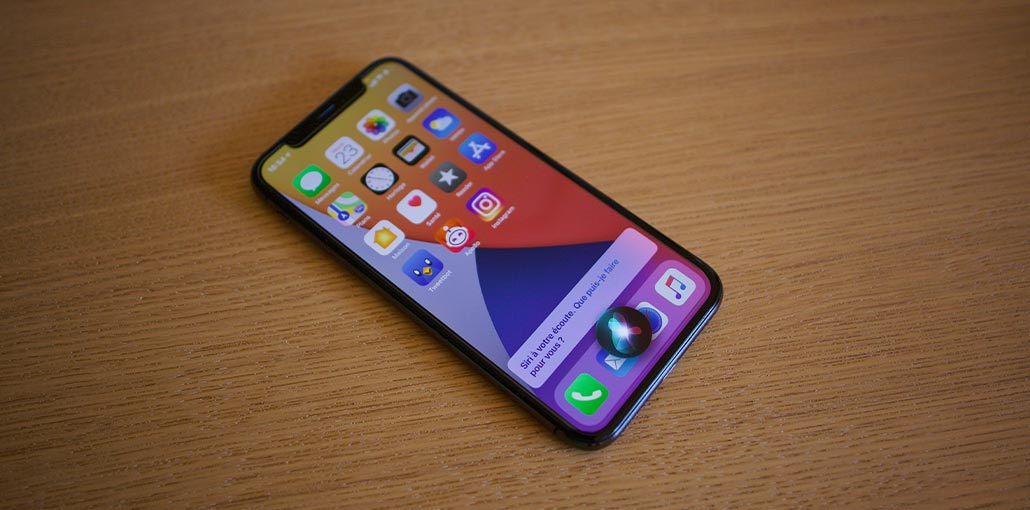
“Hey Siri” has long been a built-in virtual assistant available to iOS users. The feature that can be controlled by voice allows them to navigate between apps or web search. But sometimes the feature can suddenly stop working or does not respond to commands you speak. There’s no reason to be concerned, as the issue has easy solutions to fix Siri not responding.
If Siri does not respond on your iPhone or iPad, you need to examine a few factors that could be causing the problem. See here five efficient ways to fix Siri not responding on your device, and the cause of this issue.
Why is Siri Not Responding to Voice Commands
There are several reasons why Siri not responding on your iPhone or iPad. Before trying any fixes, it’s important to identify the underlying cause of the issue.
- Siri is turned off in Settings.
- Poor or unstable internet connection.
- Microphone not functioning properly.
- Low Power Mode restrictions.
- Outdated iOS software.
- Temporary system bugs or glitches.
Also read: Alexa Not Responding? 6 Easy Fixes for Your Amazon Echo
Fix Siri Not Responding to Voice in 6 Ways
1. Check If “Listen for Hey Siri” is Enabled
Siri not responding to hey Siri ” when you speak into your iPhone, likely because it’s simply off. It is important to verify if it’s enabled before speaking Siri instructions. Here’s how to determine whether you can hear “Hey Siri” on or off.
- Open Settings in your iOS device, and then tap the “Siri & Search’ option.
- Turn on the “Listen for Siri” option; if disabled.
2. Restart Your iPhone If Siri won’t Respond
Sometimes, Siri doesn’t work due to a temporary error on the iOS device. You must restart your iPhone to determine the reason. It is important to note that various iPhone models have different methods to force a restart.
Here’s how to accomplish it on various iPhones.
For iPhone 8 and higher models, you must quickly press the “Volume Up” and “Volume Down” buttons together. Then, press and hold the power button on the side until the iPhone’s display turns off. After that, the Apple logo will be displayed on your screen.
For iPhone 7/7 Plus: You must press and hold your finger on the “Sleep/Wake” and Volume Down” button until the Apple logo appears on the screen.
For iPhone 6s, press and hold the”Home” button and the “Power” button at the same time. Release them after you see the Apple logo show up on the screen.
3. Reset Your Siri to Recognize Your Voice
There could be a problem that Siri is not recognizing your voice. To resolve, you must reset Siri and try it again in a quieter location. These steps are needed to reset Siri.
- Go to the Settings. Click on the “Siri & Search” tab.
- Turn off Listen for “Hey Siri”, wait a few seconds, and turn it back on.
You can restore Siri by resetting your iPhone settings. Here’s how to reset all your iPhone settings.
- Open Settings on your iPhone and then tap General.
- Tap Transfer or Reset on your iPhone. Reset the iPhone, then tap Reset all settings.
4. Check If the Microphone Works Properly
Siri doesn’t recognize your voice if your microphone isn’t working. Make sure your microphone is functioning properly, as it could be the cause of the problem. Check that your microphone isn’t blocked by your iPhone’s cover. Use a soft cloth to clear the microphone grills so you can speak clearly. Make sure you record your voice if there is any background noise when talking.
Also read: iPhone Cellular Data Not Working: 20 Easy Ways to Fix Internet Issue
5. Enable “Always Listen for Hey Siri”
If your iPhone is facing downwards or is covered, Siri not responding to your voice. This feature is only available on days when the iPhone is facing upwards. But you can use this feature when your iPhone is facing downwards by enabling the Always Listen to “Hey Siri” option. Here’s how you can accomplish it.
- Open Settings, then go to Accessibility.
- Open Siri and turn it on to enable the Always Listen for “Hey Siri” option.
Conclusion
Siri always assists you with making reminders, alarms, and web searches, and much more, all without moving your fingers. The techniques in this guide will solve Siri not responding issues.
FAQs: Siri Not Responding
Why did Siri stop working after an iOS update?
Siri may stop working after an iOS update due to temporary software bugs, incorrect settings, or compatibility issues. Restarting your device and installing the latest updates often resolves the problem.
How do I reset Siri voice recognition?
Go to Settings > Siri & Search, turn off Listen for Hey Siri, then turn it back on and follow the on-screen instructions to retrain Siri to recognize your voice.
Why is Siri not responding when my iPhone is face down?
Some iPhone models limit Siri activation when the device is face down or covered. Enabling Always Listen for Hey Siri in Accessibility settings can help.
Will resetting my iPhone fix Siri not responding?
Resetting all settings can help if Siri issues are caused by incorrect configurations. However, you should try basic troubleshooting steps first before performing a reset.









Leave a comment