

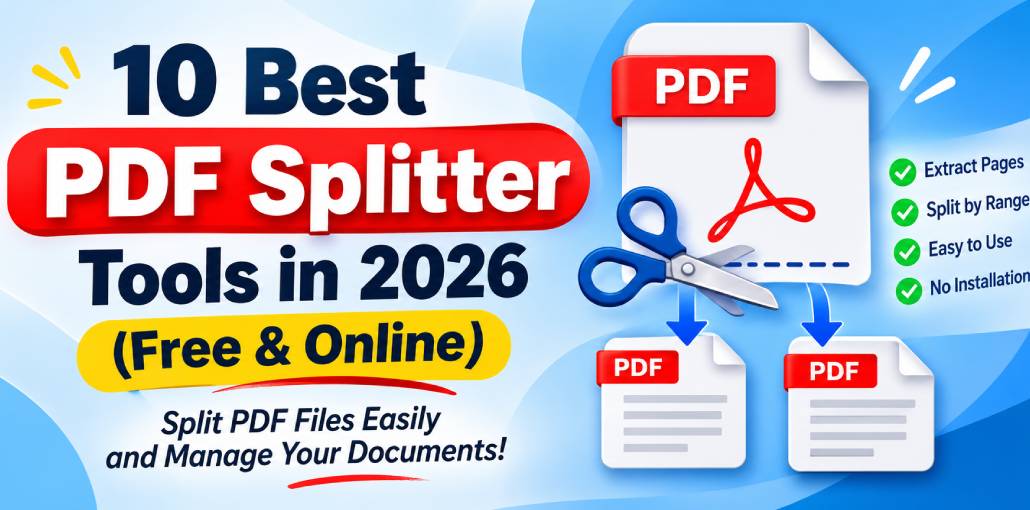
Sometimes, you only need certain pages or parts of your PDF. A PDF splitter tool that lets you delete unwanted sections from your PDF.
A PDF splitter splits your document up into smaller documents. You can select specific pages and create a new PDF with those pages. This is useful, as you can split large PDFs into smaller ones and send them by email.
Most PDF splitters will split your document into several documents. Each original page can be saved as a separate PDF, making it easy to pull out the pages you want and delete what you don’t.
In this article, we’ve brought together some of the best free PDF splitters for different platforms. We also explain how to use them to easily split your PDFs.
10 Best PDF Splitters
Some very easy PDF splitters are available online. They do not require any downloads. This means you can use them instantly in your browser and save space on your device.
You can try splitting your PDF files using the following sites:
1. pdfFiller
With just a few clicks, you can split your PDF documents using pdfFiller. To do this simply select the page which you want to divide then click on the ‘Split’ button located in the bottom right of your screen. Each split PDF page will be automatically coloured for your convenience.
Pros:
- Easy three-step PDF splitting.
- Simple page selection and file naming.
- Color-coded page organization.
Cons:
- Limited customer support.
- Paid plans required after the free trial.
Also read: Looking for a PDF Annotator? Here Are the Top 10 Tools
2. Soda PDF
Soda PDF is one of the best and most efficient ways to split your PDFs. Using the split feature in Soda PDF Splitter, you can split your PDF into two or more parts. This tool can be used online or by downloading the app.
Pros:
- Easy and efficient to use.
- Supports multiple platforms.
- Offers online and offline access.
- Allows PDF text editing and merging.
Cons:
- Relatively expensive.
- Limited features in the Standard version.
3. Smallpdf
This user-friendly tool can help you manage your PDFs easily. The PDF Splitter can split your PDF into individual pages or specific page ranges. It also offers features such as compressing PDFs, converting, editing, and organising your PDFs.
Pros:
- Beginner-friendly interface.
- Quick document processing.
- Multiple PDF tools available.
Cons:
- Free usage has restrictions.
- Advanced features may require a subscription.
4. Adobe Acrobat
Adobe Acrobat is a professional PDF management tool for businesses and individuals. This allows you to split your large PDFs into pages by file size or by bookmarks. It also offers more advanced tools such as editing, e-signatures, converting, and PDF security.
Pros:
- Advanced document management features.
- Suitable for professional workflows.
- Multiple splitting options.
Cons:
- Some advanced features require a paid subscription.
- The extensive interface may feel complicated to beginners.
5. PDF24 Tools
PDF24 Tools has a range of free tools to help manage your PDFs. The PDF Splitter tool allows you to split pages, extract specific parts, and make smaller PDFs. You can also merge, compress, and convert your PDFs using the PDF24 Creator tool.
Pros:
- Offers a wide range of free PDF tools.
- Provides an offline desktop option.
- Simple functionality.
Cons:
- The interface is more utility-focused than some competitors.
- Desktop Creator is designed for Windows.
6. Sejda PDF
Sejda PDF is a great tool to edit your PDFs. This PDF Splitter allows you to extract pages, specific pages, and split your documents. You can also use other tools, including editing, merging, compressing, and desktop tools.
Pros:
- Flexible splitting options.
- Easy-to-understand interface.
- Offline desktop alternative available.
Cons:
- Free usage has certain restrictions.
- Some advanced features require a paid plan.
7. LightPDF
As a complete PDF solution, it offers many features for your PDF documents. Not only can you edit, compress, or convert your PDF files, but LightPDF can split a PDF and leave you impressed.
Split a PDF file into several documents with ease by simply clicking one button. It will only take 3 quick steps. Upload your PDF file, select the split range, and click ‘Split PDF’.
Pros:
- Easy Three-Step PDF Splitting
- Secure and Reliable
- Comes with a Mobile app for both Android and iOS
- Clean interface
Cons:
- Only its web-based version is free.
8. PDFLiner
This PDF splitter offers 3 easy steps to split a PDF file, making it one of our favourite tools. To split a PDF file using PDFLiner, simply click on the Split PDF option, upload the document, and click on the Split button.
Documents can be saved separately on your system in PDF, JPG, and PNG formats. PDFLiner is an online PDF editing tool that helps you edit all aspects of a PDF file. The software also allows you to password-protect a PDF file.
Pros:
- Easy-to-use PDF Splitter
- Online PDF Editor
- Encrypt PDF File
- Highlight or redact content in a PDF file.
Cons:
- You have to pay to use this software
- Only converts a PDF file into JPG or PNG format.
9. UPDF
UPDF offers excellent features to split and organise your documents. Split PDF files into multiple PDF files or a specific page number. Split into one page per PDF document or multiple pages as you require.
Extract certain pages from a PDF document. Replace those pages with different ones. Insert blank pages or pages from other PDF files. UPDF is an all-in-one PDF management tool that can edit your PDF documents however you want.
Pros:
- Offers multiple PDF management features.
- Supports Windows, Mac, iOS, and Android.
- Useful for editing and organizing documents.
- Provides page extraction and management options.
Cons:
- Some advanced features require a paid subscription.
- Beginners may need time to explore all available tools.
Also read: How to Remove Watermark from PDF: 4 Easy or Best Methods
10. FreeConvert
FreeConvert is an online document conversion tool, and it offers PDF splitting. This can be useful if you want to split your PDF into smaller documents without the need to install any extra software. You can choose how you want to split the document by adding specific page numbers, odd/even pages, or single pages.
Pros:
- Simple online workflow.
- Multiple splitting methods.
- No desktop installation required.
Cons:
- Online processing requires uploading files.
- Free file-size and usage limits may apply.
Comparison of 10 Best PDF Splitter Tools in 2026
| PDF Splitter Tool | Free Version | PDF Splitting Features | Platform | Best For |
|---|---|---|---|---|
| pdfFiller | Trial / Limited | Extract and split pages | Online | Simple PDF splitting |
| Soda PDF | Limited | Split into multiple files | Online, Desktop | PDF editing |
| Smallpdf | Yes / Limited | Extract pages and split ranges | Online, Desktop | Beginners |
| Adobe Acrobat | Limited | Split by page count, size and bookmarks | Online, Desktop | Professional PDF management |
| PDF24 Tools | Yes | Extract pages and split documents | Online, Windows | Free PDF utilities |
| Sejda PDF | Yes / Limited | Split ranges and extract pages | Online, Desktop | Flexible splitting |
| LightPDF | Yes / Limited | Split and extract pages | Online, Mobile | Online PDF management |
| PDFLiner | Limited | Split and extract pages | Online | PDF editing |
| UPDF | Yes / Limited | Split, extract and organize pages | Windows, Mac, iOS, Android | PDF page management |
| FreeConvert | Yes / Limited | Split by ranges, odd/even pages | Online | Quick PDF splitting |
Wrap Up
Splitting PDF documents is no longer difficult. If you want to send a large PDF file by mail, split it into smaller sections so that it can be sent easily. If you only want to view certain pages of the whole PDF, choose the pages you need and delete the rest.
EasePDF and Sejda are the best online tools for splitting your PDF. However, you can also use Adobe Acrobat DC and iLovePDF to split your PDF file easily. There are many other tools you can try.
FAQs About PDF Splitter
Can I split a PDF for free?
Yes. Several platforms, including iLovePDF, Smallpdf, PDF24, and PDFsam Basic, offer free PDF splitting options. However, some online services have restrictions on file size or usage.
Is it safe to use an online PDF Splitter?
Reputable services use security measures to protect uploaded documents. However, you should always review their privacy and file-retention policies. For highly confidential documents, an offline PDF splitter is generally a better choice.
Can I extract only selected pages from a PDF?
Yes. Most PDF splitter tools allow you to select specific pages or page ranges and save them as a separate PDF document.
Which PDF Splitter is best for Windows and Mac?
PDFsam Basic, Adobe Acrobat, and UPDF are useful options for desktop PDF management. Check their current platform compatibility and available splitting features before choosing one.



Leave a comment