

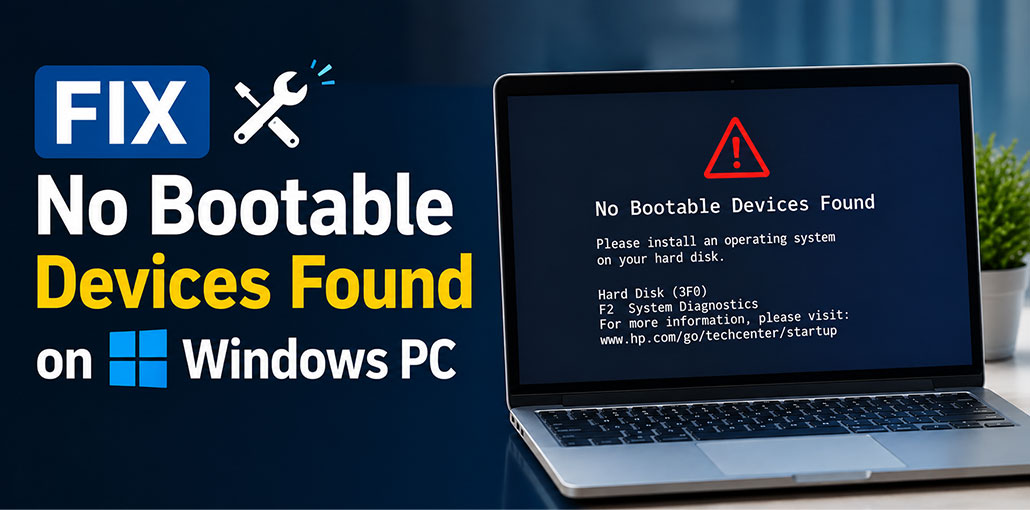
A computer that won’t boot is a common issue. A quick reboot usually fixes it, but when that doesn’t do the trick, more serious problems could exist, such as “No Bootable Devices Found”, which prevents you from accessing important work files or resources on your PC.
In this guide, we’ll explain the meaning, causes, and best ways to fix “No Bootable Devices Found”. Read all methods carefully – let’s get started!
Why Does the “No Bootable Devices Found” Error Occur?
Several issues can cause this boot error. Common causes include:
- Incorrect boot order in BIOS/UEFI
- SSD or HDD not detected
- Damaged Windows boot files
- Corrupted boot configuration data
- Loose or faulty drive connection
- Incorrect BIOS/UEFI settings
- A failed or failing hard drive or SSD
- Windows installation or system corruption
- Recent hardware or firmware changes
Before assuming that your hard drive has failed, try the troubleshooting steps below.
How to Fix “No Bootable Devices Found”
Follow these solutions in order. After completing each step, restart the computer and check whether Windows starts normally.
1. Restart Your Computer
Start with the simplest solution.
Start by restarting your PC to determine whether the “No Bootable Devices Found” error is temporary. Shut down, wait a few seconds, and turn it back on. Be sure to disconnect any external USB drives or external storage before trying this process again.
Also read: How to Fix No Bootable Image Found Error on Windows
2. Check If Your SSD or HDD Is Detected
One common cause for the “No Bootable Devices Found” error message is when your computer cannot identify an SSD or HDD, either because the drive is missing from the BIOS/UEFI or Windows cannot find where to start. Check to see whether your storage drive appears there. If not, this could be due to boot settings or Windows files.
Steps:
- Restart your computer.
- Open BIOS/UEFI.
- Look for Storage, Drives, System Information, or a similar section.
- Find your SSD or HDD in the list.
- Check whether the drive is detected.
- If missing, check the connection or run hardware tests.
3. Check and Fix the Boot Order
Sometimes your computer sees the Windows drive but tries to start from a different source. This can lead to the No Bootable Devices Found message. The boot order tells your computer which devices to check first. Setting an internal drive or Windows Boot Manager as the primary choice may often provide immediate relief from such problems.
Steps:
- Restart the computer.
- Enter BIOS/UEFI.
- Open Boot Settings or Boot Order.
- Find Windows Boot Manager or the drive containing Windows.
- Move the correct boot option to the top.
- Save the changes.
- Restart your computer.
4. Check UEFI and Legacy Boot Mode
Incorrect UEFI or Legacy settings may prevent Windows from starting. This often happens after changing BIOS settings, installing new hardware, or updating your system. If your computer used to work normally but now fails to boot up after making recent changes to these settings. Using the correct boot mode can help resolve the No Bootable Devices Found issue without changing the Windows installation.
Steps:
- Enter BIOS/UEFI.
- Open Boot Settings.
- Find the UEFI, Legacy, or CSM setting.
- Check the current configuration.
- If the setting was recently changed, restore the previous configuration.
- Save the changes.
- Restart the PC.
5. Run Windows Startup Repair
If your SSD or HDD is detected but Windows will not start, damaged startup files may be the cause. Windows includes Startup Repair, which checks for common problems that stop the operating system from loading. It can be useful when No Bootable Devices Found appears after a failed update, sudden shutdown, or other Windows startup problem.
Steps:
- Open Windows Recovery Environment.
- If WinRE does not appear automatically, start the computer using a Windows installation USB.
- On the Windows Setup screen, select your language, time, and keyboard preferences.
- Click Next.
- Select Repair your computer instead of installing Windows.
- Select Troubleshoot.
- Click Advanced options.
- Select Startup Repair.
- Choose your Windows installation if prompted.
- Wait while Windows scans your computer and attempts to repair startup problems.
- Follow any instructions displayed on the screen.
- Restart your computer and check whether Windows starts normally.
Also read: Fix Preparing Automatic Repair Error in Windows: 10 Quick Solutions
6. Repair Windows Boot Files
Windows requires boot files to know where and how it should start up. If they become damaged, your PC may show “No Bootable Devices Found”, even when all drives are working as expected. Windows Recovery Environment offers tools such as Bootrec and BCDBoot that may help repair boot information when normal Startup Repair doesn’t solve the issue.
Steps:
- Start your computer using Windows Recovery Environment or a Windows installation USB.
- Select Repair your computer.
- Go to Troubleshoot → Advanced options.
- Select Command Prompt.
- If you are using a Legacy BIOS/MBR-based installation, you can try:
bootrec /fixmbr
bootrec /fixboot
bootrec /scanos
bootrec /rebuildbcd - If Windows is installed using UEFI/GPT, the boot files may need to be recreated using BCDBoot instead.
- First identify the Windows partition and EFI System Partition carefully. Drive letters in Windows Recovery Environment may be different from those normally used in Windows.
- Once the correct Windows partition has been identified, a command such as the following may be used:
bcdboot C:\Windows - Replace C: with the actual drive letter containing your Windows installation.
- Close Command Prompt.
- Restart your computer and check whether Windows boots normally.
Important: Avoid random commands if you are not sure what they do.
7. Check the Drive for Errors
Damaged file system or disk errors can prevent Windows from starting correctly on your computer, leading to No Bootable Devices Found messages. Inspecting these drive errors can help identify the issue. Windows Recovery Environment contains tools designed to scan a drive and detect file system issues that might preven its boot process from running normally.
Steps:
- Go to the Search bar and type Command Prompt
- Select Command Prompt, then run as administrator
- Identify the drive letter assigned to your Windows installation.
- Run CHKDSK using the appropriate drive letter. For example:
chkdsk C: /f /x /r - Wait for the scan and repair process to finish. This may take some time.
- Review the results for any reported errors.
- Close Command Prompt.
- Restart your computer and check whether Windows starts normally.
8. Check the SSD/HDD Connection and Run Diagnostics
A loose cable or failing storage drive can also cause No Bootable Devices Found. Desktop computers with SATA drives may have loose power or data cables. Many computers also include built-in hardware diagnostics that can test the storage drive. Checking both the connection and drive health can help you decide whether the problem is hardware-related.
Steps:
- Turn off the computer.
- Disconnect the power.
- Check the SSD/HDD connection.
- Make sure cables are secure.
- Turn the computer on.
- Open hardware diagnostics.
- Run the storage test or drive test.
- Review the results for errors
For laptops: Get professional help if you are not comfortable opening the device.
9. Use Windows Recovery or Reinstall Windows
If the storage drive is healthy but Windows still refuses to start, you may need another recovery option. Depending on the problem, System Restore, Uninstall Updates, Reset This PC, or Windows reinstallation may help. However, do not rush into reinstalling Windows because some options can remove apps or personal files.
Steps:
- Open Windows Recovery Environment.
- Select Troubleshoot.
- Choose Advanced options.
- Try System Restore first if available.
- Consider Uninstall Updates if the problem started after an update.
- Use Reset this PC if other recovery options don’t work.
- Reinstall Windows only as a last resort.
- Back up important files first.
Also read: Windows Server Bare Metal Recovery in 2026: Step-by-Step Guide
How to Prevent No Bootable Devices Found
Keep your computer healthy and reduce boot problems with these simple habits and regular checks.
- Keep regular backups of important files.
- Shut down Windows properly.
- Avoid sudden power cuts when possible.
- Keep Windows and drivers updated.
- Check SSD/HDD health regularly.
- Don’t change BIOS settings without knowing what they do.
- Remove unsafe USB devices before startup.
- Replace an SSD/HDD if diagnostics show failure.
Final Tip
When No Bootable Devices Found appears, don’t immediately assume your SSD or HDD has failed. Begin with simple checks such as BIOS/UEFI detection and boot order before turning to Windows repair tools and hardware diagnostics tools for further assistance. Ultimately, if any important files need backing up before formatting or reinstalling Windows, it will protect their data from being erased.
FAQs: No Bootable Devices Found
What does 'No Bootable Devices Found' mean?
It means your computer cannot find a bootable operating system on any connected storage device. This may happen because of incorrect BIOS settings, damaged boot files, or a failing SSD or HDD.
Can a failing SSD cause No Bootable Devices Found?
Yes. If the SSD or HDD is failing or not detected by the BIOS, the computer may display the No Bootable Devices Found error. Running hardware diagnostics can confirm the drive's health.
Will Startup Repair fix No Bootable Devices Found?
Startup Repair can fix the problem if damaged Windows startup files are causing the boot error. However, it won't resolve hardware failures or incorrect BIOS settings.
How do I fix No Bootable Devices Found without reinstalling Windows?
Start by checking whether your SSD or HDD is detected in BIOS, verify the boot order, run Windows Startup Repair, repair boot files, and scan the drive for errors. Reinstall Windows only if other methods fail.
Is it safe to use Bootrec commands?
Yes, when used correctly. Bootrec commands are designed to repair Windows boot records, but using the wrong commands or drive letters can cause additional problems. Always verify your Windows installation before running them.








Leave a comment