

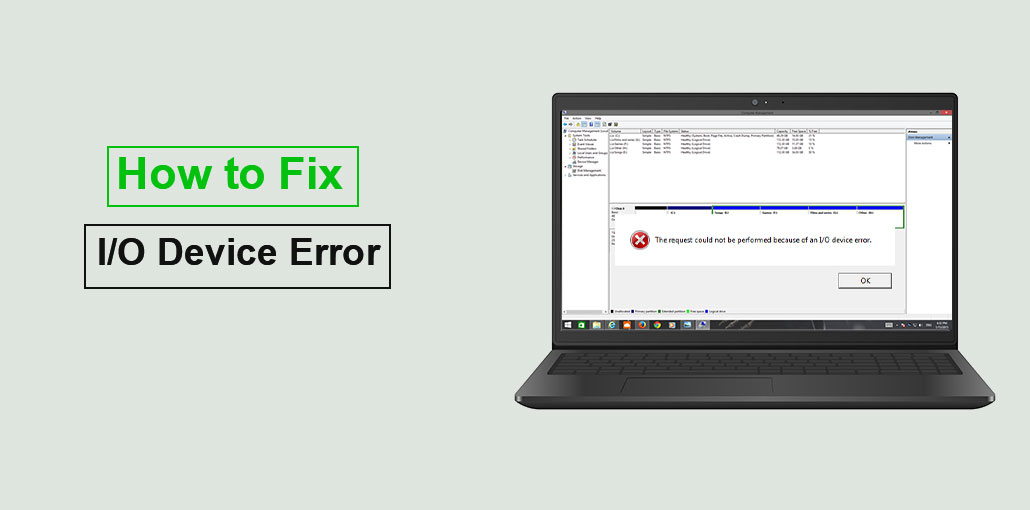
Many people around the world use external hard drives to store their personal and crucial data. However, external hard drives can encounter an I/O device error. This is a very concerning issue that prevents you from editing or transferring data from your drive.
Additionally, the data itself becomes at risk when this issue occurs. If you’ve read this post, you’ll be able to help resolve the I/O device error and retrieve data from the external drive.
What is An I/O Device Error
If you’re not familiar with I/O, you’re not alone in this regard, since the majority of people don’t know anything about this concept. It stands for Input/Output.
If you’re facing an I/O device error and you’re not capable of writing or reading documents on Windows. The problem could appear on external or internal hard drives, SD cards, CD/DVD, and USB flash drives.
If you encounter this problem on your external hard drive, you cannot transfer your computer’s files to it.
The indication that your computer is experiencing an I/O error is the pop-up message that appears: “The request could not be performed because of an I/O device error”.
Symptoms of I/O Device Error
If your device is affected, you may notice:
- Drive not opening or becoming inaccessible
- Files failing to transfer or copy
- Slow performance or system freezing
- Error messages while accessing the drive
- Missing or corrupted files
Also read: How to Clone Hard Drive to New SSD Without Reinstalling?
Why Does the I/O Device Error Occur?
It is not a good idea to request that cannot be executed due to an I/O device error but you cannot change it. But you can learn the entire fuss for yourself. The following are some of the major reasons behind the problem.
- Physical or logical damage to the hard drive
- Incompatible file system between the drive and the computer
- Outdated or corrupted drivers
- Incorrect or unstable data transfer settings
- Faulty USB cable or port
- Virus or malware infection
How to Fix External Hard Drive I/O Device Error
Before you attempt to fix the error in the input or output of your hard drive, you should reboot your PC and access the external drive again. Sometimes, restarting the computer may help fix certain errors on the hard disk. If the error persists when you try to transfer or write disk data, don’t be concerned. There are seven solutions for the external hard drive I/O device error.
1. Check All Cable Connections
There is a chance you will encounter an I/O error due to a faulty USB port or cable. It’s helpful to check that every cable connection between your computer and the external hard drive is in the correct location.
If you do not detect any issues with your cable connection, then you should look for the next option.
2. Virus & Malware Scanning
In certain situations, a virus scanning process could resolve an external hard drive I/O device error. Here’s how to do it:
- Connect your external drive
- Open Windows Security
- Go to Virus & Threat Protection
- Run a full scan
- Remove detected threats
- Restart your PC
Note: You can use a third-party antivirus software on your PC
3. Update Drivers
It is possible to fix the diskpart error, and the request may not be executed due to an /o device error updating the driver. Follow the steps for how to do it.
- Open Device Manager
- Expand Disk Drives or Universal Serial Bus controllers
- Right-click your device
- Select Update driver
- Choose Search automatically for drivers
- Restart your system
4. Fix I/O Device Error Using Command Prompt
Using the Command Prompt can fix the external hard drive I/O device error often; it will check both the internal and external hard drives and correct disk errors in the I/O device.
- Type Command Prompt into the search box next to the Start Menu.
- Right-click to open Command Prompt and run it as an administrator.
- Type chkdsk G:/f/r/x in the prompt window and enter. Replace G with the drive letters of the hard drive that is exhibiting the i/o error.
5. Change Transfer Mode in IDE Channel Properties
Windows will not be able to transfer data to external drives and PCs if the drive’s transfer mode is incorrect or has been altered. Correcting the transfer mode on the drive will fix this problem. Follow the steps listed below to accomplish this procedure.
If the I/O device error persists, changing the IDE channel settings can help resolve the issue. follow the steps:
- Press Windows + X and open Device Manager
- Expand IDE ATA/ATAPI controllers
- Right-click the affected channel
- Select Properties
- Go to Advanced Settings
- Set transfer mode to PIO Only (if available)
- Click OK and restart
Examine the drive to determine whether the error message has been solved.
Also read: 10 Best Hard Drive Repair Software to Fix Errors and Recover Data
6. Perform a Clean Boot
Check if a particular driver or program is conflicting with the external drive by running a clean reboot of the PC. If the issue is resolved after a clean boot, there could be an incompatible driver or program installed on your computer.
To protect your PC, follow the steps below carefully and do not disable the Advanced Boot Options.
- Type msconfig in Windows search
- Open System Configuration
- Go to Services tab
- Check Hide all Microsoft services
- Click Disable all
- Open Startup tab → Task Manager
- Disable all startup items
After you have clean-booted your PC, you’ll reinstall your operating system and other applications.
7. Ask for Professional Assistance
If none of the strategies suggested above work, it’s time to ask for expert assistance. The drive can be sent to a nearby repair shop, or the manufacturer can be contacted for assistance in fixing the problem.
Prevention Tips
To avoid future I/O device errors:
- Always safely eject external drives
- Keep antivirus software updated
- Avoid physical shocks or drops
- Regularly back up important data
- Keep drivers updated
- Use high-quality USB cables and ports
Wrap Up
An I/O device error can be very dangerous, as your information is involved. We have considered this and decided to give you an in-depth understanding of the issue. This guide will provide some easy solutions to solve this problem.
FAQs: External Hard Drive I/O Device Error
Why does my external hard drive show an I/O device error?
This error usually happens due to faulty cables, corrupted file systems, outdated drivers, virus infection, or physical damage to the drive.
Can I recover data from a drive with I/O error?
Yes, in many cases data can be recovered using recovery software or professional data recovery services, especially if the drive is not physically damaged.
Is I/O device error a sign of hard drive failure?
Not always. It can be caused by minor issues like connection or drivers, but repeated errors may indicate hardware failure.
Should I format my external hard drive to fix I/O error?
Formatting should be the last option because it deletes all data. Try other fixes first before formatting the drive.









Leave a comment