

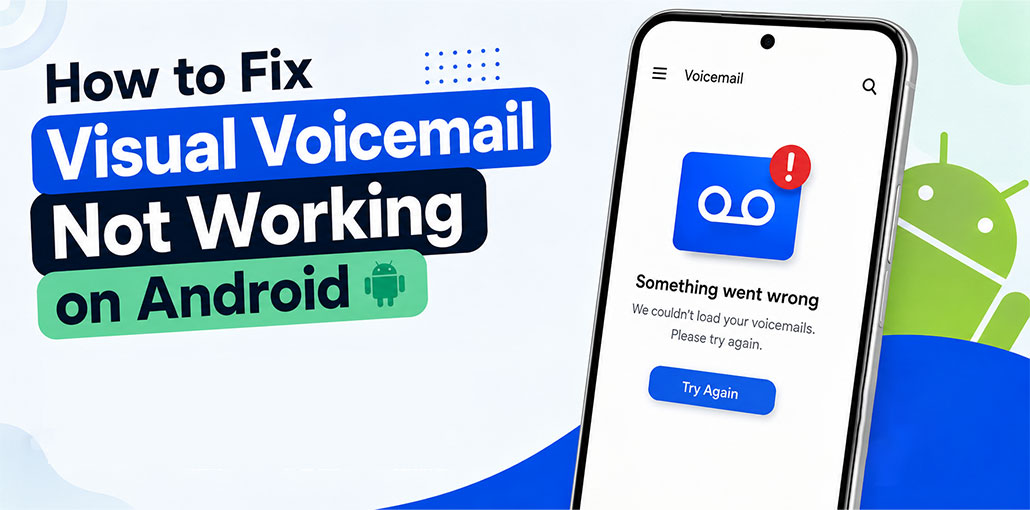
Some Android users may encounter issues with Visual Voicemail not working correctly. When accessing voicemail, errors such as “Something went wrong” may appear, or they may have difficulty connecting. Sometimes new voicemail messages do not arrive either. If Visual Voicemail stopped working as expected, don’t panic: this guide details common causes and solutions to get it working again quickly and smoothly.
Common causes of Visual Voicemail Not Working on Android?
If you’re thinking, “Why is my Visual Voicemail not working?” we’ve uncovered the reasons behind problems with the Verizon Visual Voicemail issue.
- Visual Voicemail isn’t supported or activated by your carrier.
- Mobile data is turned off or the cellular connection is weak.
- Visual Voicemail is disabled in the Phone app.
- Your Phone or Visual Voicemail app needs an update.
- Temporary app or network problems are preventing voicemail from loading.
- Your SIM or eSIM configuration has changed.
- Multiple SIMs are causing a voicemail configuration issue.
- Your carrier needs to reprovision or reset voicemail on your account.
Carrier support is particularly important because voicemail is a cellular service. Google recommends contacting your mobile carrier for issues involving cellular connectivity, voicemail, and mobile services.
Also read: How to Retrieve Deleted Voicemail on iPhone in 4 Easy Steps
How to Fix Visual Voicemail Not Working on Android
Try these solutions in order, starting with the easiest ones.
1. Allow Background Data for Visual Voicemail
Background processes set up for an application vary from one device to another and also from one carrier to another. Follow the procedure to enable Visual Voicemail background data usage.
- Open your phone’s Settings.
- Now, go to “Applications” or “More Settings”> “App Manager”. (This process differs based on the phone model .)
- You will find an array of system apps and those that you’ve downloaded to your Android phone. Scroll down and search for the “Visual Voicemail” app and tap it.
- After that, tap “Mobile Data.”
- In the next step, you can enable “Allow background data usage.”
2. Clear Visual Voicemail Cache and Data
Clearing caches and deleting data on application can help resolve numerous issues that have already been identified. Follow the step-by-step instructions below.
- Click on “Settings” from the application drawer.
- Scroll down to the settings and click on “Apps.”
- Increase the number of apps or click on the “Visual Voicemail” app.
- Tap on the “Storage tab, and then click on “Clear Cache.”
- Go back to the previous screen and tap “Manage Space.” Also, tap on “Clear All Data.”
3. Reset Network Settings
A network manager is responsible for the entire network system of any Android phone. Sometimes, the network connectivity of particular applications can be affected and could be corrected by a reset. Here’s how to reset the network settings on an Android phone.
- Unlock your device and then go to “Settings.”
- Scroll down to the settings until you find “General Management” or “System” settings.
- Then click the “Reset” tab, and then click on “Reset Network Settings.”
- Confirm the reset, after which the network settings are restored to their default settings.
4. Turn Visual Voicemail Off and On
Turning Visual Voicemail off and on can refresh its connection and fix temporary errors. If Visual Voicemail not working, disable the feature, wait briefly, then enable it again.
- Open the Phone app on your Android device
- In the upper right-corner, tap the three dots.
- From the drop-down menu, click “Settings.”
- Click on the “Voicemail” tab in Call settings.
- Now, switch on Visual Voicemail if it’s off.
5. Check Call Forwarding Settings
If Visual Voicemail not working on Android as expected, check its call forwarding settings carefully. Redirecting calls away can interfere with how incoming calls and voicemail are managed.
To check your call forwarding settings:
- Open the Phone app on your Android device.
- Tap the three-dot menu and open Settings.
- Look for Calls, Calling accounts, or Call forwarding. The exact option can vary by phone and carrier.
- Check whether any call-forwarding options are enabled.
- Disable unnecessary call forwarding and test Visual Voicemail again.
Note: *73 may disable call forwarding on some carriers, but the code varies by network.
Also read: Top 5 Call Spoofing Services in 2026 (Free Options Reviewed)
6. Update Visual Voicemail app
There could be problems within an app that are preventing access to services. For instance, if the application is outdated or incompatible with Android versions may present minor difficulties when used together.
Go to the Google Play Store, search for Visual Voicemail or carrier voicemail applications, and install any available updates.
7. Contact Your Carrier
If the issue persists, you can contact the voicemail service provider for fixes.
Contact your mobile carrier and ask them to check whether:
- Visual Voicemail is supported by your plan.
- Visual Voicemail is activated on your account.
- Your SIM or eSIM is correctly configured.
- Your voicemail service needs to be reset or reactivated.
- There is a network or voicemail service outage.
Tips to Prevent Visual Voicemail Problems
To prevent Visual Voicemail not working issues on Android in the future, follow these simple tips:
- Keep Android and the Phone app updated.
- Maintain a stable mobile network connection.
- Keep Visual Voicemail enabled.
- Check voicemail settings after changing your SIM or carrier.
- Avoid unnecessary changes to call-forwarding settings.
- Make sure your mobile plan supports Visual Voicemail.
- Restart your phone if voicemail starts acting up.
- Contact your carrier if Visual Voicemail repeatedly stops working.
Conclusion
If Visual Voicemail not working on Android, a few simple troubleshooting steps may resolve the problem quickly and efficiently. If this fails to do the trick, contact your carrier to ensure Visual Voicemail is activated on your account.
FAQs: Visual Voicemail Not Working
Why is Visual Voicemail not showing my messages?
Try checking mobile data, restarting your phone, and making sure Visual Voicemail is enabled in your Phone app.
Does Visual Voicemail work without mobile data?
It depends on your device and carrier. If Visual Voicemail isn't loading, try turning mobile data on and testing it again.
How do I fix Visual Voicemail Not Working after an update?
Restart your phone, update the Phone or voicemail app, check Visual Voicemail settings, and make sure your mobile network is working properly.
Does restarting Android fix Visual Voicemail?
A restart can resolve temporary network or app problems and may help when Visual Voicemail Not Working.








Leave a comment