

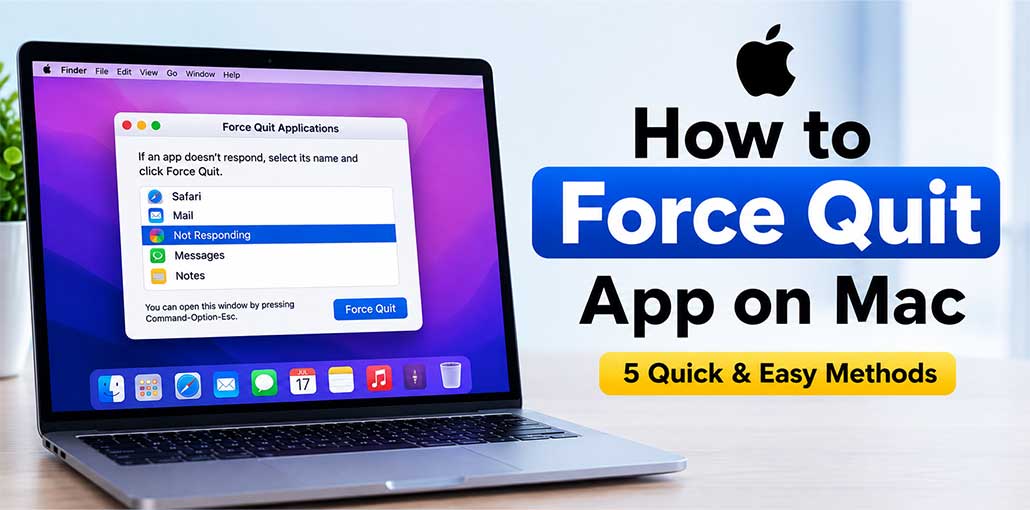
Macs are not prone to numerous problems. However, some circumstances could impede your workflow and speed during a session.
A frozen or misbehaving app is one such instance that may make your Mac unusable. While you might be able to close the unresponsive app by pressing”Close”, it’s not likely to work all the time. So you can try to force quit app on Mac.
There are several simple methods you can use to force quit app on Mac. When applications become frozen or stop responding, macOS provides built-in tools that can help close them safely and return your Mac to normal. Here are the most efficient methods.
Understanding Force Quit on Mac
MacOS gives applications time to close properly and store information when you exit them. Force quit Mac differs from normal closure in that it immediately terminates an app.
You may need to force quit app on Mac when:
- An app is completely frozen.
- The application shows “Not Responding.”
- The spinning beach ball won’t disappear.
- The app won’t close normally.
- A program is using unusually high system resources.
- You can’t interact with an application window.
If your Mac seems to be working normally, force quitting any problematic applications may provide a quick solution.
Also read: Force Quit Windows: 5 Easy Ways to Close Frozen Apps and Programs
How to Force Quit an App on Mac
1. Force Quit App on Mac With a Keyboard Shortcut
The easiest way to force quit app on Mac is with the built-in Force Quit keyboard shortcut. It opens a dedicated window containing your currently running applications, allowing you to select the frozen app and terminate it.
Steps
- Press Command (⌘) + Option (⌥) + Esc together.
- The Force Quit Applications window will appear.
- Select the unresponsive application.
- Click Force Quit.
- Click Force Quit again if macOS asks you to confirm.
This is usually the best method to try first because it works independently of the application’s own menu.
2. Force Quit an App From the Apple Menu
You can also force quit Mac applications through the Apple menu. This method is useful if you prefer using your mouse or trackpad and don’t want to remember a keyboard shortcut.
Steps
- Click the Apple menu () in the upper-left corner.
- Select Force Quit.
- Find the frozen application in the list.
- Select the application.
- Click Force Quit.
- Confirm the action if prompted.
The selected application should close shortly afterward.
3. Force Quit an App From the Dock
If the unresponsive application is already visible in your Dock, you can force quit app on Mac directly from its icon. This is a convenient option when you don’t want to open the Force Quit Applications window.
Steps
- Locate the application’s icon in the Dock.
- Right-click or Control-click the icon.
- Press and hold the Option key.
- The Quit option will change to Force Quit.
- Click Force Quit.
- Wait for the application to close.
If the application remains frozen, try Activity Monitor instead.
4. Force Quit an App Using Activity Monitor
Activity Monitor gives you detailed insight into which applications and processes are running on your Mac. It can also help when the regular Force Quit command doesn’t work, or when you want to identify processes consuming too much CPU or memory.
Steps
- Open Activity Monitor.
- Click the Process Name heading to arrange active processes alphabetically.
- Find the frozen application in the list.
- Select the application.
- Click the Stop (X) button in the toolbar.
- Select Force Quit.
- Confirm the action if prompted.
Activity Monitor can also help you determine whether an application is causing unusually high CPU or memory usage.
Quit vs. Force Quit in Activity Monitor
Activity Monitor can provide different options for stopping a process.
Quit attempts to close the process normally.
Force Quit terminates it immediately.
If the application is still responding, try quitting it normally first. If it refuses to close, use Force Quit.
Also read: The Application Can’t Be Opened Mac: 6 Proven Ways to Fix the Error
5. Force Quit an App Using Terminal
Terminal is another effective option to force quit app on Mac when traditional methods don’t work. You can quickly identify an application’s process ID (PID) in Activity Monitor and then terminate that process with a Terminal command.
Steps
- Open Activity Monitor.
- Click the Process Name heading to arrange active processes alphabetically.
- Find the frozen app and note its PID under the PID column.
- Launch Terminal. Open Spotlight Search and search for Terminal. Alternatively, open Finder → Applications → Utilities → Terminal.
- Enter the following command and press Return:
kill PID
For example:
kill 477
Replace 477 with the actual PID of your frozen application. If the application still doesn’t close, you can use the stronger command:
kill -9 477
Use kill -9 only when the standard kill command doesn’t work as intended. Make sure you have identified the PID before terminating any process.
Tips to Prevent Mac Apps From Freezing
You can reduce the chances of needing to force quit app on Mac by keeping your Mac and applications properly maintained. Try these simple tips:
- Keep macOS or apps updated.
- Keep sufficient free storage space on your Mac.
- Use Activity Monitor to check CPU and memory usage.
- Close unnecessary applications running in the background.
- Remove or disable problematic browser extensions.
- Restart your Mac regularly to refresh system resources.
- Avoid running too many resource-intensive apps simultaneously.
- Reinstall an application if it frequently freezes or crashes.
- Save your work regularly to reduce the risk of losing unsaved data.
Final Thoughts
In most cases, force quit app on Mac using one of the methods above should restore normal operation to your Mac. Use the keyboard shortcut or the Force Quit menu first before moving on to Activity Monitor or Terminal, as necessary.
If none of these work or you are unable to perform any of these tasks, you can force a shutdown by pressing and holding the power button until the Mac turns off.
FAQs: Force Quit app on Mac
Why can't I force quit an app on Mac?
If you can't force quit app on Mac using the standard shortcut, try Activity Monitor. Find the frozen application, select it, click the Stop button, and choose Force Quit.
Does force quitting app on Mac delete files?
No. force quit Mac normally doesn't delete saved files. However, any unsaved changes in the application may be lost when you terminate it.
Is it safe to force quit app on Mac?
Force quitting is generally appropriate when an application is completely unresponsive. However, it can cause unsaved work to be lost, so try closing the application normally before using Force Quit whenever possible.
What should I do if force quit doesn't work?
Try Activity Monitor or Terminal to terminate the application. If your entire Mac is unresponsive and none of these methods work, you may need to force shut down the Mac as a last resort.









Leave a comment