

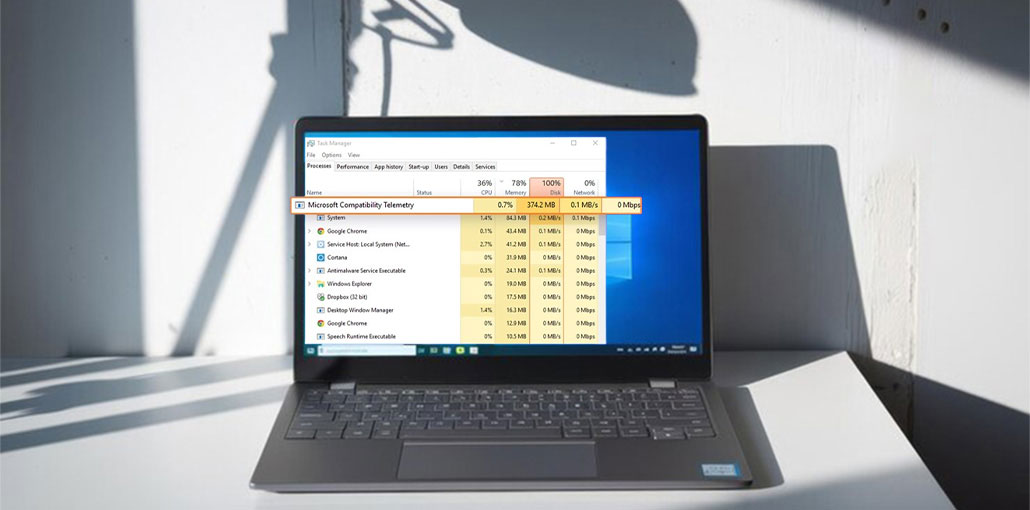
Microsoft has always been the leader in introducing new products. Apart from offering innovative capabilities and introducing new features, Microsoft is renowned for developing innovative concepts. Microsoft’s newest feature, Microsoft Compatibility Telemetry, will allow you to enhance the user experience by collecting data about your PC.
However, turning this feature on sometimes causes the “Microsoft Compatibility Telemetry High CPU” issue. If this problem occurs, your computer might slow down, and you might find it difficult to perform basic tasks.
What is Microsoft Compatibility Telemetry?
Microsoft Compatibility Telemetry is a software that runs in the background, collecting data regarding your PC. Microsoft Compatibility Telemetry uses many resources and storage to monitor all your data. This could cause your computer to be extremely susceptible to errors due to high disk usage.
If your computer has low memory, the “Microsoft Compatibility Telemetry High CPU” issue can become more risky.
Why Does Microsoft Compatibility Telemetry Cause High CPU Usage?
Several factors can trigger Microsoft Compatibility Telemetry high CPU usage, including:
- Corrupted system files
- Large telemetry data scans
- Pending Windows updates
- Background compatibility checks
- Damaged Windows components
- Malware disguised as CompatTelRunner.exe
- Excessive startup processes
During heavy scans, the service may temporarily use high CPU power, especially on older PCs or systems with HDD storage.
How to Disable Microsoft Compatibility Telemetry
You can get rid of the”Microsoft compatibility Telemetry high CPU” issue by turning off Windows Compatibility Telemetry.
Here are the four easy ways to disable the Windows Compatibility Telemetry.
1. Disable Telemetry Through Task Scheduler
You can disable Microsoft Compatibility Telemetry through your Task Scheduler.
- Open the Start Menu and then type “Task Scheduler” icon.
- When you’ve entered the Task Scheduler Window, you’ll have to click on the Task Scheduler Library and choose the Microsoft icon.
- Then, choose the Application Experience after hitting the Windows icon.
- Right-click on it to open the Microsoft Compatibility Appraiser after finding it in the Application Experience Window.
Also read: How to Fix Windows Modules Installer Worker High CPU Usage (2026 Guide)
2. Disable Telemetry Through Group Policy Editor
Another option to disable Windows Compatibility Telemetry is through the Local Policy Editor. Follow the step-by-step instructions below.
- Start the Run Window by pressing the Windows + R keys simultaneously. After that, type in”gpedit.msc” and then tap on the OK icon.
- Go to the administrative templates following the Windows Configuration. Then click on Windows Components, and click OK on the Data Collection and Preview Builds.
- Double-click on “Allow Telemetry” after entering the Preview Builds and Data collection window. Click on “OK” after hitting the “Disabled” icon.
3. Disable Telemetry Using Registry Editor
- Enter”regedit”. Type in “regedit” after launching the “Windows Run” utility.
- Navigate to the following path:
HKEY_LOCAL_MACHINE\SOFTWARE\Policies\Microsoft\Windows\DataCollection - Choose the “New” icon after hitting the “Data Collection”. Next, click on DWORD after visiting the “New” menu.
- After setting the new value to “Allow Telemetry”, set the value to 0.
- Click OK and restart your computer.
4. Disable Connected User Experiences and Telemetry Service
If you’re experiencing issues with Microsoft Telemetry Compatibility High CPU, you may turn off the Telemetry feature by deactivating its functions. This is how you can do it.
- Press Win+R and enter services.msc to open the Services console. After that, you need to press the Enter icon and search for the “Connected Users Experience and Telemetry icon.
- Launch the service properties after double-clicking the service. Then, go through the General tab and change the Startup type to Disabled.
- After you have found other services, Device Management, Wireless Application Protocol, push an application for message routing, and disable it.
How to Fix Microsoft Compatibility Telemetry High CPU Usage
Here are some fantastic solutions to help you solve the Microsoft Compatibility Telemetry high CPU usage issue.
1. Delete CompatTelRunner.exe
Deleting CompatTelRunner.exe may help solve your Microsoft Compatibility Telemetry High CPU issue. Here’s how you can do it.
- Open your Windows search box, type in “CompatTelRunner. “When CompatTelRunner” appears, click on it, and then select “Open File Location”.
- Right-click CompatTelRunner.exe and then select Properties. Next, you must select the Advanced icon, then tap on the “Security tab”.
- Click on the “Change” icon and hit the Advanced icon. Then, hit the Find Now icon and select Locate your current account. Click OK after applying all changes.
- Now, you can control your PC by pressing the CompatTelrunner.exe Microsoft compatibility file to delete it.
2. Run SFC Scan to Fix Compatibility Telemetry High CPU
Corrupted Windows files may also be the primary cause of the “Windows Compatibility Telemetry High CPU” issue. Therefore, you could repair the damaged files using the SFC scan. Here’s how you can do it.
- Type”cmd” in your Windows search bar after you launch”Command Prompt”. Then you’ll need to run the command prompt as an administrator.
- Type “sfc/scannow,” which will cause Windows to start scanning. It will then replace the corrupted files when it finds them.
Also read: How to Fix Unexpected Store Exception Error in Windows 10/11
3. Update Windows
You will encounter problems with the “Microsoft Compatibility Telemetry High CPU” issue if you’re using an old version of Windows. Therefore, you can resolve it by installing the latest Windows update.
- Go to Windows Settings and tap the “Updates and Security” icon. Install the latest Windows updates, if available.
Should You Disable Microsoft Compatibility Telemetry?
Disabling telemetry has both advantages and disadvantages.
Pros
- Lower CPU usage
- Better gaming performance
- Reduced background activity
- Faster system responsiveness
Cons
- Reduced diagnostic reporting
- Possible compatibility issues after updates
- Less feedback sent to Microsoft
For most home users, disabling unnecessary telemetry tasks is usually safe.
Best Ways to Prevent High CPU Usage in Windows
To keep your PC running smoothly:
- Keep Windows updated
- Remove unnecessary startup programs
- Use SSD storage
- Scan for malware regularly
- Install reliable antivirus software
- Clean temporary files frequently
- Monitor Task Manager for unusual activity
Preventive maintenance reduces the chances of future CPU spikes.
Conclusion
While Microsoft Compatibility Telemetry helps you collect technical data about your system, it could consume excessive CPU and disk resources, causing an issue known as the “Microsoft Compatibility Telemetry high CPU usage. Fix this issue by reading this article. We’ve shared the easiest and most effective methods to help you fix the issue and restore your PC’s performance.
Microsoft Compatibility Telemetry High CPU Usage – FAQs
Does Microsoft Compatibility Telemetry slow down PC performance?
Yes, high CPU or disk usage caused by Microsoft Compatibility Telemetry can slow down your computer, especially on low-end or older systems.
Is it safe to delete CompatTelRunner.exe?
Deleting CompatTelRunner.exe is not recommended because it is a system file. Instead, disable telemetry tasks or services to reduce CPU usage safely.
Will updating Windows fix Microsoft Compatibility Telemetry high CPU usage?
In some cases, installing the latest Windows updates can fix bugs and reduce telemetry-related CPU usage.
How do I fix Microsoft Compatibility Telemetry high CPU usage on Windows 11?
You can fix the issue by disabling telemetry tasks, running an SFC scan, updating Windows, and stopping unnecessary telemetry services.








Leave a comment