

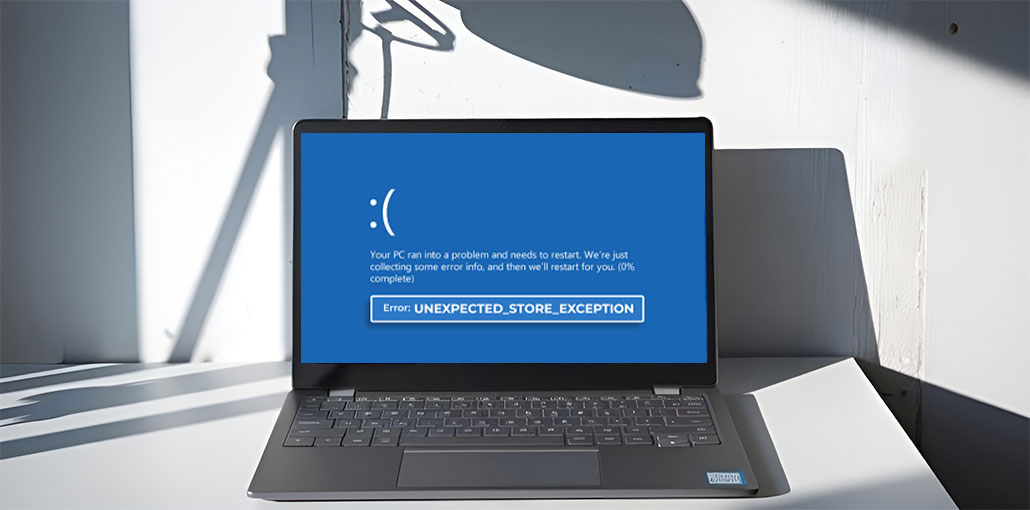
If you’re experiencing an “Unexpected Store Exception” error on Windows 10 or Windows 11, this article can help you understand the causes and offer a step-by-step solution to resolve the issue. I understand how difficult it is to encounter the Blue Screen of Death error, as I’ve experienced it several times, and I decided to write this article to help anyone else facing this frustrating issue.
In this article, I’ll take you through the specific reasons for the Unexpected Store Exception error on Windows 10 and 11 and the best ways to fix the issue quickly and securely.
The “Unexpected Store Exception Error in Windows 10 or 11 is a Blue Screen of Death error. The error causes a system crash and restarts the computer unexpectedly. This problem usually happens due to corrupted system files, hard drive issues, outdated drivers, antivirus issues, etc.
If the system crashes and displays the “Unexpected Store Exception Error The user could be in the middle of an important issue. The error could result in data loss if the customer does not act to fix the issue.
In the next sections, we will look at the various ways to diagnose the issue.
What Is the Unexpected Store Exception Error?
The Unexpected_Store_Exception Error is a Blue Screen of Death (BSOD) issue that occurs whenever the Windows 10 or 11 operating system encounters a serious issue.
This error could be due to a hard drive or SSD, corrupted system files, outdated driver versions, or a conflict with the antivirus program.
In this instance, the computer’s screen turns blue, and a message will appear on your computer’s screen that reads:
“Your PC ran into a problem and needs to restart. We’re just collecting some error info, and then we’ll restart for you.”
The cycle of restarting your computer goes on and can cause problems and corrupt your data, so identifying the root cause of this issue can help prevent data loss and restore your system stability.
Common Causes of Unexpected Store Exception Error
It is the Blue Screen of Death, and an unexpected store exception is considered the most harmful, thus earning an excellent place in the list of mistakes.
The most common causes for these errors are driver issues, but other causes are discussed below:
- An issue with the hardware or loose connections to the hardware.
- A problem with the driver could cause an operating system malfunction.
- Error in the installation of any software or incomplete installation.
- Malicious files that interfere with the boot process.
- Corrupt memory files.
- Poor memory sector inside the HDD.
Also read: Fix DXGI Error Device Hung Error in Windows 11/10: Ultimate Guide
Types of Unexpected Store Exception Error Messages
Many other errors are also categorized under BSoD errors and can be corrected using similar techniques, which we will cover within the article. BSoD errors are due to hardware malfunctions or driver errors.
Unexpected Store Exception No bootable devices: This error points to a hardware problem where the bootable device does not fit in the slot.
Unexpected Store Exception critical process died: This error occurs when a system file becomes damaged and can hinder the booting process.
Unexpected Store Error with Hard Drive and SSD: This error can be attributed to loose or defective hardware devices.
Blue Screen Error Unexpected Store Exception: This error is usually due to corrupted drivers. Driver updates are required or installed.
Unexpected Store Exception during gaming: This error occurs while gaming when there’s a driver issue, and it then restarts the system completely.
How to Fix Unexpected Store Exception Error in Windows 10/11
The BSoD is a fatal error. There are solutions to fix this error. Be sure to read the entire guideline carefully and follow the instructions to apply the methods.
1. Check Hardware Connections
The main reason for the unexpected store exception in Windows is a hardware issue; the user needs to check the hardware. Make sure all hardware and peripheral devices are connected to the system. Turn off the system, and then check the connections closely, fix any loose connections, and then restart the computer.
2. Check Your BIOS Configuration
Incorrect BIOS configurations are the most common reasons behind Blue Screen of Death (BSoD) errors, and handling BIOS settings requires proper attention and technical expertise.
This also needs technical knowledge; it is advised to read the motherboard manual before changing the BIOS settings. Be sure to read the manual and don’t make any modifications to the settings related to the boot-up sequence.
Follow These Steps:
- Restart your computer.
- Press the BIOS key during startup (F2, DEL, ESC, or F10).
- Enter the BIOS setup menu carefully.
- Review current BIOS settings.
- Restore default settings if necessary.
- Save the changes.
- Exit BIOS and restart your system.
Also read: 6 Easy Ways to Fix BIOS ID Check Error During a BIOS Update
3. Disable Fast Startup
Windows offers an option that allows users to quickly start their system by enabling the Fast Startup feature. The Fast Startup feature loads the system with the necessary drivers. Sometimes, this can lead to corrupted driver error, which is why it’s best to disable the Fast Startup feature by following the steps below.
Follow These Steps:
- Open Control Panel
- Go to Power Options
- Click Choose what the power buttons do
- Select Change settings that are currently unavailable
- Disable “Turn on fast startup.”
- Click Save Changes
Restart your PC afterward.
4. Update Display Drivers
The unexpected error can occur because of a glitch in the display driver. If there’s a bug in the driver that displays that could be the cause of that blue death screen error. So users must follow the steps below to update their display driver.
To Update Drivers:
- Right-click the Start Menu
- Open Device Manager
- Expand Display Adapters
- Right-click your graphics driver
- Click Update Driver
- Choose: Search automatically for drivers
Windows will install the latest available drivers automatically.
5. Update Windows 10/11
The system could encounter Stop Code 0x154 unexpected store exception errors due to corrupted files or outdated software, so it is vital to keep your system updated with the latest version to allow the operation and compatibility.
At times, the program needs an updated version of the system software, but the system software is outdated, resulting in corrupted system data. This is why the user has to upgrade the system to the latest version.
Update Windows:
- Open Settings
- Go to Windows Update
- Click Check for Updates
- Install all pending updates
Restart your system after updating.
6. Reinstall Antivirus Software
The possibility that you will encounter a Windows unexpected store exception error is due to malicious or harmful files on the system. The malicious files on the system can cause errors by corrupting system files, resulting in more fatal errors.
To make your system secure and prevent harmful files from infiltrating, you must reinstall your antivirus program and upgrade it to the latest version.
Follow These Steps:
- Open Control Panel.
- Go to Programs and Features.
- Uninstall your antivirus software.
- Restart your computer.
- Download the latest version from the official antivirus website.
- Install the updated antivirus again.
7. Run System File Checker (SFC Scan)
Windows includes a built-in tool called System File Checker (SFC) that allows users to scan all damaged or missing files. The System File Checker checks important system files and repairs any corrupted files that may be causing system errors or stability issues.
Steps:
- Search for Command Prompt
- Run it as Administrator
- Enter the following command: sfc /scannow
- Press Enter
- Wait for the process to complete
- Restart your PC
8. Use High Performance Power Plan
Windows offers users features to use the system with different plans. If one wishes to operate the system in safe mode, where power is used economically, this option is available in Windows. However, if users want to use the system to its fullest capabilities, they may select High-Performance as well.
Follow These Steps:
- Enable High Performance Mode:
- Open Control Panel
- Go to Power Options
- Select: High Performance
- Save changes
9. Disable File History
Windows allows users to find and repair damaged data by creating an archive of their files. This feature is known as File History, but sometimes it is behind the fatal Blue Screen of Death error.
To Disable:
- Open Settings
- Go to Update & Security
- Select Backup
- Turn off: Automatically back up my files
10. Restore Corrupted Files
Windows gives its users the option to repair a corrupted system file. They can then back them up safely with System Restore. There is a chance that the system will fail due to updates, so users should remove the new updates.
Follow These Steps:
- Search for “System Restore.”
- Open Recovery options.
- Choose a restore point created before the error started.
- Restore the system.
- Restart your computer.
Also read: Windows Operating System Not Found Error: 6 Proven Fixes Guide
11. Delete Temporary Files
Temporary files on the system could be the primary cause of data corruption and cause a BSoD error. Follow the steps below to delete temporary files from the system.
Steps:
- Search for Disk Cleanup.
- Open the tool.
- Select the system drive.
- Delete temporary and unnecessary files.
- Restart your computer.
How to Prevent Unexpected Store Exception Error
You can reduce the chances of future BSOD crashes by following these tips:
- Keep Windows updated
- Update drivers regularly
- Avoid overheating
- Use trusted antivirus software
- Backup important data frequently
- Monitor SSD/HDD health
- Avoid forced shutdowns
- Remove unnecessary startup applications
Final Thoughts
This Unexpected Store Exception error on Windows 10/ 11 can be very frustrating, particularly when it causes system crashes and frequent restarts. This error mostly stems from problems with the system files, storage device, and drivers. But the issue is fixable by following the right troubleshooting methods.
FAQs: Unexpected Store Exception error
Is the Unexpected Store Exception error dangerous?
Yes, it can be serious because it may lead to sudden system crashes, restart loops, and possible data loss if not fixed in time.
Can outdated drivers lead to Unexpected Store Exception?
Yes, outdated or incompatible drivers—especially graphics or storage drivers—are a common cause of this error.
Can BIOS update fix the Unexpected Store Exception error?
Yes, updating BIOS can improve hardware compatibility and fix stability issues, but it should be done carefully.
Should I contact a technician for this error?
If the error continues even after trying all troubleshooting steps, it is recommended to consult a technician for hardware diagnosis and repair.









Leave a comment