

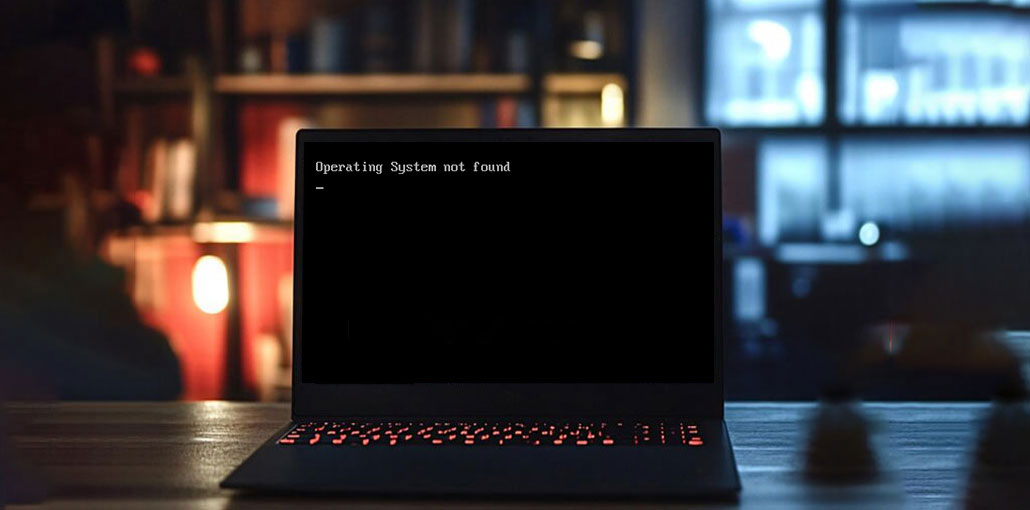
If you are a computer user, you might have noticed that your computer will display errors. “Operating system not found” is one of the most terrifying error messages that you will view on your device’s screen. As scary as this error might seem, you can solve it yourself simply and efficiently.
If you see the “Disk Error: Operating system not found” error message, it indicates that your system is not loading or finding your operating system. There are a myriad of causes, such as a corrupted boot disk, a missing partition table, or a faulty disk drive.
Main Causes of the “Operating System Not Found” Error
BIOS Configuration Issues
Typically, an OS (operating system) error occurs when the BIOS can’t find it. So, identifying an issue with the BIOS is a sensible step. Problems with BIOS configuration occur due to power failures, hardware errors, or even during manual configuration.
Faulty or Loose Cables
If you have a weak or no connectivity between your BIOS computer and the hard drive, there could be an issue with the computer’s data cables.
BCD error
The binary code decimal may also be incorrect, resulting in the OS error.
Also read: How to Fix Secure Boot Enabled But Not Active in Windows 11
How to Fix the “Operating System Not Found” Error
An operating system not found error is a reason to prevent Windows from turning on. The reason for this error is the damaged MBR or hard disk, incorrect BIOS settings, or other causes. The following are six suggestions to determine the most appropriate solution for your particular situation.
1. Check BIOS Settings
It is recommended to start by checking the booting order to ensure that the operating system you have installed is the first. You can reset the BIOS to default settings. Enter the BIOS settings before restarting your computer. Set the default setting, then save and close the window.
2. Repair MBR or Boot Sector
If you boot your computer from a bootable hard drive, the system BIOS will identify the startup disk and examine its MBR ( Master Boot Record). The master boot code will search for the active and principal part on the disk. In this case, if the MBR is damaged or ot cannot locate its boot sector on the system partition, you’ll end up with an error.
Using the Windows installation disc or USB, go to repair your system. Select the correct Windows installation drive. Open Command Prompt from Advanced Options, then type the bootrec /fixmbr.
3. Automatic Repair
Windows has a setup for automatic repair that may help restore the OS. It all depends on the source of your PC’s “missing operating system” error. To access Windows Automatic Repair, you require an installation disc. Start your computer using the installation disc and then set up all settings (such as the language and time). Click the button to fix your system and then choose to troubleshoot and advanced options. The final step is automated repair. Select it, and then your operating system.
4. Check the Hard Drive
Switch on your computer by pressing your F10 key. On the test screen, you can open the BIOS setup and navigate through the tools menu. Choose the Hard Drive Self-Test and then run it. If it fails, seek a replacement when your device is in warranty. If not, seek out a professional to help you recover your laptop.
Also read: 10 Best Hard Drive Repair Software to Fix Errors and Recover Data
5. Repair BCD
Because a BCD error could result in the missing operating system failing, it could be an option to restore your OS. Using the Windows installation disc, go to repair your system. Choose one of the Windows Installation drives (usually disc C). Click on Command Prompt and then type the bootrec/rebuildbcd command.
6. Reinstall Operating System
If none of the above work, then you’ll need to reinstall the operating system. The process will delete all files stored on the computer’s hard disk. So make sure you back up all important files before moving forward.
Prevention Tips
To avoid the Operating System Not Found error in the future:
- Keep BIOS settings unchanged unless necessary
- Regularly back up your data
- Avoid sudden power shutdowns
- Check disk health periodically
- Use reliable antivirus protection
Conclusion
“Operating System Not Found” or “Missing Operating System” can occur at any time. Make sure to have a current backup of your information. It is a common issue for computer owners, but these problem solutions are straightforward.
FAQs: Operating System Not Found
What does “Operating System Not Found” mean?
It means your computer cannot find the installed operating system on the hard drive or SSD, so it fails to start Windows.
Can I fix this error without losing data?
Yes, in most cases you can fix it using repair tools like Startup Repair or bootrec commands without deleting your files.
What is the difference between MBR and BCD repair?
MBR repair fixes the boot record that starts the system, while BCD repair fixes Windows boot configuration settings.
How do I fix the “Operating System Not Found” error?
You can fix it by checking BIOS boot order, repairing MBR/BCD using Windows installation media, or running Startup Repair.









Leave a comment