

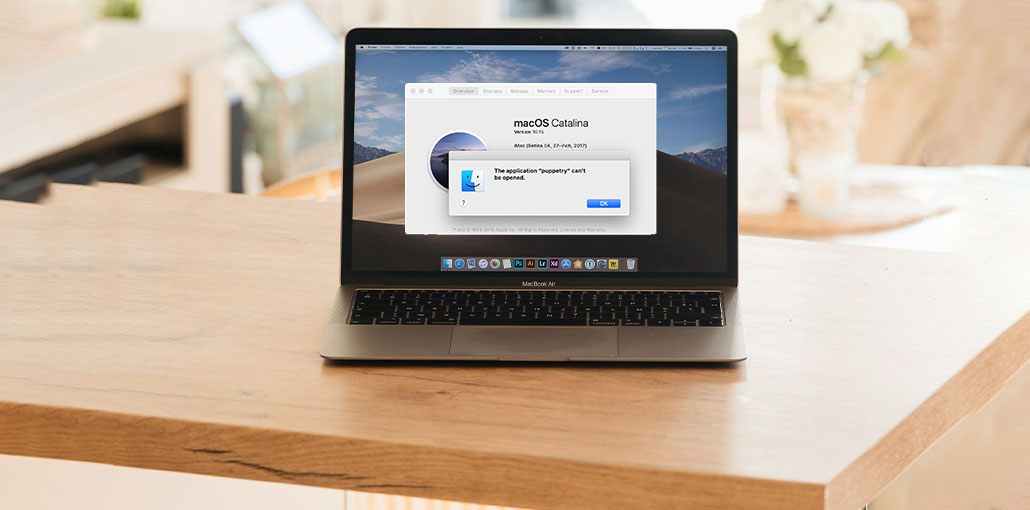
The Application Can’t Be Opened Mac Error can disrupt your work and make you feel angry. If you’re trying to launch a crucial program for work or entertainment, the error can reduce your computer’s productivity and affect the overall user experience.
To fix the ” The Application Can’t Be Opened Mac Error, we’ll go over everything from forcefully quitting the application and resetting the Mac.
Why Can’t I Open an Application on My Mac?
Effective troubleshooting starts with understanding the root of the ” The Application Can’t Be Opened Mac error. Let’s take a look at the four most common reasons for this issue that occur on Mac computers.
Insufficient Permissions:
MacOS don’t launch apps due to limitations. macOS prevents apps from launching. The permissions granted to the application may be altered or damaged, or it could be downloaded from an untrusted source. Adjusting application permissions or granting executable rights by using Terminal commands resolves this issue.
Corrupted Application Files:
A damaged program might not open. Hardware issues, software flaws, or installation interruptions can result in this. The program’s launch could result in errors with file integrity. Reinstalling the program and recovering an archive, or using repair tools to fix files, could resolve damaged files.
Compatibility issues:
MacOS version or compatibility issues with system architecture could prevent apps from opening. Outdated programs might crash or fail to work with the latest macOS versions. Users should check for developer updates to their programs or patches, use compatibility options, or look for macOS-compatible alternatives.
Also read: How to Fix ‘Erase Assistant Is Not Supported on This Mac’ (2026 Guide)
System Resource Constraints:
Constraints on resource usage in the system, such as monitoring RAM usage, storage space, or CPU consumption, can hinder Mac applications. Due to resource overflow, the app crashes or freezes when macOS prioritizes the system. Eliminating unnecessary apps, freeing up disk space, and updating hardware or increasing system performance could solve this issue.
How to Fix The Application Can’t Be Opened Mac Error
The Application Can’t Be Opened Mac Error could be very problematic, particularly when you are using critical applications. Here are five solutions to fix this issue and restore app functionality.
1. Check macOS Security Settings
Apple’s Gatekeeper security feature may prevent certain applications from opening.
Steps:
- Open System Settings.
- Click Privacy & Security.
- Scroll to the Security section.
- Look for a message indicating that the app was blocked.
- Click Open Anyway.
- Confirm when prompted.
- Try launching the application again.
2. Force Quit the Application
If apps stop working or become unresponsive, forcing them to cease can usually solve the issue swiftly. Use this method to force quit the Mac quickly and effectively with a simple key combination.
- Select the “Force Quit” option from the menu or use “Command + Option + Escape”.
- Choose the program that will not open and then press the “Force Quit” button.
3. Restart Your Mac
Restarting your Mac solves software problems such as app startup issues. Restarting your computer can fix problems like the ” The Application Can’t Be Opened Mac Error. Following the instructions below
- Go to the upper left corner of your screen and select the Apple menu. From there, select “Restart.”
- Click “Restart” once again to confirm the hard reboot on Mac.
4. Factory Reset Mac
A factory reset will be required if restarting your Mac does not work. Take these steps to factory reset your Mac and then restore the settings.
- When you turn on your Mac, hold “Command + R” until the Apple logo appears.
- In the macOS Utilities box, select “Disk Utility”.
- Choose the starting disk and click “Erase”.
- Follow the on-screen prompts to complete this factory reset.
5. Use the Unarchiver App
Incorrect file extraction could be the source of the issue. Use The Unarchiver, an efficient extraction tool, to ensure that applications are completely unpacked and ready to use.
- Download The Unarchiver via The App Store. Install it.
- Right-click on the application’s .zip file and select “Open With” > “The Unarchiver.”
Also read: Your System Has Run Out of Application Memory on Mac? 11 Easy Fixes
6. Grant Application Permissions Using Terminal
Giving Terminal rights to applications can help resolve execution permission issues. Use these instructions to open Terminal on a Mac and then grant permissions to the apps causing problems.
- Open Terminal by pressing “Command + Space” and entering “Terminal” into Spotlight.
- Use the command cd to navigate to the directory where the program is.
- To run your program, use the command “chmod +x ApplicationName.”
- Permit permissions to sudo using ” sudo chmod +x ApplicationName.”
- Launch the application again.
Tips to Prevent Errors in the Future
To avoid encountering the Application Can’t Be Opened Mac Error again:
- Download applications only from trusted sources.
- Keep macOS updated.
- Install the latest version of your applications.
- Maintain adequate free storage space.
- Regularly remove unnecessary files and software.
- Avoid interrupting software installations or updates.
Final Thoughts
The Application Can’t Be Opened Mac error can be frustrating. There are a variety of solutions to solve the issue. Forcefully shutting programs, changing permissions, and fixing compatibility issues can help users identify and fix the problem. To prevent the issue from happening again, fix the root issue, such as corrupted files, insufficient permissions, or system resource constraints.
FAQs: The Application Can’t Be Opened Mac Error
Why does my Mac say an application is damaged and can't be opened?
This message typically appears when the application files are corrupted, incomplete, or blocked by macOS security settings. Reinstalling the app from a trusted source often resolves the issue.
Why won't an application open after a macOS update?
Some applications may become incompatible with newer macOS versions. Check for updates from the app developer or install the latest version of the application to restore compatibility.
Will a factory reset fix the 'The Application Can't Be Opened Mac' error?
A factory reset can resolve deep system-related issues, but it should only be considered as a last resort after trying other troubleshooting methods, as it erases your data and settings.
How do I check if an application is compatible with my Mac?
Visit the application's official website and review its system requirements. Ensure that your macOS version and Mac hardware meet the application's compatibility requirements.









Leave a comment