

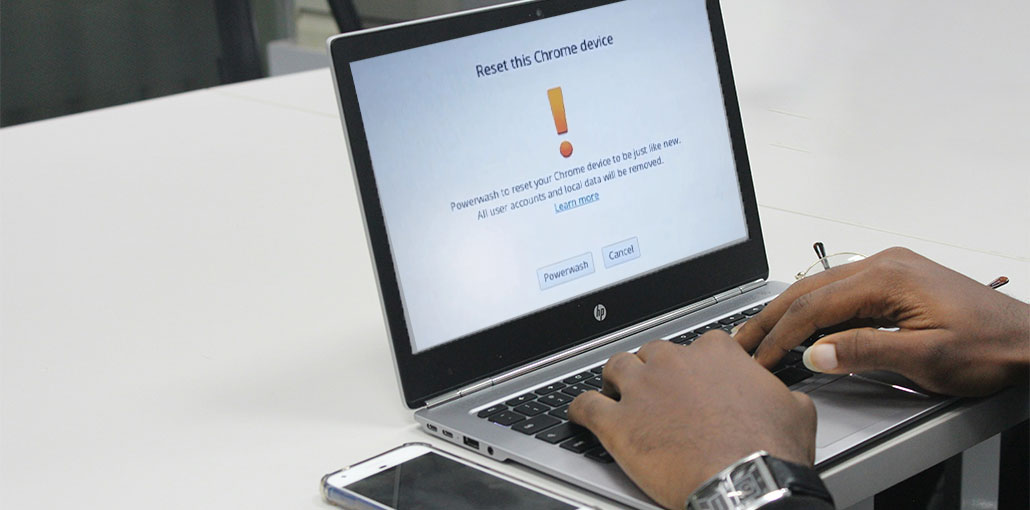
Have you been locked out of your Chromebook and are unable to complete a factory reset? Resetting the factory can increase the performance and speed of your Chromebook. It can also remove the lock screen when you forget your Chromebook password. Do not worry, there are many ways to factory reset Chromebook without password. In this post, we will walk you through the steps to restore your Chromebook to its factory settings, giving you access to it and starting fresh.
How to Factory Reset Chromebook Without Password
1. Factory Reset Chromebook Using Keyboard Shortcut
If you’re experienced with dealing with various Chromebook issues, use the ChromeOS keyboard shortcut to factory reset Chromebook without password if you’ve lost it. Check out this tutorial:
Steps:
- Turn off your Chromebook
- Press and hold: Ctrl + Alt + Shift + R
- Turn on the Chromebook while holding the keys
- When the reset screen appears, click Restart
- Select Powerwash → Continue
- Follow the on-screen instructions
If you’d like to reset the Chromebook factory to default settings, then go to the next section and find out how to factory reset Chromebook without password.
Also read: Reset Mac Password: 5 Easy Ways to Unlock Your MacBook
2. Factory Reset Chromebook Using Powerwash
Powerwash is another method to factory reset a Chromebook. When you start your Chromebook, it will go directly to your login page.
Steps:
- Click the Quick Settings panel (bottom-right corner)
- Select the Settings (gear icon)
- Go to Advanced > Reset Settings
- Click Powerwash
- Select Reset and follow the instructions
3. Factory Reset Chromebook Using Recovery Mode
Another option is to reset the Chromebook. Unlike the powerwash method, a hard reset returns the Chromebook’s hardware and software settings to their default factory settings, using Recovery Mode.
Note: Ensure your Chromebook is connected to the power cable.
Steps:
- Turn off your Chromebook
- Press and hold: Esc + Refresh (⟳ key)
- Press the Power button
- Release all keys when the recovery screen appears
- Follow the on-screen instructions to reinstall ChromeOS
For new Chromebooks: hold down the “Power” and “Volume Up” keys for at least 10 minutes. Then, follow the instructions on the screen to force a hard reset on the Chrome tablet you have purchased.
Older Chromebooks have an exclusive reset key: Press the dedicated key to perform a hard reset.
Also read: Password Cracking: Common Techniques and Tools Used by Hackers
4. Use a Third-Party Password Reset Tool
If your Chromebook is locked and you have forgotten Chromebook password, EaseUS PartitionMaster Pro or PassFab 4WinKey is the best option to factory reset Chromebook without password. It comes with a “Password Reset” tool that can erase the password screen and allow users to access their data again. Follow these steps to sign in to a Chromebook without a password:
Steps:
Download and Install the Tool
Create a Bootable USB Drive
- Insert a USB drive into the computer
- Launch the tool and select the option to create a password reset disk
- Follow the instructions to make the USB bootable
Insert USB into the Locked Chromebook
- Plug the bootable USB drive into your Chromebook.
Enter Boot or Recovery Mode
- Turn off the Chromebook
- Press Esc + Refresh + Power to enter recovery mode
Attempt Password Reset
- Follow on-screen instructions (if the tool is detected) to remove or bypass the password.
Troubleshooting Tips for Factory Reset Chromebook Without Password
- Make sure you press all shortcut keys at the same time
- Restart and try again if Powerwash doesn’t appear
- Keep your Chromebook plugged in during reset
- For managed (school/work) devices, admin permission may be required
Important Things to Know Before Factory Reset Chromebook
- A factory reset removes all local data permanently
- You’ll need a Google account to set up the device again
- Managed Chromebooks may remain locked after reset
Ending Notes
In the end, here are the best methods to factory reset Chromebook without password. You can clean your device and then start fresh using the Powerwash feature, recovery mode, and the reset password USB. By using these techniques, you can quickly reset your Chromebook even if you have lost your password. Ensure to back up any important information before beginning the reset.
FAQs: Factory Reset Chromebook Without Password
What should I do if I have a forgotten Chromebook password?
If you have a forgotten Chromebook password, you should reset your Google account password first. If you still can’t log in, use Powerwash (Ctrl + Alt + Shift + R) to factory reset your Chromebook.
How long does it take to factory reset Chromebook without password?
A factory reset usually takes 5–10 minutes. The time may vary depending on your device and internet connection if updates are required.
Can I unlock a Chromebook without resetting it?
In most cases, you cannot unlock a Chromebook without the correct password. However, you can recover your Google account password or perform a factory reset to regain access.
Can I reset a Chromebook without deleting everything?
No, a factory reset (Powerwash) will erase all local data. There is no way to reset a Chromebook without deleting stored files and accounts.








Leave a comment