

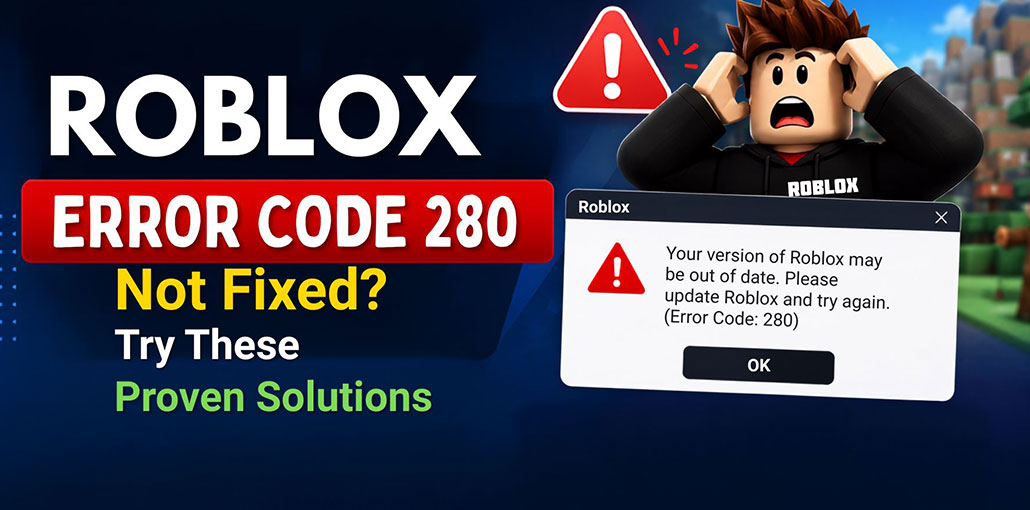
Roblox Error Code 280 generally occurs when either your client software is out of date or an invalid client version is being utilized on your device.
You’re not imagining it. It has nothing to do with updating and everything to do with conflicts in configurations, corrupted files, and Roblox believing it’s a flaw in the virtual world and your computer is in some way not in sync with reality (yes, that’s the reality).
This guide goes beyond the usual “just update the app” advice. Here, we explain common issues and solutions to fix Roblox Error Code 280 easily, without spending unnecessary time troubleshooting or reinstalling everything.
What is Roblox Error Code 280?
Roblox Error Code 28 usually displays a message that states
Your version of Roblox may be out of date. Please update Roblox and try again
This typically occurs when your Roblox client is outdated or not compatible with the server you want to join. The error occurs due to time differences, corrupted files, or incorrect Roblox updates.
In other words, Error Code 280 indicates a version mismatch: your Roblox game does not support the latest server version and needs to be updated.
Why Does Roblox Error Code 280 Occur?
Now we’ll find out the main reason behind the Roblox Error Code 280 below.
- Roblox is not updated.
- A Roblox update did not install correctly.
- Local Roblox files have become corrupted or stale.
- Your device is still launching an older Roblox installation.
- A third-party application or security software interferes with Roblox.
- Your device’s system software is not supported or up to date.
Also read: Roblox Error Code 277: Causes, Fixes, and Troubleshooting Guide
How to Fix Roblox Error Code 280
Here are the most effective ways to address this problem.
1. Update Roblox to the Latest Version
Roblox Error Code 280 often appears when the Roblox client is outdated. Updating the game can restore compatibility with the latest Roblox servers and fix missing or outdated files. This is the easiest solution to try before moving on to other troubleshooting methods.
Steps:
- Close Roblox.
- Open the official Roblox website.
- Log in to your account.
- Start any game.
- Let Roblox complete the update.
- Restart Roblox and try again.
2. Restart Roblox and Your Device
Sometimes Roblox Error Code 280 can occur because Roblox did not close or update correctly. Restarting the application and your device clears temporary processes, giving Roblox a fresh start. This quick method can solve minor issues without requiring you to reinstall anything.
Steps:
- Close Roblox completely.
- Restart your device.
- Open Roblox again.
- Join any game.
- Check whether the error is fixed.
3. Check Your Date and Time
Incorrect date and time settings can sometimes interfere with online applications. If your device clock is significantly incorrect, Roblox may experience connection or verification issues. Setting the date and time automatically ensures your system uses the correct information while connecting to Roblox services.
Steps:
- Open your date and time settings.
- Enable Set time automatically.
- Check your time zone.
- Restart Roblox.
- Try joining a game.
4. Check Antivirus and Firewall
Your antivirus or firewall may interfere with Roblox’s ability to access required files or network connections. Instead of permanently disabling security protection, check whether Roblox has been blocked and allow the official application when appropriate.
Steps:
- Open your antivirus or firewall settings.
- Find application permissions.
- Check whether Roblox is blocked.
- Allow the official Roblox application.
- Restart Roblox and test it.
5. Perform a Clean Roblox Installation
If the previous solutions don’t work, Roblox Error Code 280 may be caused by corrupted or incomplete installation files. Reinstalling Roblox removes the existing files and installs a fresh version, which can resolve persistent update and compatibility problems.
- Close Roblox completely.
- Open Control Panel from the Start menu.
- Select Uninstall a program.
- Find and uninstall Roblox.
- Press Windows + R and enter %localappdata%\Roblox.
- Delete the remaining Roblox files, if available.
- Restart your computer.
Also read: How to Reduce Lag on Roblox?
How to Fix Roblox Error Code 280 on Windows
For Windows users, try these steps in order:
- Close Roblox.
- Restart Windows.
- Check for Roblox updates.
- Uninstall Roblox if the error continues.
- Restart your PC.
- Install Roblox again from an official source.
- Launch Roblox and test an experience.
A clean reinstall is one of the most commonly recommended solutions when the Roblox client fails to update correctly.
How to Fix Roblox Error Code 280 on Mac
On Mac:
- Quit Roblox.
- Restart your Mac.
- Check whether Roblox needs an update.
- If necessary, uninstall Roblox.
- Reinstall the latest version.
- Launch Roblox and try joining an experience.
If Error 280 persists after a fresh installation, check that your macOS version meets Roblox’s current requirements.
How to Fix Roblox Error Code 280 on Android and iPhone
For mobile users:
- Close Roblox.
- Restart your phone or tablet.
- Open the official app store.
- Search for Roblox.
- Install any available update.
- Open Roblox again.
- If the problem remains, reinstall the app.
Make sure your mobile operating system is supported and up to date. Roblox notes that unsupported or outdated mobile operating systems may not be accepted as supported options.
How to Prevent Roblox Error Code 280
Though you cannot fully avoid Roblox errors, certain habits can help reduce the chance of Error Code 280 Roblox issues.
- Keep Roblox and your device updated.
- Use a stable internet connection.
- Keep your date and time set correctly.
- Avoid unofficial Roblox versions.
- Make sure your antivirus or firewall isn’t blocking Roblox.
- Reinstall Roblox if update problems keep happening.
Final Thoughts
Roblox Error Code 280 can be frustrating – particularly if you are eager to get into a long session of your favourite games!
But this issue usually isn’t serious or long-lasting; rather, the version mismatch may only be temporary, and reinstalling or updating will fix the situation.
Following these instructions will get you back to playing Roblox quickly – from upgrading and upgrading, synchronizing time, or uninstalling/reinstalling apps.
If your issues remain after trying everything that may help, you may require more detailed assistance from Roblox Support.
Roblox Error Code 280 FAQs
Why does Roblox say my version is out of date?
This can happen when Roblox hasn't updated correctly or your device is still using an older or incomplete version.
Can reinstalling Roblox fix Error Code 280?
Yes. Reinstalling Roblox can replace corrupted or incomplete files and may resolve the error.
Is Roblox Error Code 280 a server problem?
Usually, Error Code 280 is related to the Roblox client version rather than being a general server error.
What should I do if Roblox Error Code 280 still appears?
If the error continues after updating and reinstalling Roblox, check Roblox's official support resources or contact Roblox Support for further help.







Leave a comment