

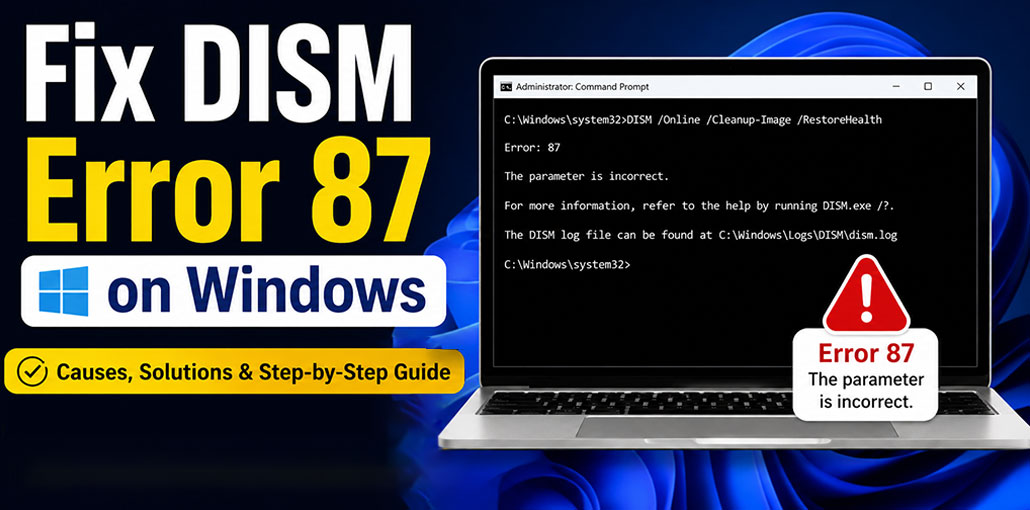
DISM is a shorthand for the term “Deployment Image Servicing and Management (DISM), and it is available in Windows 7/8/10/11 and Windows Server R2 as a preinstalled application that can provide services to recover or repair Windows images.
Access the DISM tool via Windows PowerShell or the Command Line on your personal PC. If a Windows image fails to function, the DISM tool will repair or update the file and fix any issues.
Why Does DISM Error 87 Occur?
But unfortunately, if you run the DISM tool, you will occasionally encounter the DISM error code 87: Option is Unknown. Let’s begin by examining the reasons behind DISM error 87 and how it occurs on our system.
There are many possible causes for the DISM error 87 on Windows 11/10/8/7. Here are a few of them:
- Incorrect DISM command syntax or parameters.
- Running an unsupported command in an elevated Command Prompt.
- Using an outdated or incompatible version of DISM.
- Problems launching required services, such as network-related issues.
- Windows Update failures or missing system updates.
In most cases, users will be required to fix or update Windows and download any necessary files. But this is an open invitation for data loss during this process.
Relax. Don’t panic! We are here to help. All your concerns will be addressed in this guide. This section will provide information on how to fix the DISM error 87 option is unknown.
Also read: Steam Error Code E87: How to Fix Steam Login Error
How to Fix DISM Error 87: Option Is Unknown
We will look at five methods to fix DISM error 87: The DISM error 87 option is unknown.
1. Check and Enter the Correct DISM Command
A wrong DISM command is among the most common errors. If you ever encounter the DISM error 87, make sure you have checked your command.
Here are some things to keep an eye on when looking over the commands:
- Spelling mistakes.
- There should be a space between each Slash in the commands.
- Use the correct format and sequence.
Example:
DISM/Online\Clenup-image/Scanhealth (Wrong)
DISM /online /cleanup-image /scanhealth (Correct)
After you’ve made the adjustments, make sure that the problem has been solved. If you are still experiencing DISM Error 87, then try another solution from the list.
2. Run the System File Checker (SFC) Scan
There is a great possibility that you’re experiencing the DISM error code 87 due to damaged system files on your computer. The aim is to identify and fix all damaged system files that cause the error.
Let’s examine how to repair the problem caused by damaged system files by using the built-in Windows tool, System File Checker (SFC).
Steps:
- Search for the command prompt in the search box of Windows 10.
- Choose the Run as administrator option to continue.
- In the command prompt, type SFC /scannow. Then hit the Enter button to continue.
- Allow the verification to be completed 100%.
Notice: Do not close the command prompt window until 100% verification has been completed.
This will fix all damaged system files on your computer.
Check the prompt for commands to determine whether the DISM error 87 issue is fixed. Check out the next solution if this does not solve the issue for you.
3. Run the CHKDSK Tool
If you’re reading this solution, we believe your issue is not solved. Hopefully, CHKDSK will take care of the task for you. If you’re experiencing DISM error 87 due to various disk-related issue.
The CHKDSK tool will determine whether the data on the disks is in a secure state or not. You can use CHKDSK to solve your issue. CHKDSK tool to fix the issue. The steps to follow to resolve this issue are as follows:
Steps:
- Start the command prompt as an administrator.
- Type the “chkdsk C: /r” command in the command prompt window, and click “Enter.”
- It will ask, “Would you like to schedule the volume to get checked the next time the system restarts?” Enter “Y,” and the process starts.
This will enable you to find all issues with the drive and resolve them. Run the command prompt again and verify that the DISM error 87 has gone.
If the error is still present, the cause behind the error should be explained in the fix coming in this guide.
4. Install the Latest Windows Updates
DISM can also cause error 87 if your Windows isn’t up to date. In this instance, it is imperative to search for the latest updates and then download and install the updates. Follow the steps below to upgrade Windows on your computer:
Steps:
- Start by opening Settings by pressing Windows and then I.
- Click on the Update & Security button to continue.
- Open the Windows Update tab, and then click “Check for Updates.
- If your Windows is updated, it will display that the most recent version is installed. If not, click “Download” and then install.
- Your system will demand a restart when it has been updated successfully. Restart your system.
Once the system has been updated, use Command Prompt as administrator and check for DISM error 87. If system updates were the cause of the error, then it will disappear.
But there is a possibility that you’re still struggling with DISM error 87. The next step is to see an additional solution to solve this problem.
Also read: Why Does Install Error – 0x800f0991 Occur? Easy Fixes That Work
5. Reset or Reinstall Windows
The final solution in this tutorial will be to reinstall Windows. Since no solution has solved the DISM error code 87, we can only use the last option to reinstall Windows on our system. Check the steps below to reinstall Windows on your system:
Steps:
- Reinstalling Windows on your computer could result in data loss. It is therefore recommended to back up all data beforehand.
- After taking a data backup, navigate to the menu at the top of the screen: Settings> Update & Security > Recovery.
- Under “Reset This PC,” click on Get started.
- In the Choose an option window, choose ” Keep my files to ensure no data loss.
- Click Next.
- Click the Reset button in the Ready to Reset this computer window.
- Now start your PC. Windows has been restored.
The next step is to start the command line in administrator mode and then check whether the DISM error 87 is gone. This solution should be beneficial to you.
Tips to Prevent DISM Error 87
- Always run Command Prompt as Administrator.
- Copy commands carefully.
- Keep Windows updated.
- Verify spaces and parameter spelling.
- Avoid modifying commands unless necessary.
Final Thoughts
In this article, we will discuss DISM and the reason behind the DISM error 87 on a Windows PC. In the following, we’ve provided five options to resolve the DISM error 87 without losing data and files on your computer.
FAQs: DISM Error 87
What is DISM Error 87 in Windows?
DISM Error 87 is a Windows Deployment Image Servicing and Management (DISM) error that means “The parameter is incorrect.” It usually appears when DISM cannot recognize a command, option, or parameter entered by the user.
Does DISM Error 87 mean Windows is corrupted?
Not necessarily. The error usually indicates a problem with the command itself rather than severe system corruption.
Should I run SFC or DISM first?
If DISM is working, run DISM first and then execute: sfc /scannow If DISM is failing because of Error 87, verify the command syntax and permissions before trying again.
Is DISM Error 87 serious?
No. In most cases, it's caused by an incorrect command or missing administrator permissions and can be fixed quickly.









Leave a comment