

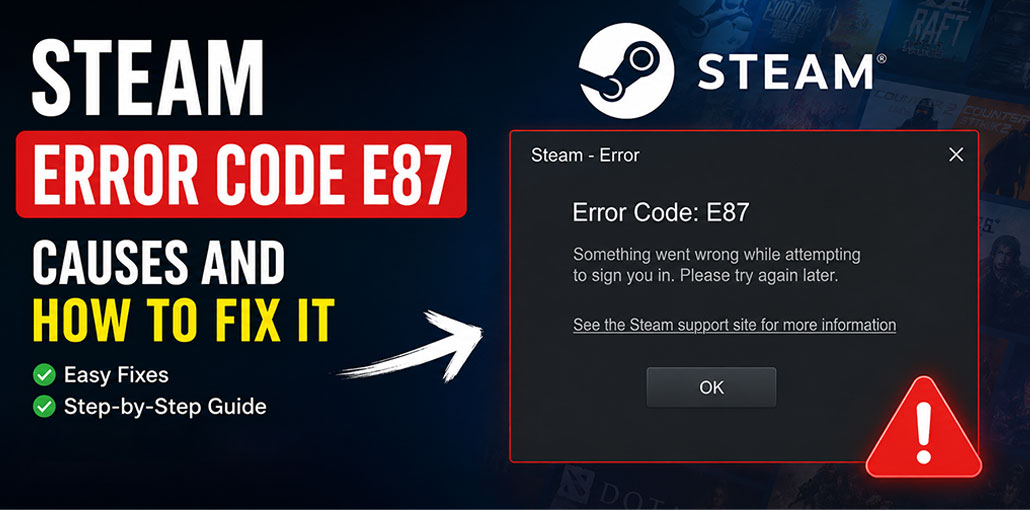
Steam is a popular platform for gaming and social features all in one package. Your purchased games and communities are accessible through the account you have created on Steam. But sometimes, the error code E87 Steam can be a roadblock and prevent you from logging into your account without revealing the real reason. If you’re a mess over Steam Error Code E87, which is preventing you from joining the group waiting in the lobby of your game.
This guide will help you find the necessary solutions to get rid of Steam Error Code E87 and return to playing. Let’s begin the technical investigation!
What Causes Steam Error Code E87?
Steam displays an error code E87 when it is unable to validate the login credentials and access the library. This indicates a serious issue when you log in to your Steam account. This could be due to various causes. The following are possible causes of the Steam error code E87.
- Too many failed login attempts
- Temporary Steam account throttling
- Steam server problems
- Corrupted Steam cache
- Incorrect date and time
- VPN or proxy interference
- Firewall blocking Steam
- Network connectivity issues
- Corrupted Steam client files
Also read: Steam Games Not Launching? 6 Fixes to Solve the Problem
Quick Solutions to Try First
Before you give the more technical fixes a try, take a look at the following information:
- Restart Steam Client: Most of the time, restarting Steam will fix error E87. If you restart Steam, the associated services are also restarted, and the issue can be solved by itself.
- Make sure Steam is updated: if Steam shows you the E87 login error, it’s because you’re running an older version. Steam usually checks for updates every time you reboot it and installs them automatically. If Steam isn’t working, you can try reinstalling it to upgrade to the latest version.
- Disable your firewall and VPN: A VPN or Windows Firewall can block Steam from connecting to the Internet and cause this E87 error. Temporarily stop your VPN and then disable your firewall and see if this can help.
- Close other gaming applications: Operating different gaming clients can cause conflicts and result in an E87 error on Steam. Try closing other games on your computer, such as Epic or GOG, to test if this is the problem.
If none of these solutions worked to fix the issue, proceed to the next method discussed below.
How to Fix Steam Error Code E87
The Steam Login Error Code E87 can be fixed with these troubleshooting methods. Here are seven methods you can use to get it fixed. The list is arranged from easy tweaks to complex solutions, so you can apply each one until the E87 error message is resolved.
1. Wait Before Trying Again
If you’ve entered the wrong password multiple times, Steam may temporarily block additional login attempts, and Steam login failed message.
Steps
- Close Steam.
- Wait 30–60 minutes (or longer if necessary).
- Restart Steam.
- Try logging in again.
Many users report the issue resolves after waiting because the login restriction expires
2. Run Network Troubleshooter
An unstable or weak internet connection may result in Steam showing errors, so ensure your internet is active before running the Network Troubleshooter to find and fix problems in your system.
- Click on the Start button, and then select Network Connections.
- Select your Status on the left and click Network Troubleshooter.
- Choose All Network Adapters. Click on the Next button.
- This will begin the troubleshooting process, which may take time to find the cause of the issue. After it’s completed, you can select the ” Try these repairs as an administrator” option.
3. Clear Temporary Files
In Windows, the temporary files are the digital equivalent to rough sketches and sticky notes. They’re created by programs to keep the documents needed for a limited period. But they can be damaged, causing errors such as the Steam Error Code E87. Cleaning them is a great way to fix this issue.
- Use the Win + S shortcut key, then enter Disk Cleanup and hit the Enter key.
- On the next page, select the drive where Steam files are kept, then click “OK”.
- Select the temporary files and then proceed to clear them.
Also read: Steam No License Error? Here’s How to Solve It Fast
4. Run Steam as Administrator
Sometimes, Steam may require a little additional authority to operate properly, granting it the authority to alter the system’s files. So, you run it as an administrator.
- Steps to run Steam as Administrator:
- Right-click the Steam icon and select Properties.
- Choose the Compatibility tab and then check Run this program as administrator under Settings.
- Click “OK” to save your changes.
4. Check the Steam Server Status
Before moving on to more advanced troubleshooting techniques for the error code E87 Steam, make sure the issue isn’t due to the Steam app. Sometimes Steam goes down and will not respond, and be unable to verify login credentials.
- Go here to visit the detector page.
- Find Steam on the list and verify the status.
5. Clear Steam Download Cache Files
Cache files are temporary data files used by programs to speed up various processes that require less processing, including displaying websites, downloading games, and authenticating logins. But they can become old or corrupted and could cause the Steam login error code E87. Cleaning them out will help solve the problem.
Steps to clear Steam caches:
- Go to your Steam application and then select Steam in the upper left corner.
- Choose Settings and then the Downloads option, then click Clear Cache.
- Close the application, relaunch it, and check if the issue is resolved.
6. Use Google’s DNS
Steam Login Error Code E87 indicates a failure of Steam servers to connect to your PC, often due to issues in either network connectivity or firewall security settings.
An incorrect or unstable DNS setting can prevent Steam from communicating with its servers and lead to Error Code E87. Switching your settings over to Google Public DNS (8.8.8.8 and 8.8.4.4) could help restore a reliable connection and resolve Error Code E87 issues.
- On your computer, and go to Network and Internet > Status > Change adapter options.
- Right-click on Ethernet, then choose the Properties option.
- On the Networking tab, click in the Networking bar to select Internet Protocol Version (TCP/IPv4).
- To change the DNS server, enter the following addresses:
Preferred DNS server = 8.8.8.8
Alternate DNS server = 8.8.4.4
Tips to Prevent Steam Error Code E87
- Enable Steam Guard
- Don’t repeatedly enter incorrect passwords
- Keep Steam updated
- Avoid unstable VPN connections
- Regularly clear Steam cache
- Keep Windows time synchronized
Final Words
The Steam error code E87 may be a troublesome issue that prevents users from accessing their games and the community. However, it is fixable with a few simple solutions. It could be related to a network issue or to your Steam server.
FAQs: Steam Error Code E87
What is Steam Error Code E87?
Steam Error Code E87 is a login authentication error that occurs when Steam cannot verify your account credentials or establish a connection to its servers.
Can I fix Steam Error Code E87 without reinstalling Steam?
Yes. In most cases, restarting Steam, clearing the download cache, checking your internet connection, or changing your DNS settings can fix the error without reinstalling Steam.
How long does Steam Error Code E87 last?
If the error is caused by too many failed login attempts, it may disappear after waiting 30–60 minutes. If it's caused by another issue, you'll need to troubleshoot it.
What should I do if Steam Error Code E87 keeps coming back?
If the error persists, update Steam, clear the download cache, verify your network settings, check Steam's server status, and reinstall the Steam client if necessary.








Leave a comment