

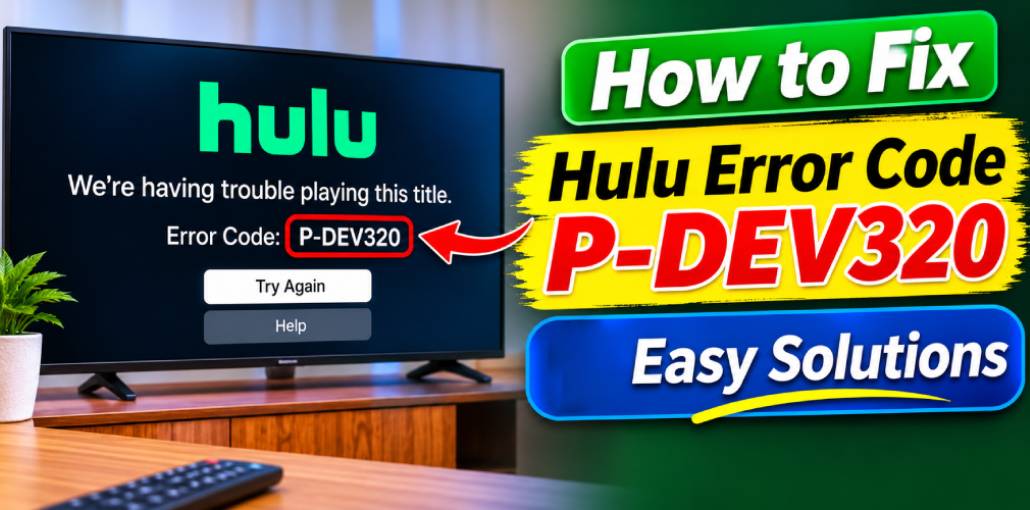
If you’re seeing Hulu error code P-DEV320, you’re in the right place. Hulu is one of the best streaming platforms that offers a huge library of movies, TV shows, and more. It is a paid service. Most of the time, you will enjoy your videos without any hiccups. However, sometimes you might get technical issues. One such common technical issue is the error code P-DEV320. This prevents you from playing the videos. Let’s see why this happens and how to fix it.
What Does Hulu Error Code P-DEV320 Mean?
Hulu Error Code P-DEV320 appears when users encounter playback problems while streaming content on Hulu. When this error occurs, a message appears on the screen indicating that something went wrong and suggesting that users restart their device before trying again.
The error message reads:
“We’re having trouble playing this. It may help if you turn your device off for a minute and try again. Hulu Error Code: P-DEV320.”
This error can occur on almost any device or platform that supports the Hulu app. It is also associated with similar playback errors, including P-DEV318 and P-DEV322.
What causes Hulu error code P Dev 320?
The common causes of Hulu Error Code P-DEV320 include:
- Weak or unstable internet connection.
- Network or router connectivity issues.
- Temporary glitches in Hulu services.
- Outdated Hulu app version.
Now, let’s look at some effective troubleshooting methods to fix Hulu Error Code P-DEV320 and get back to streaming without interruptions.
Also read: Hulu Watch Party: How to Watch Hulu With Friends in 202
How to Fix Hulu Error Code P-DEV320
Try the following methods to resolve this Hulu playback error:
1. Check Your Internet Connection
A weak or unstable internet connection can trigger Hulu Error Code P-DEV320. Make sure your internet is working properly and offers sufficient speed for streaming. You can restart your router, check your internet speed, troubleshoot network connectivity problems, or switch to a different network to see if the error is resolved.
You can also try streaming videos on other platforms, such as Netflix, to check whether they work properly. If other streaming services also experience playback issues, the problem is likely with your internet connection.
2. Update the Hulu App
Using an outdated version of the Hulu app may cause playback issues, including error code P-DEV320. Make sure you are running the latest version of the app on your device. On Windows 10/11, open the Microsoft Store, check for available Hulu updates, and install them.
If updating doesn’t resolve the issue, try uninstalling the Hulu app and reinstalling it from the Microsoft Store. Then reopen the app and check whether the error is fixed.
3. Log Out and Log Back Into Your Hulu Account
Signing out and signing back into your Hulu account can help resolve temporary account-related glitches. First, log out of Hulu and close the app. Restart it, enter your login credentials, and sign back into your account. Check whether the playback error is resolved.
4. Perform a Power Cycle
Turn off your streaming device, modem, and router, and unplug them from the power source. Wait for a minute before plugging them back in and switching them on. Once your internet connection is restored, open the Hulu app and check whether you can stream without encountering the P-DEV320 error.
5. Clear the Hulu App Cache
Clearing the Hulu app cache can help fix playback issues caused by corrupted or outdated temporary data. Follow these steps to clear the Hulu cache on Xbox One:
- Open Menu and select My Games & Apps.
- Highlight the Hulu app.
- Press the Menu button on your controller.
- Select Manage Apps.
- Choose Clear Saved Data, if available.
On Android devices, you can clear the Hulu app cache through Settings > Apps > Hulu > Storage > Clear Cache. On iPhone, you may need to reinstall the app to remove its cached data.
6. Try Streaming Hulu on a Different Platform
Try accessing Hulu on a different device or platform to check whether the error persists. For example, if you’re using the Hulu app on Windows 10 or 11, open Hulu in a web browser and try streaming again. You can also switch to your smartphone or another supported device to see if the issue is resolved.
Also read: Best Hulu Ad Blocker in 2026: 10 Tools to Stop Ads
7. Contact Hulu Support
If none of the above solutions resolve the Hulu Error Code P-DEV320, the problem may be related to Hulu’s servers. Visit Hulu’s official support page or check its social media accounts for updates about any ongoing technical issues. If Hulu is experiencing a service outage, you may need to wait until the issue is resolved before streaming again.
Final Words
In conclusion, this article has covered seven effective solutions to fix Hulu Error Code P-DEV320. If you encounter this error while streaming, try the methods discussed above to resolve it. If you know of any other ways to fix this issue, feel free to share them in the comments section.
FAQs: Hulu Error Code P-DEV320
Can a poor internet connection cause Hulu Error Code P-DEV320?
Yes. A slow or unstable internet connection can interrupt communication with Hulu's servers and trigger this playback error.
Does Hulu Error Code P-DEV320 occur on all devices?
Yes. This error may occur on various supported devices, including smart TVs, smartphones, gaming consoles, and Windows computers.
Is Hulu Error Code P-DEV320 a temporary error?
It can be temporary, especially when caused by network interruptions or Hulu service issues. However, persistent errors may require additional troubleshooting.
Should I reset my router to fix Hulu Error Code P-DEV320?
The time depends on the cause. Network or app-related issues may be resolved quickly, while server-side problems may require waiting until Hulu restores its service.






Leave a comment