

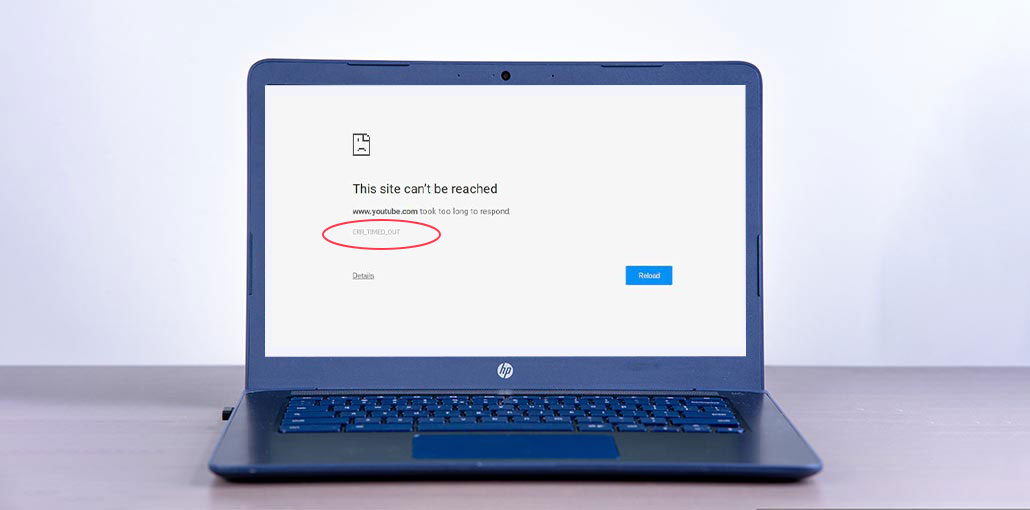
The ERR_TIMED_OUT error is usually seen when Google Chrome cannot open a website you are searching. How to resolve the error ERR_TIMED_OUT in Google Chrome? Be sure to read this article thoroughly, and we have 7 proven ways to fix it.
Chrome is one of the most popular web browsers, but sometimes you could encounter errors such as ERR_CONNECTION_TIMED_OUT. In this article, we provide several useful solutions for fixing the ERR_TIMED_OUT error.
There is a chance that you will encounter an ERR_TIMED_OUT (ERR TIMED OUT) error when your browser does not reach the website you’re looking for. How to fix the issue? Follow the steps below.
Common Causes of the ERR_TIMED_OUT Error
Before applying any fixes, it’s helpful to understand what might be causing the issue.
Some common reasons include:
- Slow or unstable internet connection
- Corrupted browser cache and cookies
- Faulty Chrome extensions
- Incorrect DNS settings
- Outdated network drivers
- Firewall or antivirus interference
- Misconfigured Hosts file
- Website server downtime
Now let’s look at the most effective solutions.
Also read: How to Fix Your Connection Is Not Private Error in Chrome
How to Fix the ERR_TIMED_OUT Error on Google Chrome
1. Open the Website in Incognito Mode
It is recommended to browse the site in Incognito Mode at first to determine if you can open the site normally. If it’s fine, the reason for the ERR_TIMED_OUT error might be your extensions or plugins. So, you should enable the extensions one at a time to see errors. If they appear after you enable one extension, you will need to delete it from your web browser.
To enter Incognito Mode:
- Open Chrome, then click on the 3 horizontal dots icon located in the upper-right part of the toolbar.
- Choose a new incognito window. You should then start entering Incognito Mode.
2. Delete the Default Chrome Profile Folder
Try to delete the default Chrome folder to remove the error message ERR_TIMED_OUT error. Here is the guideline:
- Press Windows + R.
- Type:
%LOCALAPPDATA%\Google\Chrome\User Data\ - Press Enter.
- Close Chrome completely.
- Locate the Default folder.
- Create a backup copy.
- Delete the original Default folder.
- Reopen Chrome.
Chrome will automatically create a fresh profile folder.
3. Clear Chrome Cache and Cookies
Cookies and browser caches contain old data that could cause connectivity issues. Clear them from your Google Chrome browser:
Steps:
- Click the three-dot menu in Chrome.
- Select More Tools > Clear Browsing Data.
- Choose All Time as the time range.
Select:
Cookies and other site data
Cached images and files - Click Clear Data.
Restart Chrome and try accessing the website again.
4. Update Network Drivers
You can encounter the ERR_TIMED_OUT error if your network drivers aren’t up to date. practical tips you can apply in everyday life. Here is how to update the network drivers.
- Right-click the Start button.
- Select Device Manager.
- Expand Network Adapters.
- Right-click your network adapter.
- Select Update Driver.
- Click Search Automatically for Drivers.
- Install any available updates.
After that, reboot your computer and then open Chrome to test whether you can access them.
5. Disable Firewall and Antivirus Temporarily
Sometimes your antivirus or firewall can cause issues. So, it is recommended to remove them and then check whether the issue is solved. If you can find it useful to turn off these programs, you should check your firewall settings. You can allow Chrome to join both private and public networks. If it does not work. Remove these programs permanently, then try using other antivirus software and firewalls.
6. Check the Windows Hosts File
If you encounter the error ERR_TIMED_OUT when accessing a specific site, you can check the Hosts file to see whether the site has been blocked. practical tips you can apply in everyday life. Here is how you can accomplish this:
- Press Windows + E.
- Navigate to:
C:\Windows\System32\drivers\etc - Open the hosts file with Notepad.
- Search for the website URL that’s showing the ERR_TIMED_OUT error.
- Remove any related entries.
- Save the file.
Also read: How to Fix Chrome Freezing Issues on Android Phones
7. Reinstall Chrome Browser
If neither of the options above can fix the ERR_TIMED_OUT error, you should consider restarting Chrome.
- Open Control Panel > Programs and Features.
- Uninstall Google Chrome.
- Restart your computer.
- Download and install the latest version of Chrome.
- Sign back into your Google account.
After reinstalling, check whether the ERR_TIMED_OUT error has disappeared.
Tips to Prevent ERR_TIMED_OUT Error
- Keep Google Chrome updated to the latest version.
- Clear browser cache and cookies regularly.
- Use a stable and reliable internet connection.
- Disable or remove unnecessary Chrome extensions.
- Update your network drivers frequently.
- Check firewall and antivirus settings to ensure Chrome is not blocked.
- Use trusted DNS servers such as Google DNS or Cloudflare DNS.
- Restart your router occasionally to maintain network performance.
Bottom Line
This article provides 7 fantastic ways to solve the ERR_TIMED_OUT error on Chrome, so if you are confronted with this error, use these methods to resolve it. If you’ve got better ideas, you can leave a message below, and we’ll get back to you within a few hours.
What is the ERR_TIMED_OUT error in Google Chrome?
The ERR_TIMED_OUT error occurs when Chrome cannot connect to a website because the server takes too long to respond.
Is ERR_TIMED_OUT the same as 'This Site Can't Be Reached'?
No. 'This Site Can't Be Reached' is a general Chrome error page, while ERR_TIMED_OUT is one specific error code that can appear on that page.
Will reinstalling Chrome fix the ERR_TIMED_OUT error?
If the issue is caused by corrupted browser files or settings, reinstalling Chrome can help resolve the error.
How do I know if a website is down or the problem is on my side?
Try opening the website on another device or network. If it doesn't load anywhere, the website may be experiencing server issues.









Leave a comment