

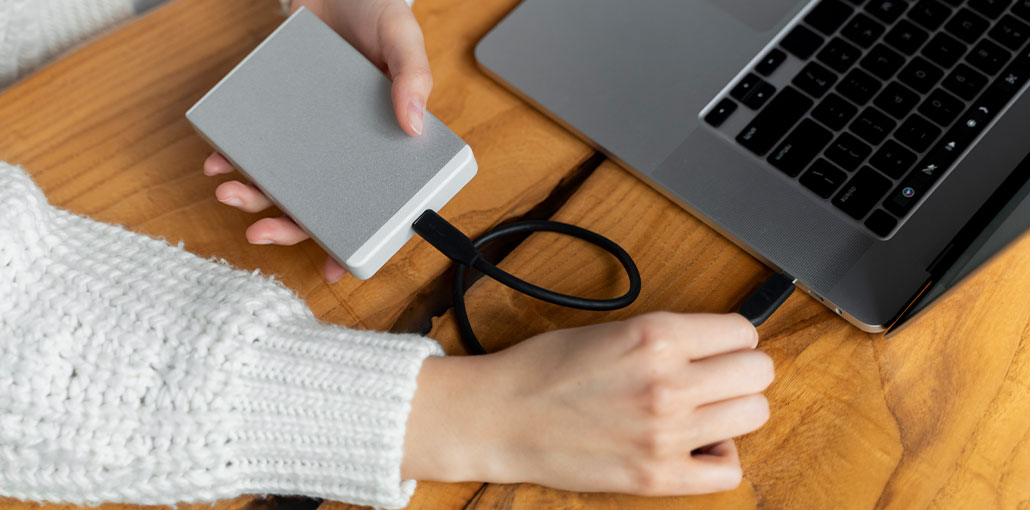
If you encounter an external hard drive not showing up on your system. This can be extremely frustrating and irritating. However, you can resolve the issue by taking a step. Here we provide several solutions to fix external hard drive errors.
Causes of an External Hard Drive Not Showing Up
The external hard drive not detected is a common issue. The most common cause is faulty cables. A bent USB pin or a damaged wire blocks data and power. Older drivers also fail. These bits of software connect your drive to your computer. If you do not update it, your drive will go dark. The most harmed by partitions are. The drives are split into sections to store the data. When one goes missing, the files disappear from view.
Don’t be worried. Simple steps can resolve the external hard drive not showing up. Ensure you check the cable first. Switch it out. Update drivers next. Restart your computer. These actions work fast. I’ve repaired many drives similar to yours. They are widely used to back up data. They keep the things that matter to us. The portability of storage beats the built-in space every time
How to Fix External Hard Drive Not Showing Up Issue
Quick Checks – Fix Simple Connection Issues First
Get started here before you dive deeper. Most of the time, the external hard drive not showing up
is a simple hardware problem. These tests are quick and can save many hours of trouble.
Check the Cable and USB Connection
Take your external drive and examine your USB connection first. Make a gentle wiggle; loose connections are often a problem for detection. Consider using a different cable to check for the issue.
If your drive has more power, check the adapter. Try a fresh outlet. Certain drives draw power directly through the USB connection; some outlets are powered when your PC’s ports are low. Switch to a different port on your PC. Try these quick fixes first if your external hard drive not showing up.
Test the Drive on Another Computer
Remove the drive from your primary computer. Attach it to your laptop computer or a friend’s PC. Does it show up? If so, the problem lies with your original system.
Try using a Mac if you’re running Windows and vice versa. This test could indicate a hardware or software failure. If the drive is working, your computer needs tweaks or an unresponsive disk.
Also read: How to Clone Hard Drive to New SSD Without Reinstalling?
Checking Device Manager or System Information (Mac Activity Monitor)
On Windows, you can right-click on the Start button and select Device Manager. Add Disk drives and Universal Serial Bus controllers. Do you see your external drive on the list? It could be displayed with an exclamation mark, which indicates a driver issue.
For Macs, go to About This Mac, then System Report. In the sidebar, click USB. Search for your drive in hardware. If it shows but fails to mount, then the OS detects it, but not in full.
These tools verify whether the system can detect the device. No listing? Go back to the cables.
Resolving Drive Visibility Issues in Disk Management
The drive could be in there, but hidden from view. Disk Management on Windows reveals what’s actually happening. Let’s discover it.
Accessing and Interpreting Windows Disk Management Utility
Press the Windows button + R, enter diskmgmt.msc, and hit Enter. The window appears and displays all the disks. Are you able to find your external disk? It might say “Not Initialized,” Unallocated or RAW.
Unallocated means there is no partition, which may be lurking. RAW signals damage to the file system. Status: Offline? It’s stopped for safety. Note the dimensions to match your drive.
This tool can reveal the truth behind the desktop. Use it to determine the next actions.
Assigning a New Drive Letter to a Recognized Drive
It was discovered, but there was no letter such as F or E. The drive is empty. Right-click it in Disk Management. Choose Change Drive Letter and Paths.
Click Add, select the letter that is not used, like H:. Hit OK. The drive should pop up in File Explorer now. If the letters do not match, Windows skips assigning one– which is a fix.
Make sure to avoid mixing up when using other gadgets. Check by opening the new drive.
Troubleshooting Driver Conflicts and Updates
Drivers are the bridge between your hardware and OS. If they fail and the data disappears, the drives are gone. It is time to refresh them.
Uninstalling and Reinstalling USB Controller Drivers
In Device Manager. Expand Universal Serial Bus controllers. Right-click on each USB Root Hub, pick Uninstall device. Make sure you do this for any suspects.
Restart your computer. Windows loads fresh drivers automatically. This removes corrupted or damaged files that hinder detection.
If the drive is visible after rebooting, you’re done. Repeat for disk controllers if needed.
Updating or Rolling Back Disk Drive Drivers
In Device Manager, look for your external drive under Disk Drives. Right-click, choose Update driver. Allow Windows to search the Internet or browse for files.
Did it work before an update? Pick Roll Back Driver instead. This reverses the changes that caused the no-show.
To get the best results, go to the manufacturer’s site, such as Seagate or WD. Manual installations are superior to automatic ones. Be sure to check for viruses, as malware can be the reason the external hard drive not showing up.
Also read: Top 10 Free Driver Updater Software
Addressing External Drive Encapsulation Issues (Enclosures)
Many externals have enclosures that protect the disk. The USB bridge inside may fail. Make sure to check the model; some require special chips.
Get enclosure driver downloads from the manufacturer. You can also test the disk with a different tool. This helps determine if the disk is the villain.
Enclosure failure is uncommon, but it can happen. A data recovery expert can safely swap it.
Recovering Lost Partitions and File System Errors
More serious issues, such as corruption, can hide your data. Be careful not to rush through things, as it could cause the external hard drive not showing up.
Checking for RAW File System or Unallocated Space
In Disk Management, RAW or Unallocated is a sign of trouble. RAW indicates that the OS cannot recognize the format. Unallocated? Partitions disappear. However, files are often left.
Do not format, as it erases everything. Instead, use the best disk recovery tools.
This phase tests your patience. The data is there; we just require the appropriate key.
Utilizing CHKDSK Utility for Minor Errors
Open the Command Prompt as admin. Type chkdsk and then /f/r. The letter is your drive’s. If you don’t have a letter, make use of the volume ID in Disk Management.
/f fixes errors; /r finds bad sectors. It can scan overnight. Risks? low for read-only drives. However, backups are the first step.
Use it with drives that are plugged in. There are many success stories, with drives mount alter.
Employing Data Recovery Software for Severe Corruption
Have you tried the basic fixes to fix an external hard drive not showing up? Get free tools such as Recuva, or pay-for ones like EaseUS Data Recovery. Install them on your computer, not the bad drive.
Check the scan on your external. Check the files before saving them to a different drive. Don’t ever write again to the source.
For difficult cases, professionals use a lap. The cost can be high; however, the data is irreplaceable. It’s worth it. Always recover to fresh storage.
Also read: Top 7 SSD Data Recovery Tools 2025 to Restore Lost Files
System and BIOS/UEFI Level Checks
If the external hard drive not showing up and all else fails, check your system settings. The system settings could block USBs.
Checking USB Ports in the System BIOS/UEFI
Restart the computer and press F2 or the Del key to open the BIOS. Find USB settings. Ensure Legacy USB is on.
Some boards disable ports for power saving. Make sure they are enabled. Save and then exit.
This is a fix for rare firmware issues. Check the drive after rebooting.
Ruling Out Operating System or Corruption Conflicts
Start Safe Mode, hold Shift after restarting Windows. Connect the drive. Does it show up? You can blame third-party apps.
Uninstall the most recent version of the software. Run SFC /scannow on the admin Command Prompt to fix OS files.
Safe Mode removes extras and reveals the real issue for the external hard drive not showing up. Clean booting confirms.
Conclusion on External Hard Drive Not Showing up
We began with a simple port test and a cable change, followed by Disk Management for hidden drives, then recovery drivers. Each step builds on the previous one, from basic to complex solutions to fix your external hard drive not showing up. Remember that physical checks come first, and they can fix most cases quickly.
The most important thing to remember is to skip formatting drives; use CHKDSK carefully, then recover to secure locations. Make backups regularly to avoid future threats. If stuck, pros await. Take out your tools and get your storage today. Your files deserve it.
FAQs: External Hard Drive Not Showing Up
Why is my external hard drive not showing up on my computer?
Your external hard drive may not show up due to faulty USB cables, outdated or corrupted drivers, missing drive letters, file system corruption, or hardware issues. Simple checks like trying a different port or cable often solve the problem.
Can a damaged USB cable cause the external hard drive not showing up?
Yes. A bent or broken USB cable can prevent data and power from reaching the drive. Always test with a different cable if your drive isn’t detected.
How do I recover data from an external drive that shows “Unallocated” space?
“Unallocated” indicates lost or deleted partitions. Use a reliable data recovery tool like EaseUS, Recuva, or Disk Drill to scan the drive and recover your files before creating a new partition.
How do I fix an external hard drive not showing up on Mac?
Try a different cable or port, and ensure the drive format is compatible with macOS.
Can viruses cause an external hard drive not showing up?
Yes. Run a full virus scan and check for software conflicts in Safe Mode.









Leave a comment