

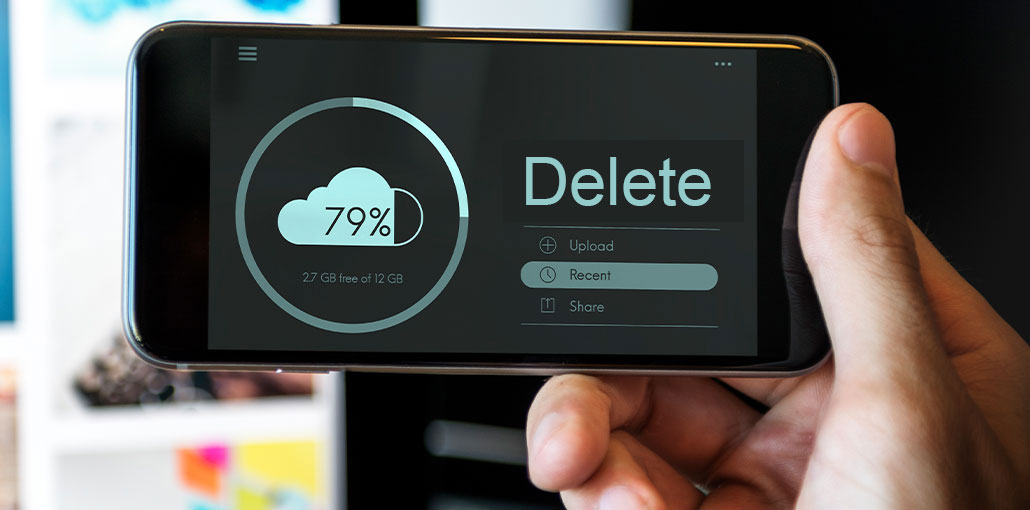
Finding that your iCloud storage is stuffed, however, there’s no reason to panic. Before you commit to a costly upgrade, you’ll be amazed at how much space you recover and save by managing your storage well.
It’s not a secret that Apple’s free 5GB storage will not be enough if you aren’t aware of how to use it. Join me for the ultimate guide on how to free up iCloud storage. I’ll share the best ways to manage iCloud storage on your Mac and iPhone.
How to Check Your iCloud Storage
If you are running out of iCloud storage, the connected Apple devices won’t back up. Think of videos, photo apps, messages, and even mail. All of these won’t sync.
The first step to managing your storage in iCloud is knowing how to check it. So, you can get ahead before running out of storage space.
Check Your iCloud Storage on Mac
- Go to Apple menu > System Settings.
- Choose your name on the top left of the sidebar.
- Visit iCloud to see how much storage space is used.
Another method to check iCloud storage for your Mac or other device is to sign in to iCloud.com. Here’s how:
Check Your iCloud Storage Using iCloud.com
- Open your browser and visit iCloud.com
- Log in to your account and then click on the More menu in the upper right.
- Select Your iCloud Storage.
- Similar to the process above, there’s a visual breakdown of the data, and a list of apps used and linked to iCloud.
Check Your iCloud Storage on an iPhone
- Open the Settings app.
- Choose your name at the top.
- Click iCloud to check the amount of space left on iCloud.
Also read: How to Free Up Space on iPhone: 6 Easy and Effective Ways
What’s Filling Up Your iCloud Storage?
Once you’ve figured out the best way to gain access to and check your iCloud storage, it’s time to look at what’s taking up space. This will allow you to think about the areas you could reclaim space.
In both the storage overviews on Mac or iPhone, the graphic breakdown will reveal what items consume space. To view it, click Storage.
For Most Apple users, backups, documents, and photos will take up storage. When you click the Manage,” you’ll see an overview of the areas where your storage is.
If you’ve figured out your storage usage, time to think about how to clear iCloud storage. Follow the next section to begin.
How to Free Up iCloud Storage on Mac?
It’s tempting to press delete on photos, apps, and videos, but first, take a moment to be careful. It is important to save any information you may want to retrieve in the near future. The best option is to use Time Machine — Apple offers a useful guide.
Let’s get started here on how to delete iCloud storage from your Mac.
1. Remove Old and Unnecessary Backups
- Visit the iCloud storage overview again in System Settings on a Mac.
- Click Manage.
- Select Backups from the dropdown (you may scroll down).
- Select any historical or old backups you don’t require and press on the “–” link to erase them.
- After you’ve finished, click Done.
If you don’t use iCloud to sync with other devices, the list you have will be void, exactly like mine.
It’s important to monitor which apps back up to your iCloud storage. This can help decrease the size of the video and future backups. We explore:
In the iCloud storage overview, beneath the graphic breakdown, click See All and then turn off any apps you don’t want backed up to your iCloud storage.
2. Manage Your Photos
There are a few choices here. You could opt to completely stop syncing your videos and photos to iCloud, which will certainly make storage space. Alternatively, you can organize your library and delete duplicate photos that no longer serve a purpose. Let’s look at the details.
Option A: Stop Syncing Photos
- In the primary iCloud Storage overview page on your Mac Click Manage.
- Select iCloud Pictures from.
- Click Turn Off, delete, and confirm.
You’ll now have 30 days to download your documents; you’ll probably want to save them on an external device to free up the space on your Mac.
If this sounds too radical, why not try spring cleaning your Photos Library instead?
Option B: Clean Your Photo Library
- Open the Photos app on your Mac.
- Sort through your pictures and videos.
- Select several items to remove by pressing the shift key, then selecting items.
- Right-click on the selected items and then click Remove Photos.
3. Remove Mail Attachments and Files
Another option within iCloud settings is to remove any unneeded Mail attachments and other items. In the System Settings menu, select Apple Account > iCloud, select Drive. Disable Desktop & Documents Folders. Once you have done this, the files are deleted from iCloud, but saved locally.
Click Apps to sync to iCloud Drive and disable Mail.
Notice: You might not want to disable this option if you are using Mail across multiple devices.
4. Remove Unused Apps
Another fantastic way to free up space is to remove older and unused applications. There’s more to removing apps than just dragging icons to the trash.
5. Use Cleanup Tools (Optional)
Did you know how to free up iCloud storage via a Mac cleaner tool? One option is to go through System Settings and the Photos app. The second option is using a Mac cleaner tool.
- Open Mac Cleaner Tool
- Click Cloud Cleanup in the sidebar. Then connect to your iCloud account.
- After that Click scan — CleanMyMac will identify the largest files.
- Go to Review All files, then select the items you no longer need and click Review and remove.
- Check files and then delete them.
It’s that simple! If you’re looking for how to free up iCloud storage on iPhone, read on.
Also read: How to Clone an iPhone: Easy Methods to Transfer Data Safely
How to Free Up iCloud Storage on iPhone
You are aware of how to free up iCloud storage and disk space on your Mac, but what about your iPhone? Let’s test these suggestions.
1. Delete Old Backups
It is also possible to delete old backups from your iPhone. Here’s how:
- On your iPhone, go to Settings > Apple Account > ICloud.
- Tap Storage and choose Backups.
- Choose your device and the backup you wish to delete.
- Press Turn off the feature and then delete the file from iCloud.
2. Delete Messages and Attachments
You can delete messages to save Apple iCloud storage or stop syncing completely. Here’s how:
- Go back to iCloud settings again.
- Select Messages > Manage Storage.
- Press Turn Off the feature and then delete the data from iCloud.
3. Clean Up iCloud Drive
iCloud Drive is the place where Apple stores files, such as applications, folders, and PDFs. Cleaning it out will reduce space. And here is how:
- In the iPhone iCloud storage overview, Tap Storage.
- Press Drive > Manage Storage.
- You can either manually sort and delete files you don’t require or click the Delete Data from iCloud button to delete all data.
4. Empty All Trashes
It’s easy to forget files that remain stored in Trash (or in the Recently Deleted folder if we’re talking about images); they will always take up space, either in the cloud or locally. After you’re done following the steps, make sure to clean out the garbage.
Pro Tips to Keep Your iCloud Storage Clean
- Regularly review your storage usage
- Delete duplicate or unnecessary files
- Limit app backups
- Use external storage or alternative cloud services
- a monthly cleanup routine
Conclusion
We all know how difficult it is to manage your iCloud storage. What really matters is how to free up iCloud storage. In the end, at all times, the techniques listed above are extremely efficient and will help you to clear your storage, while also implementing procedures more efficiently. It’s a good idea to consider all the possibilities, and once you’ve started doing it, this will only make things easier. Try these out and see how quickly you can clear the space on iCloud!
FAQs: How to Free Up iCloud Storage
Can I get more iCloud storage for free?
No, Apple only provides 5 GB of free iCloud storage. To get more space, you need to upgrade to a paid plan.
How do I stop apps from using iCloud storage?
Go to Settings >Your Name >iCloud, then turn off the apps you don’t want syncing with iCloud storage.
Why are my backups taking so much iCloud storage?
iCloud backups often include photos, apps, and data you may not need. Large apps and media files can quickly increase backup size. You can reduce this by disabling unnecessary apps in backup settings.
Why is my iCloud storage still full after deleting files?
Files may still be in the Recently Deleted folder or iCloud may not have updated yet. Make sure to permanently delete files and wait a few minutes for storage to refresh.









Leave a comment