

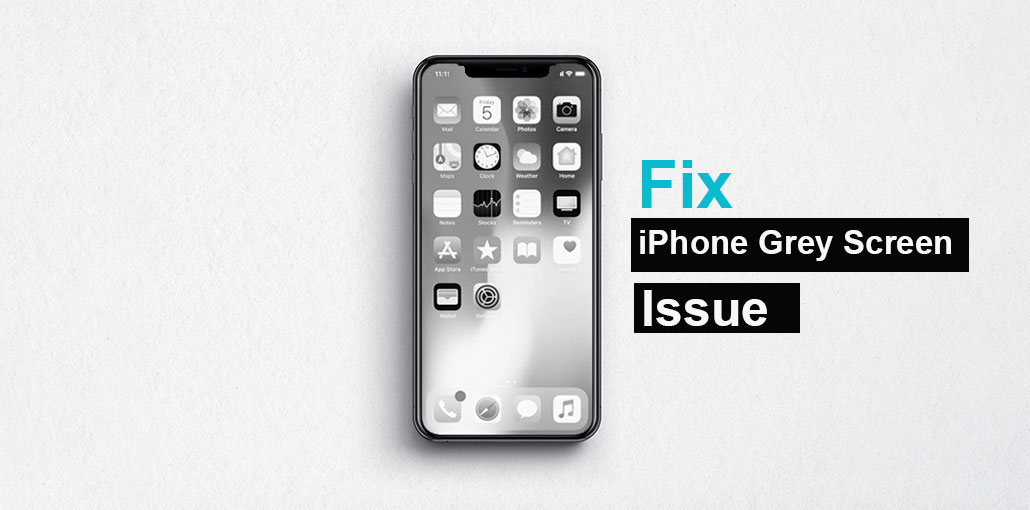
Have you encountered an iPhone grey screen issue when watching or playing? If the iPhone screen is gray, this can cause major discomfort in your daily life. What is the reason my iPhone screen is gray? How do I turn off the grey screen on the iPhone? Check out the following article for the solutions.
Possible causes for this iPhone Grey Screen Problem
It is crucial to know that the iPhone screen can turn grey for a variety of reasons.
- If the issue is discovered after an update, for instance, iOS 26, your iOS could be buggy due to the cause.
- Incorrect system files, jailbreaking attempts, or other related software issues could cause a grey screen error on the iPhone.
- Physical damage from drops or exposure to water leads to a grey screen when LCD panels and the internal controller are damaged.
If we know the factors, we can focus on the most effective solutions.
In contrast, it’s easy to identify an iPhone screen gray error with other white or black screen issues.
Grey Screen vs Black Screen vs White Screen
It’s easy to confuse different display issues. Here’s a quick comparison:
| Issue | Description | Cause | Fix |
|---|---|---|---|
| Grey Screen | Dim/frozen display | Software/hardware | Restart/update |
| Black Screen | No display | Battery/system crash | Charge/restore |
| White Screen | Bright blank screen | Hardware issue | Repair |
Also read: iPhone Speaker Greyed Out? 10 Easy Fixes for All Models
How to Fix iPhone Grey Screen Issue: 7 Best Methods
Before you begin the procedure below, make sure that you can confirm that your iPhone grey screen isn’t due to a drained battery. If not, you can connect the device to the initial Apple charger to charge your iPhone for up to an hour.
1. Force Restart Your iPhone
Force restarting your iPhone is a second option to fix a grey iPhone screen.
For iPhone 8, X, 11, 12, 13, and later
- Press both the volume up and volume down buttons for 5 seconds, then release.
- Press and hold the Side button until the Apple logo appears.
2. Check if the Grayscale Feature Is Enabled
If your iPhone screen is gray because the grayscale feature is enabled. Check the following easy steps:
- Go to Settings> General > Accessibility, then click “Display Accommodations”.
- Tap “Color Filters” and if it’s turned on, switch off the grayscale to turn it off.
3. Check iPhone for Physical Damage
Your iPhone might display a grey screen if it’s physically damaged. Look for any signs of damage on your iPhone, such as cracks or dents, etc. If you find any, then you might visit the Apple Genius Bar for professional repair services.
4. Update or Restore iPhone Using Recovery Mode
Most of the time, putting the iPhone in Recovery Mode to update or restore the device can help resolve the iPhone grey screen issue.
- Connect the iPhone to your computer, then put the iPhone in Recovery Mode.
- Open iTunes on PC: Restore iPhone> Update or Restore.
When you select an Update option, your iPhone is updated to the latest iOS version, without erasing your device data. When you select the Restore option, iTunes restores your device by erasing the iPhone data.
Verify that the iPhone grey screen is still visible.
5. Restore iPhone Using DFU Mode
Utilize Device Firmware Update (DFU) Mode to resolve the iPhone grey screen issue. DFU mode allows iPhone users to connect the iPhone to iTunes without installing the bootloader software to repair the device.
- Attach the iPhone to your PC and then put it into DFU mode.
- Open iTunes on your computer > restore iPhone, then exit DFU Mode.
Switch on the iPhone to determine whether the gray screen error exists or not.
6. Use Trusted iOS Repair Software
This is a great option if none of the previous solutions work or you haven’t been able to get your iPhone into DFU (or Recovery) mode. In this case, one option could be to use professional iOS Repair software.
Also read: iPhone Touch Screen Not Working? Causes + 9 Quick Fixes
7. Factory Reset iPhone (Last Option)
If you’ve tried all these methods and the gray screen iPhone is still present, the factory reset is your final option. In fact, it wipes off all your data; however, you will not be able to see the issue. Be sure to make a backup of your important data and media. Also, consider this technique as a final option.
- Go to Settings, tap General, Then Select Transfer or Reset iPhone
- Tap Erase All Content and Settings
- Enter the passcode and confirm
- Wait for the reset process to complete
Pro Tip to Fix iPhone Grey Screen Faster
Follow this order for the best results:
Restart → Check Settings → Update → Recovery Mode → DFU Mode → Reset
This structured approach saves time and avoids unnecessary data loss.
How to Prevent iPhone Grey Screen Issue
Avoid this issue in the future with these tips:
- Keep your iOS updated
- Avoid jailbreaking your device
- Install apps from trusted sources
- Protect your phone from drops
- Maintain sufficient storage space
Wrapping Up
Facing an iPhone grey screen issue without a clue what to do could be frustrating. It can leave you feeling with no options, especially if you don’t have a technical background. However, there are many ways to assist in resolving the issue. We’ve explored every one of them with a step-by-step guide. Follow the steps according to your specific situation.
But iOS repair software is the easiest and most efficient solution to grey screen issues. It will help you resolve the problem in only a few clicks.
FAQs: iPhone Grey Screen
What Is iPhone Grey Screen?
The iPhone grey screen is a display issue where the screen turns grey and becomes unresponsive, usually caused by software glitches, hardware damage, or incorrect settings.
Why did my iPhone screen suddenly turn grey?
My iPhone screen randomly turned grey while I was using it. What could cause this and how can I fix it?
Is iPhone grey screen a hardware problem?
How can I tell if the grey screen is caused by hardware damage or just a software glitch?
iPhone grey screen but still working — what should I do?
My iPhone is still receiving calls and notifications, but the screen is grey and not responding properly. Is this a display issue or software problem?
Should I visit Apple repair for grey screen issue?
If the screen remains grey after trying all fixes or shows physical damage, you should visit a professional repair center.









Leave a comment