

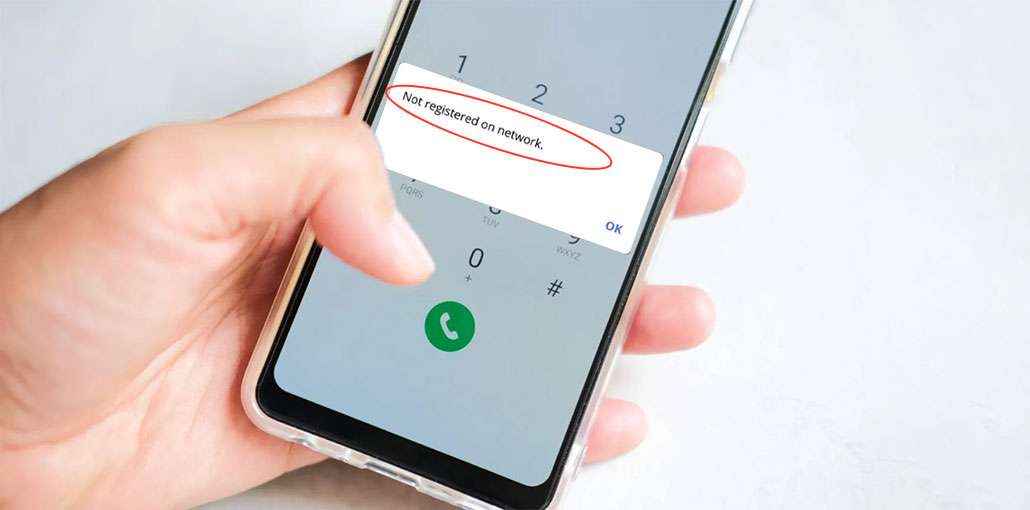
Most Samsung users have recently reported and told “Not registered on network” error message when texting or calling someone. What could be the reason for the phone not registered on network error? It could be due to a carrier issue, which can cause your Android phone to show no service. In this post, you’ll learn what it means, what might be the cause, and how to fix the phone not registered on network error. Read on and get rid of the problem on your phone.
What Does “Not Registered on Network” Mean?
Not registering on networks means you are unable to make or receive calls on your phone or receive messages. You have lost all connectivity options through your service provider.
After understanding what the ” phone not registered on the network error means, what makes the phone say it is not registered on network? Is it because of an unregistered SIM card, or is it something else? Check out the article below to find out what causes could trigger this issue.
Why Does My Phone Say “Not Registered on Network”?
Your phone says not registered on the network due to common reasons.
- SIM card issue: damaged, inactive, or not inserted properly
- Wrong network selection: carrier not set correctly in settings
- Network outage: temporary issue from your service provider
- Outdated software: bugs or compatibility problems
- Incorrect APN settings: prevent celluar data connection
- System glitch: Android errors affecting connectivity
- IMEI problem: invalid or blocked device identification
- Weak or no signal: poor coverage in your area
- Carrier restrictions: SIM not activated or account issues
There is no clear explanation for this error. But you can try these methods starting at the top, and any of them should be able to fix the phone not registered on network error.
Also read: Call Failed iPhone: 9 Quick Ways to Fix It
How to Fix Phone Not Registered on Network Error
1. Restart your Phone
A phone restarts after restarting it. This will restart the operating system, which is what allows you to run your phone without issue. To fix the phone not registered on network issue, press and hold the Power and Volume buttons simultaneously to restart the phone.
2. Manually Select your Network
Most phones automatically choose the right network provider. However, if your device continues to display the above error, you could try manually selecting a carrier and testing if it works.
You must be in a coverage-enabled network area to receive mobile signals.
- Open the Settings app, go to Wi-Fi and network > SIM and network > your SIM network operator> Network operators.
- Turn off the auto-choice feature.
- Find and tap the carrier’s name from the list.
3. Disable All Network Connections
Another way to get your phone to connect to your provider is to turn off the network connection on your phone and then reconnect to the network. This can be done by tapping an option on your Android phone, and it shouldn’t take more than just a couple of minutes.
- Tap downwards at the very top of the screen.
- Tap the icon that says Airplane mode to disable all network connections.
- After about 30 seconds, tap the icon to activate network connections.
4. Reset the Network Settings
Start the Settings app > tap General Management, then tap Reset. Then choose Reset Network Settings > Click RESET SETTINGS and confirm. The app will reset all network settings to default settings, including WiFi, mobile data, and Bluetooth.
5. Check for System Issues
The Phone Not Registered on Network error could also be a result of an Android system issue. There isn’t a flawless operating system for smartphones. Android system bugs can result in a myriad of problems like Android bootstrap issues, Android Process Media has been stopped, black screen of death, and so on.
6. Use a Different SIM Card
Sometimes, the phone says it is not registered on network because it isn’t reading the SIM card. Switching features on your smartphone won’t resolve the issue with the SIM card. If you suspect that your SIM card is physically damaged or has other issues, then you must examine it first.
Check that by using a different SIM card on your phone.
- Pull out the SIM tray to take out your existing SIM card.
- Place a second active SIM card into the tray, then insert the tray into your phone.
- If your phone is receiving signals, then your SIM card is in trouble, and you must replace it.
7. Update Your APN Settings
Although APN settings don’t match, your phone says it’s not registered on networks, so you can modify APN settings to fix the problem.
If you don’t have your APN settings, contact your provider on another phone to get them.
- Open Settings and go to Wi-Fi & Network > SIM & Network > your SIM Access Point Names.
- Enter your APN into the list, and check that it’s accurate. Edit the APN as needed.
Also read: How to Fix Chrome Freezing Issues on Android Phones
8. Update Your Phone’s Software
Your Android phone needs to run the most recent version of software to ensure fix bugs or minor issues. If you’re unsure which version of Android your phone is running or you haven’t updated your phone’s software in a while, then it’s time to update it.
- Open the Settings app and then tap System at the bottom.
- Select System updates, then install the latest Android updates.
9. Contact Your Carrier
If nothing else is working to fix the phone not registered on network error, contact your provider and find out what they have to say. Perhaps your provider has changed their settings or system, and you need to change something on your device before it can be accepted on the network.
Most carriers have websites where you can contact them via email or chat.
Preventing the Android Network Error in the Future
While not all issues are avoidable, these tips can reduce the chances of encountering the ” phone not registered on network error again:
- Keep your phone software up to date
- Avoid removing your SIM card frequently
- Use only official or compatible SIM cards
- Double-check APN settings after switching carriers
- Restart your phone occasionally
Ending Notes
The phone not registered on network error is a frustrating issue. You are unable to communicate with anyone since you’re not connected to your provider. Use the methods above to fix the phone not registered on network issue and then register your phone with the network.
FAQs: Phone Not Registered on Network Error
Why does my phone say not registered on network even with full signal?
This can happen due to SIM card issues, incorrect network settings, or problems with your carrier, even if signal bars appear full.
Can Airplane Mode fix the “Phone Not Registered on Network” error?
Yes, turning Airplane Mode on and off can refresh your network connection and may resolve temporary glitches.
Can switching SIM cards solve the problem?
Yes, using another SIM card can help you identify whether the issue is with your SIM or your phone.
How do I fix “Phone Not Registered on Network”?
To fix this error, restart your phone, reinsert the SIM card, manually select your network, reset network settings, or update your software. If the issue continues, contact your carrier.









Leave a comment