

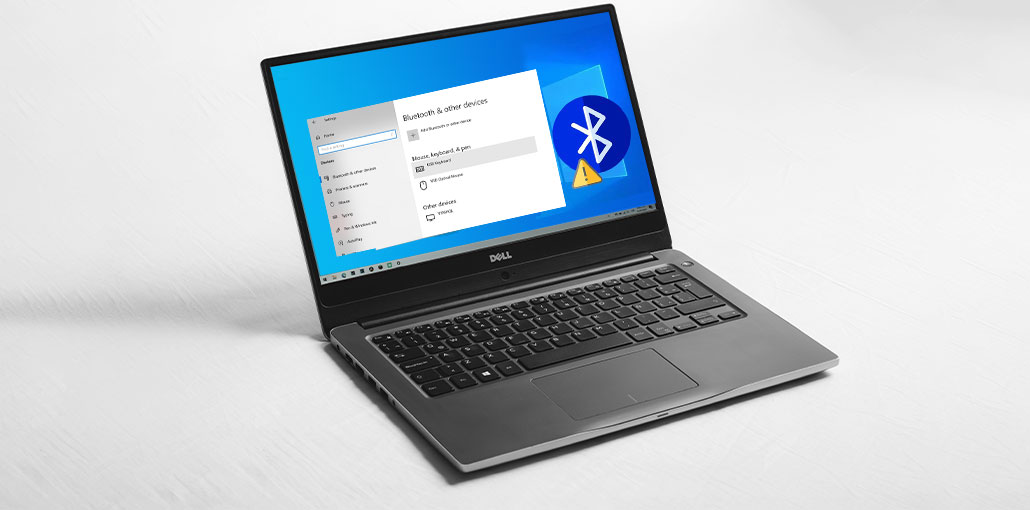
Can’t remove Bluetooth device in Windows 10/11? At times, Windows PC users experience issues when using Bluetooth devices. If you experience this issue, you can try some easy fixes. Learn more about the methods here and resolve this issue with the Windows 10 PC.
Why You Can’t Remove Bluetooth Device on Windows
Before jumping into fixes, it helps to understand what’s causing the issue:
- The device is still actively connected in the background
- Windows Bluetooth service is stuck or frozen
- Corrupted or outdated Bluetooth drivers
- The device is saved in multiple system layers (Settings + Device Manager)
- Windows cache conflict after updates
Once you understand the cause, fixing it becomes much easier.
Can’t Remove Bluetooth Device in Windows 11/10? Easy Fix Guide
There’s nothing to be concerned about if you encounter some problems. If you can’t remove Bluetooth device on your Windows computer, let us tell you that it’s a common issue for Windows users. However, there are a few easy solutions available.
1. Try to Uninstall Your Bluetooth Devices
Sometimes, hidden Bluetooth devices can cause issues for your Windows PC. You may have problems removing the stuck device.
Go to your Device Manager window on your PC and then click the option to see all hidden Bluetooth devices connected to your computer.
You can remove these devices and then restart your computer to fix the issue. Follow the steps below to learn how to delete a Bluetooth device:
- You can open the Start menu using the Windows logo key.
- In the search bar, you can type Device Manager. When the results show, then double-click the first.
- Select the View tab, then select Show hidden devices.
- Then you can remove the invisible Bluetooth device by right-clicking it and selecting Uninstall
- Once you’re done with the task, reboot your Windows computer
- When your computer restarts, you will be able to see all Bluetooth devices once more. You can now determine whether you can solve the issue successfully.
Also read: Computer Stuck on Restarting in Windows 10/11? Ultimate Fix Guide
2. Restart Bluetooth Support Service
You could try this approach if the previous one is not working.
- It is necessary to open Windows Run by pressing Win + R simultaneously.
- If the Run box pops up, type services.msc and press Enter, or select OK.
- It is now possible to determine whether Bluetooth is turned on and in Automatic mode or not.
- If you find that the settings aren’t what they are, you may alter them manually.
- Select the Bluetooth Support Service option and then open its Properties window.
- A drop-down menu will be displayed from which you can choose to set your Bluetooth devices to Automatic.
If this method doesn’t work and remove failed Bluetooth connections, then you may try the next method.
3. Use Windows Built-in Troubleshooter
Your Windows PC comes with an in-built troubleshooter, which can help resolve many technical glitches on your Windows PC.
- Open the Settings window, and then look for the Troubleshoot option.
- Click to connect via Bluetooth, followed by clicking Run the troubleshooter
- It is a simple process to resolve the remove Bluetooth device stuck. You can also explore other options when needed.
4. Update Windows Drivers
Open the Device Manager Window to check the latest driver updates for your PC.
You can right-click on the Bluetooth device and select ” Disable Bluetooth in Windows 10/11 issue, and select Update driver.
Windows Updates allow downloading all the latest updates for services associated with it. drivers too.
Go to Settings > Update and Security on your Windows computer, and then check for updates. Find the most recent available updates and download them on your computer.
There are a few tools for sale, including DriverEasy. It detects issues in your Windows drivers and helps you fix them or install new drivers. It is easy to install this tool to complete the task.
5. Clean Windows Registry
Sometimes, due to a corrupted Windows registry, users are faced with problems with deleting Bluetooth device issues.
Windows registry may be damaged by virus attacks, or your third-party antivirus software may delete all Windows registry components accidentally or intentionally.
There are several helpful tools available online to assist you with repairing your Windows registry.
CCleaner and Wise Registry Cleaner are two examples of these tools. But, before installing one of these tools and fixing your registry, ensure you have backups of your data.
6. Run Microsoft’s System File Checker
Microsoft’s System File Checker also helps to repair corrupted system data.
- In the search box, enter cmd, then click on Command Prompt
- Click Run as Administrator. Once you’re on the Command Prompt window, type the sfc /scannow command and press Enter.
- The Command prompt window will begin the scanning process. When you complete the scanning process, you can restart your Windows computer. This step will solve the Bluetooth removing device stuck error.
Wrap Up
Anyway, practical tips you can apply at the end of this discussion. These solutions can assist you if you can’t remove Bluetooth devices in Windows 11. If you have any questions, leave us a message below. If you have any alternatives to the same issue.
FAQs: Can’t Remove Bluetooth Device
What should I do if I can’t remove a Bluetooth device?
Try restarting your PC, updating Bluetooth drivers, or removing the device through Device Manager.
Can driver issues cause I can’t remove Bluetooth device problems?
Yes, outdated or corrupted drivers are a common reason behind this issue.
What is the easiest solution if I can’t remove Bluetooth device in Windows 11?
Using Device Manager to uninstall the device and restarting your PC usually works.
How do I fix the issue where I can’t remove Bluetooth device in Windows 10?
When you can’t remove Bluetooth device, updating drivers or restarting Bluetooth services usually solves the problem.









Leave a comment