

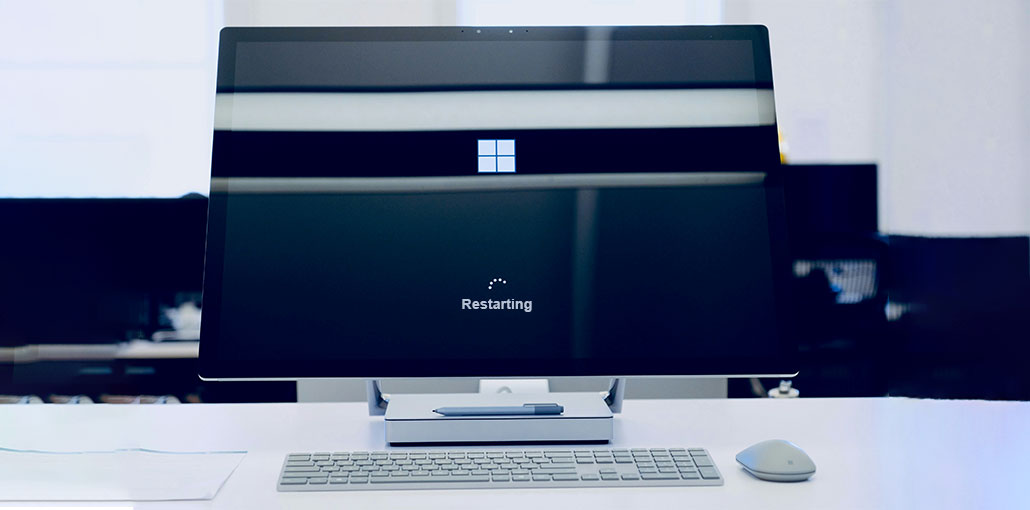
Is your PC stuck on boot screen? It’s very annoying and quite frightening. You’re likely thinking, I can’t even access my desktop! What can I do to fix this? Don’t worry, you can solve this. Here’s how to fix it…
Why Is My PC Stuck on Boot Screen?
Your computer may get stuck on the boot screen because of several reasons, including:
- Faulty or loose RAM
- Connected USB devices causing conflicts
- Corrupted Windows system files
- Incorrect BIOS/UEFI settings
- Failed Windows updates
- Damaged hard drive or SSD
- Outdated or corrupted drivers
- Malware or software conflicts
Identifying the cause can help you choose the right solution.
Also read: Inaccessible Boot Device Error in Windows 10 – Easy Startup Fixes
How to Fix PC Stuck on Boot Screen Issue
You don’t have to try all troubleshooting methods. Simply start with easy-to-advanced solutions to fix the PC stuck on boot screen issue and restore normal startup.
1. Boot Your PC Without External Devices
External peripherals could conflict with your system and cause all kinds of errors. Before we get into more detail, let’s begin with the simplest method: restarting your PC without peripherals.
- Press and hold the power button until your computer turns off.
- Disconnect all peripherals(your printer or scanner, webcam, mouse, and so on).
- Try turning on your computer a second time.
If your computer is booting correctly, some of the devices you removed are likely the ones causing the issue. You must restart every device in your computer and check it every time. After that, you’ll discover the device responsible for the issue. Replace the device when you’ve found it. You can also contact the manufacturer for assistance.
If your computer can’t boot properly, check out the solutions listed below.
2. Check and Reseat Your RAM
Your computer may not respond during the startup process if your RAM isn’t installed. In some situations, you may find that one of your RAM slots or modules is malfunctioning.
- Press and hold the Power button until your computer turns off.
- Open your computer case.
- On your motherboard, unplug your RAM from the memory slots.
- Place your RAM back into the slot one at a time, while you try to start each time.
If your computer starts without any or all of the RAM, it may be a problem with the RAM modules. Sometimes the RAM module you have may be working fine; however, one or more slots on the motherboard are not working properly. Remove the modules and then place them in other slots to see which slot is defective.
If your computer doesn’t boot up properly, don’t panic. Try the fix provided below.
3. Reset BIOS Settings
If you’re trying to boot your PC, the BIOS tells it how to start an operating system. Incorrect BIOS settings may cause the PC stuck on boot screen.
You can reset your BIOS to its original settings to see what the issue is for you. Here’s how to accomplish this:
- Press and hold your power button till the computer stops working.
- Disconnect your AC cable from the power source and then open the computer’s case.
- If your motherboard has a problem, remove the CMOS battery using your fingernail or a non-conductive screwdriver.
- Wait 5 minutes and then reinstall your CMOS battery.
- Plug the AC power cord into the power supply, and turn on your laptop to check whether your issue is still there.
4. Use System Restore
If the issue occurred because of a flaw in a piece of software, for example an application you installed or a driver went wrong, then you can use the Windows built-in System Recovery feature to fix the problem. System Recovery lets you restore the Windows setup to a previous functioning state.
To use System Restore:
- Enter Windows Recovery Environment (WinRE).
- Select Troubleshoot > Advanced Options > System Restore.
- Choose a restore point created before the problem started.
- Follow the instructions on the screen to complete the process.
If you don’t have a restore option on System Restore, move on and try the fix below.
5. Repair Corrupted Windows System Files
Pc stuck on boot screen issues are most likely to arise when system files are corrupted. To find out if there are damaged or missing system files, run a scan with the System File Checker.
- If you’re unable to connect to the system, then you need to perform the scan in safe mode.
- If you are using a keyboard, hold the Windows key and enter Command Prompt, and then click “Run as an Administrator. (If Windows prompts for permission, then select “OK” to proceed.)
- Enter SFC /Scannow, after which hit Enter.
- Enter the following: DISM /Online /Cleanup-Image /RestoreHealth, after pressing Enter.
6. Run Windows Startup Repair
Windows Startup Repair is one of the best tools to resolve a PC stuck on boot screen problem caused by corrupted boot files.
To use Startup Repair:
- Enter Windows Recovery Environment.
- Select: Troubleshoot > Advanced Options > Startup Repair
- Allow Windows to scan and repair startup problems.
- Restart your PC after the repair process completes.
Also read: Is Windows Update Stuck? 7 Easy Fixes for Windows Users
7. Perform a Clean Windows Installation
If none of the options work for you, a clean Windows installation can help fix the PC stuck on boot screen issue caused by severe software corruption.
- Create a bootable Windows USB drive using the Windows Media Creation Tool.
- Insert the USB drive and restart your PC.
- Open the Boot Menu by pressing F12, F9, F11, Esc, or Del during startup.
- Select the USB drive and start Windows Setup.
- Choose Install Now and select Custom: Install Windows only (advanced).
- Select the Windows drive and install a fresh copy of Windows.
- Complete the setup and install Windows updates and required drivers.
Common PC Boot Screen Problems and Their Fixes
| Problem | Possible Cause | Recommended Fix |
|---|---|---|
| PC stuck on boot screen | Corrupted Windows files | Run SFC and DISM |
| Windows logo frozen | Faulty RAM | Reseat or replace RAM |
| Endless loading screen | Driver conflict | Startup Repair |
| PC keeps restarting | Failed Windows update | System Restore |
| Computer won’t boot | BIOS issue | Reset BIOS |
| Black screen after logo | Hard drive failure | Check SSD/HDD health |
| Startup freeze | USB device conflict | Disconnect peripherals |
Summing Up
I hope this article has helped solve the PC stuck on boot screen issue! Let me know what method worked for you or if you’ve got a better idea on how to solve the PC stuck on boot screen issue. I would appreciate your suggestions!
FAQs: PC Stuck on Boot Screen
What causes Windows stuck on boot screen?
A Windows stuck on boot screen error can occur due to failed Windows updates, corrupted boot files, BIOS configuration issues, outdated drivers, or damaged storage devices. Booting into the Windows Recovery Environment (WinRE) allows you to run Startup Repair or restore your system.
What should I do if my computer won't boot up?
If your computer won't boot up, first disconnect all external devices and restart the PC. If the issue persists, check the RAM, reset the BIOS, run Startup Repair, and repair corrupted system files. If none of these solutions work, reinstalling Windows or checking your hard drive or SSD for hardware failure may be necessary.
Can faulty RAM cause a computer stuck in boot screen?
Yes. Faulty or improperly seated RAM is one of the most common reasons for a computer stuck in boot screen. Reseating the RAM or testing one module at a time can help identify and resolve the issue.
Does Windows Startup Repair fix a PC stuck on boot screen?
Yes. Windows Startup Repair is designed to automatically detect and repair boot-related issues, including corrupted startup files that may prevent Windows from loading properly.





Leave a comment