

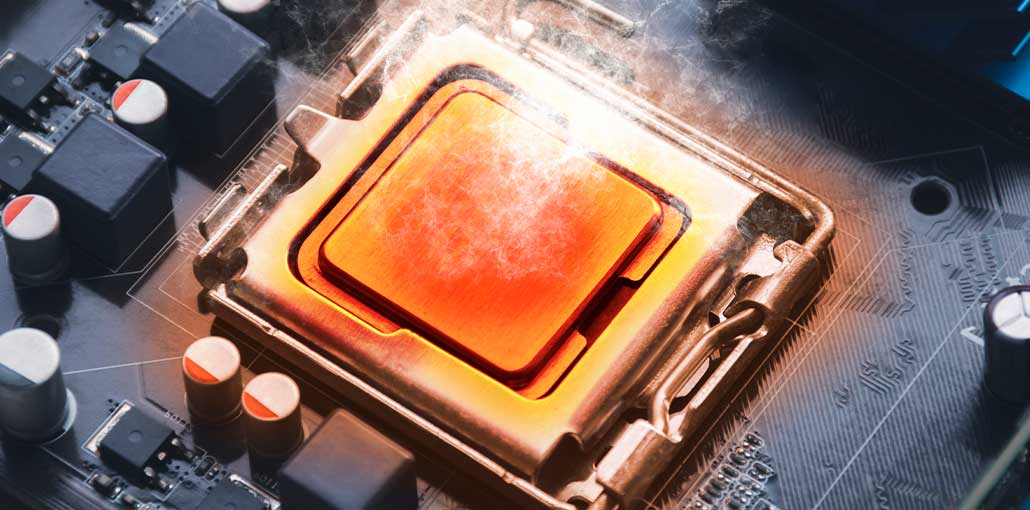
This article introduces what triggers a CPU over temperature error and whether the problem is serious or dangerous. Additionally, this post will show how to fix the issue. If you’re interested, read on.
Processors are getting more powerful, so upgrade to a more powerful processor for faster performance. Proper computer cooling remains extremely important. Without sufficient cooling, excessive heat can quickly overheat a system and limit performance or cause it to stop functioning altogether.
A CPU over temperature error falls into the same category. The error can appear when you are starting the system. At the moment, due to the heating issue, this error is often not significant and usually occurs once in a million. But there are circumstances where you need to pay attention when CPU over temperature error messages show.
What Does CPU Over Temperature Error Mean?
CPU over temperature error occurs when the CPU is too hot, and the cooling system cannot remove the heat it generates.
Sometimes the issue could be a malfunctioning cooling system installation or a heat sink. Open your case and see where your computer’s issues originate.
What if it’s not a heat source issue? Other factors could play a role. We’ll look into these further in our next segment.
Common Causes of CPU Over Temperature Error
The CPU Over Temperature Error can happen for several reasons. The most common causes include:
- A faulty or slow fan may not cool the processor properly.
- Dried thermal paste can reduce heat transfer.
- Blocked or limited airflow can trap hot air inside the case.
- Improper cooler contact can cause excessive heat.
- Higher CPU speeds can increase heat generation.
- Heavy applications can raise processor temperatures.
- Damaged fans or coolers may not dissipate heat effectively.
- A hot environment can make CPU cooling more difficult.
Also read: Top 11 CPU Temperature Monitor Software For Mac
How to Fix the CPU Over Temperature Error?
1. Shut Down the Computer
If you see the CPU Over Temperature Error message, shut down your computer immediately and let it cool before beginning troubleshooting. Running an overheating PC increases the risk of performance issues or hardware damage.
Once the computer has cooled, inspect the cooling system before turning it back on.
2. Check the CPU Heatsink
A loose or improperly installed heatsink could cause a CPU temperature error because heat cannot transfer efficiently from your processor. Verify that the heatsink is securely attached and in direct contact with the CPU. Also inspect it for dust or damage. Correct installation helps maintain stable temperatures during normal and demanding computer use.
3. Replace the Thermal Paste
Old or dried-out thermal paste may contribute to CPU over temperature error by reducing heat transfer between the processor and heatsink.
First, carefully remove the old thermal compound, clean all surfaces thoroughly, and apply a suitable amount of fresh thermal paste. Proper application helps improve heat transfer and maintain CPU temperatures in a safe range.
4. Clean the CPU Fan
Dust buildup around the CPU fan and heatsink can restrict airflow and lead to a CPU Over Temperature Error. Turn off the computer and carefully clean accumulated dust from the fan, heatsink, and surrounding areas. Keeping these components clean allows air to circulate more effectively and helps the cooling system remove heat from the processor efficiently.
5. Check the CPU Fan
A malfunctioning CPU fan could cause an Over Temperature Error, as its failure prevents adequate cooling of your processor. Check whether its fan spins on normally when your computer boots, and make sure its cable connects securely to the correct motherboard header. If the fan is damaged, noisy, or stops frequently, consider upgrading as soon as possible.
6. Upgrade the CPU Cooler
If your current cooling solution cannot handle the processor’s workload, upgrading the cooler may resolve a CPU Over Temperature Error. A more capable air cooler or compatible liquid cooler can provide better heat dissipation. Consider upgrading if temperatures remain unusually high after cleaning, replacing thermal paste, and checking the existing cooler’s installation.
Also read: 5 Best GPU Coolers for Your Graphics Card
7. Disable CPU Overclocking
Overclocking may increase both CPU power usage and temperature. If overheating occurs, return your CPU to its default clock/voltage settings immediately.
- Restart your computer.
- Open BIOS/UEFI settings by pressing the key shown during startup, such as Delete, F2, or F10.
- Find the CPU, Overclocking, or Performance settings.
- Select Default, Auto, or Optimized Defaults.
- Save the changes and exit BIOS/UEFI.
Let your computer restart and check whether the CPU over temperature error is resolved.
8. Scan for Malware
Malware and unwanted background programs can increase CPU usage and generate extra heat, which may contribute to a CPU Over Temperature Error. Running a malware scan can help identify and remove suspicious programs that are putting unnecessary load on your processor.
How to Prevent CPU Over Temperature Error
Once you fix the overheating issue, ongoing maintenance can help prevent it from returning.
- Clean dust from your computer regularly.
- Keep CPU and case fans working properly.
- Maintain good airflow inside the case.
- Replace thermal paste when necessary.
- Avoid unnecessary overclocking.
- Keep air vents clear.
- Monitor CPU temperatures during heavy workloads.
- Use a suitable CPU cooler for your processor.
Summing Up
Follow this article’s method, and you should resolve your CPU over temperature error. If none of those options work out for you, contact a specialist for advice.
specialist can diagnose and resolve most problems. However, I am confident these steps can solve your issue.
FAQs About CPU Over Temperature Error
What is a safe CPU temperature range?
Generally, 30–50°C at idle and 60–85°C under heavy workloads are common ranges. The exact safe limit depends on your specific CPU model.
Why does the CPU Over Temperature Error appear during startup?
It may occur during startup because the BIOS/UEFI detects unusually high CPU temperatures or a problem with the CPU cooling fan or heatsink.
Can a faulty CPU fan cause a CPU Over Temperature Error?
Yes. If the CPU fan is not spinning, is running too slowly, or is improperly connected, the processor may not receive enough cooling.
Is CPU Over Temperature Error dangerous?
Repeated overheating should not be ignored. It can cause performance problems, unexpected shutdowns, system instability, and potentially damage hardware.









Leave a comment