

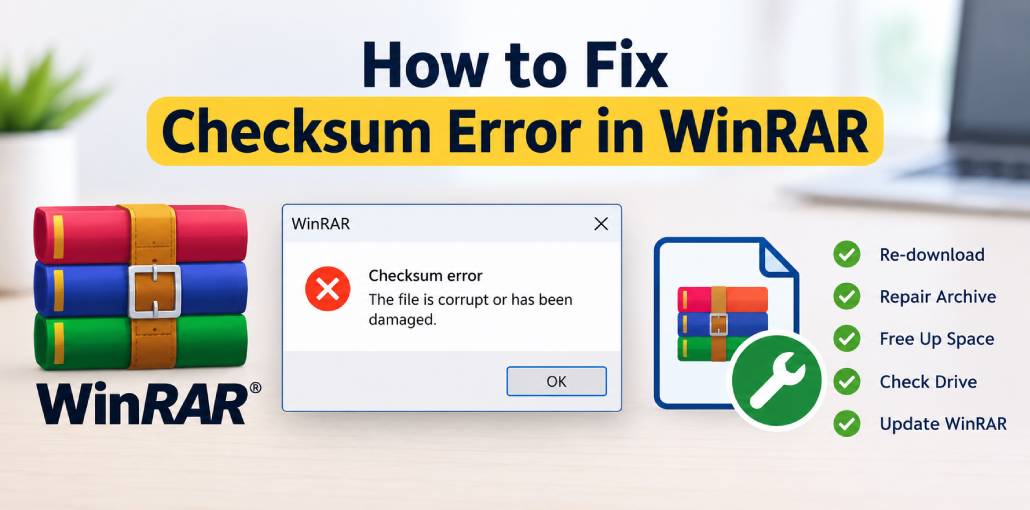
Are you seeing a checksum error in WinRAR when trying to extract a RAR, ZIP, or other archive file? It can be frustrating when you cannot access your files, especially if you need them urgently. This error usually occurs when an archive is corrupted or some of its data is damaged. However, incomplete downloads, interrupted file transfers, and storage issues can also be responsible. In this guide, we’ll look at the common causes of WinRAR checksum errors and walk you through some practical ways to fix them.
What Causes a Checksum Error in WinRAR?
A checksum error in WinRAR occurs when archived data is corrupted or fails an integrity check. Common causes include:
- Bad sectors on the storage drive.
- Incomplete or corrupted downloads.
- Interrupted file transfers.
- Insufficient disk space during extraction.
- Virus or malware infections.
In the next section, we will explore six effective solutions to fix checksum errors in WinRAR.
Also read: How to Fix Error 0x8096002A: No Error Description Available
6 Ways to Fix a Checksum Error in WinRAR
1. Try Extracting the File With Keep Broken Files
If you only need certain files from a damaged archive, this option is worth trying. It allows WinRAR to continue extracting data even when it encounters an error.
Here’s how to use it:
- Right-click the archive you want to extract.
- Select Extract files.
- Look for the Keep broken files option in the extraction window.
- Select the option and click OK.
WinRAR will attempt to extract the available data. Some files may still be incomplete or unusable, so check the extracted contents before relying on them.
2. Download the File Again
Before trying more complicated fixes, check whether the archive was downloaded properly. A brief connection failure or an interrupted download can leave you with a damaged file.
Delete or rename the existing copy, then download the archive again from the original website. Wait until the download finishes before opening it in WinRAR.
If the file is large, make sure your internet connection is stable. You can also compare its file size with the size listed on the download page, if that information is available.
If the new copy extracts without an error, the original download was likely the problem.
3. Update or Reinstall WinRAR
If you encounter extraction errors with several different archives, your WinRAR installation may need attention.
Visit the official WinRAR website and install the latest compatible version. Then try opening the archive again.
If updating doesn’t help, you can uninstall and reinstall the program. This may resolve problems caused by a damaged installation, although it won’t fix corruption inside the archive itself.
4. Use WinRAR’s Repair Feature
WinRAR has a repair feature that can attempt to recover certain damaged archives. It may help when you cannot obtain another copy of the file.
Follow these steps:
- Open WinRAR.
- Browse to the folder containing the damaged archive.
- Select the archive.
- Open Tools and choose Repair archive, if available.
- Select the appropriate archive type when prompted.
- Choose where to save the repaired file and start the process.
- Once the repair finishes, try extracting the new file.
Keep in mind that this method has limitations. It cannot restore every damaged archive, and the result depends on the extent of the corruption. Archives containing recovery records may offer better recovery options.
5. Check Available Disk Space
Insufficient storage space can interrupt extraction and cause related file-operation errors. Before extracting a large archive, ensure that the destination drive has enough free space.
Open File Explorer, select This PC, and check the available storage on the destination drive. Delete unnecessary files or move data to another drive if additional space is required.
You should also consider the size of the extracted files, which can be significantly larger than the compressed archive. After freeing up sufficient space, try extracting the archive again
Also read: 7 Best RAR to ZIP Converter Tools: Convert RAR to ZIP Easily
6. Check Your Storage Drive for Errors
If checksum errors keep appearing, it may be worth checking the drive where the archive is stored. File-system problems or unreadable sectors can sometimes affect stored data.
On Windows, open Command Prompt as an administrator and enter this command, replacing D: with the correct drive letter:
chkdsk D: /f
Press Enter and follow any instructions shown on the screen. This command checks the file system and attempts to fix detected errors.
The /r option can also check for unreadable sectors, but the scan may take considerably longer. Back up important data before running disk repairs. If the drive appears to be failing physically, prioritize copying important files to a healthy device.
How to Avoid Checksum Errors in the Future
A few simple habits can reduce the chances of running into this problem again:
- Download files from reliable sources.
- Let downloads and file transfers finish.
- Keep enough free space on your storage drive.
- Use an up-to-date version of WinRAR.
- Scan suspicious downloads with reputable security software.
- Keep backup copies of important archives.
These steps won’t prevent every error, but they can help protect your files.
Final Thoughts
A checksum error in WinRAR can be frustrating, but it doesn’t always mean your files are lost. Try downloading the archive again, repairing the file, or using the Keep Broken Files option. If the error continues, check your storage drive and disk space to identify the underlying problem.
FAQs About Checksum Error in WinRAR
What is a WinRAR checksum error?
A checksum error occurs when WinRAR detects that the extracted data does not match the expected data. It often indicates a damaged or incomplete archive.
Why does WinRAR show a checksum error?
WinRAR may show a checksum error because of an incomplete download, a corrupted RAR file, interrupted file transfers, or storage problems.
How do I repair a corrupted RAR file?
Open WinRAR, select the corrupted archive, click Tools > Repair archive, and choose the appropriate archive type. This works only when WinRAR can recover the damaged data.
Is a checksum error caused by a virus?
Not usually. Checksum errors are more commonly caused by corrupted downloads or damaged archives. However, scanning suspicious files with reliable antivirus software is a good precaution.






Leave a comment