

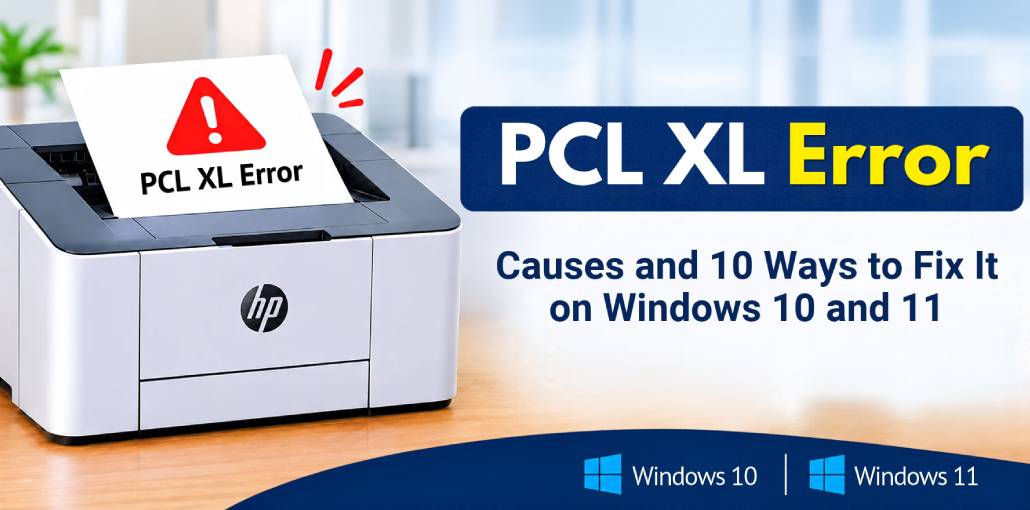
Are you experiencing a PCL XL Error when trying to print documents from your computer? This common printer issue can interrupt printing and display error messages instead of your documents. It often occurs due to outdated printer drivers, incorrect printing settings, or corrupted print jobs. Fortunately, you can resolve this problem using a few simple troubleshooting methods. In this guide, we’ll explain the causes and solutions.
What Is PCL XL Error?
A PCL XL Error is a printer processing error that occurs when a printer cannot correctly interpret the printing commands sent by your computer. PCL XL, also known as PCL 6, is a printer language used to process text, images, and graphics. This issue commonly affects HP LaserJet printers but can also occur with other printer brands.
What Causes PCL XL Error?
There are several reasons why your printer may display a PCL XL Error. Understanding these causes can help you choose the right troubleshooting method.
Here are some common causes:
- Outdated Printer Drivers: Old or incompatible drivers can create communication problems between your computer and printer.
- Corrupted Print Jobs: Damaged documents in the print queue may interrupt printing.
- Incorrect Printer Settings: Unsupported font and graphics settings can trigger printing errors.
- Printer Firmware Issues: Outdated firmware may cause compatibility problems.
- Unsupported Fonts: Certain fonts or complex graphics may not process correctly.
- Insufficient Printer Memory: Large documents may exceed the available printer memory.
- Windows Updates: Some updates may create printer driver compatibility issues.
How to Fix PCL XL Error on Windows 10 and Windows 11?
If your printer is displaying a PCL XL Error, try the following troubleshooting methods. These solutions can help resolve printing problems on HP LaserJet and other compatible printers.
1. Restart Your Printer and Computer
Restarting your printer and computer can resolve temporary communication problems that may cause a PCL XL Error. This simple method refreshes the connection between both devices and clears temporary processing issues.
Steps to follow:
- Turn off your printer.
- Disconnect its power cable.
- Restart your computer.
- Wait for approximately 30 seconds.
- Reconnect the printer’s power cable.
- Turn on your printer.
- Try printing a document again.
2. Clear the Print Queue
A stuck or corrupted print job can prevent your printer from processing new documents correctly. Clearing the Windows print queue removes pending jobs and allows your printer to receive fresh printing commands. This method can also help when your HP printer keeps printing error pages.
Steps to follow:
- Open Windows Settings.
- Select Bluetooth & devices.
- Click Printers & scanners.
- Select your affected printer.
- Open the print queue.
- Cancel all pending documents.
- Wait until the queue becomes empty.
- Try printing again.
3. Update Your Printer Driver
An outdated or incompatible printer driver is a common cause of PCL XL Error messages. Updating the driver installs compatible files that help your computer communicate correctly with the printer and process printing commands.
Steps to follow:
- Visit your printer manufacturer’s official website.
- Search for your printer model.
- Select your Windows operating system.
- Find the latest compatible printer driver.
- Download the driver.
- Run the installation file.
- Follow the on-screen instructions.
- Restart your computer and test printing.
4. Reinstall the Printer Driver
If updating the driver doesn’t resolve the PCL XL Error, reinstalling it may help. A fresh installation replaces damaged or missing driver files and removes potential compatibility issues that may be responsible for printing problems.
Steps to follow:
- Open Windows Settings.
- Navigate to Bluetooth & devices.
- Select Printers & scanners.
- Choose your affected printer.
- Click Remove device.
- Restart your computer.
- Download the compatible driver from the manufacturer’s website.
- Install the driver again.
- Connect your printer and test it.
5: Disable Advanced Printing Features
Advanced printing features help Windows manage printing operations. However, certain printer drivers may experience compatibility problems with these settings. Disabling advanced printing features can help resolve processing conflicts and fix a PCL XL Error on compatible printers.
Steps to follow:
- Open Control Panel.
- Select Devices and Printers.
- Right-click your printer.
- Select Printer properties.
- Open the Advanced tab.
- Find Enable advanced printing features.
- Uncheck this option.
- Click Apply and OK.
- Try printing your document.
6. Change TrueType Font Settings
Incorrect font-processing settings can sometimes cause a PCL XL Error, particularly when printing documents containing specialized fonts. Changing how your printer handles TrueType fonts may improve compatibility and help resolve printing problems.
Steps to follow:
- Open Control Panel.
- Select Devices and Printers.
- Right-click your printer.
- Choose Printing preferences.
- Open the Advanced or Graphics tab.
- Locate TrueType Font settings.
- Select Download as Softfont, if available.
- Click Apply and OK.
- Print a test document.
Note: Available settings depend on your printer driver.
7. Change the Printer Driver Language
Sometimes, PCL 6 driver compatibility issues cause printing errors. If your printer supports another printer language, such as PostScript, switching to its compatible driver may help resolve the problem.
Steps to follow:
- Visit your printer manufacturer’s website.
- Search for your printer model.
- Check whether a PostScript driver is available.
- Download the supported driver.
- Install it as a separate printer if possible.
- Select the alternative printer when printing.
- Print a test document.
Note: Use only printer languages officially supported by your device.
Also read: How to Find Printer IP Address: A Simple Step-by-Step Guide
8: Update Printer Firmware
Outdated printer firmware can sometimes cause processing and compatibility problems. Installing an appropriate firmware update may fix known bugs and improve communication between your computer and printer. This can be useful when an HP LaserJet printer continues displaying printing errors despite driver updates.
Steps to follow:
- Visit the manufacturer’s official support website.
- Search for your printer model.
- Open the Software and Drivers section.
- Check for available firmware updates.
- Download the compatible update.
- Follow the manufacturer’s installation instructions.
- Restart your printer if required.
- Test printing again.
9. Print the Document as a PDF
If the PCL XL Error occurs with a particular document, its fonts, formatting, or graphics may be causing the problem. Converting the document into a PDF and printing it through another application can help identify and bypass certain document-processing issues.
Steps to follow:
- Open the affected document.
- Select File.
- Choose Save As or Export.
- Save the file as a PDF.
- Open the PDF in another application.
- Select Print.
- Choose Print as Image, if available.
- Send the document to your printer.
10. Restart the Print Spooler Service
The Windows Print Spooler manages print jobs sent from your computer to the printer. If this service encounters processing problems, it may interrupt printing and contribute to a PCL XL Error. Restarting the service can help resolve temporary spooler issues.
Steps to follow:
- Press Windows + R.
- Type services.msc.
- Press Enter.
- Find Print Spooler.
- Right-click the service.
- Select Restart.
- Wait until the service starts again.
- Try printing your document.
How to PCL XL Error on an HP Printer?
HP LaserJet printers can experience PCL XL printing problems due to driver compatibility, document formatting, and printer configuration. If you are using an HP printer, start by checking the installed PCL 6 driver and available software updates.
- Try these additional troubleshooting steps:
- Download the correct driver for your HP printer model.
- Check HP printing preferences.
- Clear the Windows print queue.
- Test printing with a simple document.
- Check for compatible firmware updates.
Wrap up
A PCL XL Error may occur while you are printing, but it is possible to resolve the issue without replacing your printer. Restart your devices, clear your print queue, and update your printer drivers. If the issue persists, change your printing preferences or update the firmware.
FAQs: PCL XL Error
Why does my HP printer show a PCL XL Error?
Your HP printer may display this error because of outdated or corrupted drivers, incorrect printer settings, damaged print jobs, or incompatible fonts.
Can an outdated printer driver cause a PCL XL Error?
Yes. An outdated or incompatible printer driver can send incorrect printing instructions. Updating the driver may resolve the issue.
Is PCL XL Error a hardware problem?
Usually, no. It is generally a software, driver, or print-data processing issue. However, persistent errors may require checking the printer hardware.
How can I prevent PCL XL Error from happening again?
Keep your printer driver and firmware updated, remove corrupted print jobs, use compatible printer settings, and avoid sending multiple problematic documents simultaneously.





Leave a comment