

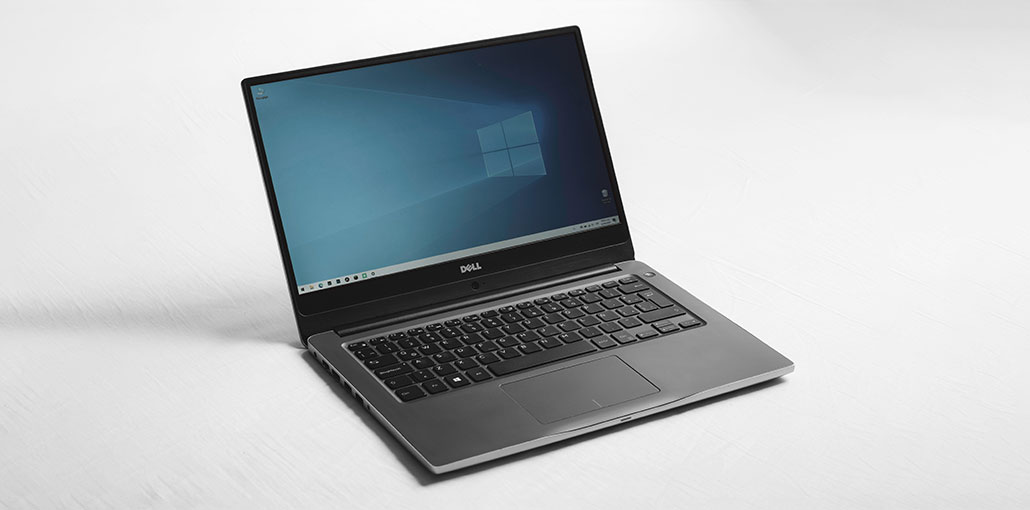
Recently, we bought the latest HP laptop and hooked it up to an extra Acer monitor. The display on the main HP laptop was fine, but the larger display was blurred. The text displayed in Outlook email and other programs is blurred and difficult to read. After navigating through the Windows 10 settings, it was easy to make a change to fix the blurred screen on laptop.
Understanding the Windows 10 Blurry Screen Problem
So far as we’ve verified, Windows 7 scales the apps and fonts equally across all monitors. But Windows 10 scales apps and fonts depending on the specific monitor display. This can cause a blurred screen on laptop, like the following:
- Unclear fonts leading to blurred text
- blurred screen on monitor
- Apps appearing too large or too small
- Inconsistent scaling between the laptop monitor and the extended monitor
Based on our experience in fixing the blurred screen on laptop, these are the settings we have tested.
Why Is My Laptop Screen Blurry?
- Incorrect screen resolution setting
- Wrong display scaling
- Outdated or corrupted graphics drivers
- Loose or damaged internal display cable
- Physical screen damage (cracks, pressure marks)
- App-specific DPI compatibility issue
- Low-quality or non-native external monitor connection
- Graphics card problem
- Dirty screen or eye strain
Also read: Fix Lenovo Yoga Screen Flicker: 6 Easy Solutions Explained
How to Fix a Blurred Screen on Laptop? (Windows 10)
Be aware that blurring and font distortion can occur on the main display and extended display, or both screens. Windows 10 allows you to customize settings for every monitor connected to your computer or laptop.
Press the “Win Logo + I” keys to launch the Windows Settings application. Alternatively, press the Start button, then select the gear settings icon to launch the Windows Settings app. Select the “System” settings from the choices.
Go to system settings. Make sure that you’re in the “Display” section. There are a variety of options you can choose to fix a blurred screen on laptop.
1. Select Your Display
If you’re in the “Display” section, the first step is selecting the monitor. When you’ve got multiple screens on your computer, be sure you select the one with the screen problem. For instance, the following screenshot shows two monitors in use – the main HP laptop’s monitor and the extra Acer monitor in our instance.
If you’re experiencing a blurring issue on your extra monitor, select 2 before proceeding. You can click the “Detect” button to show which is the first display and the 2nd display.
2. Change the Scaling
After selecting the correct monitor, scroll down the page and find the “Scale and Layout” section.
The ability to scale percentages helps you modify font size and applications. By default, Windows uses an appropriate scaling for your monitor. In our instance, the 150 percent (Recommended) setting worked perfectly for the primary display. However, the scaling for the display with extended resolution was set to 100 percent (Recommended), and causing the blurred text issue. It is necessary to change the scaling to 15% on the larger screen to fix the blurring issue.
In accordance with the problem you are facing, try different scaling and see if the blurred screen on laptop issue is fixed.
3. Advanced Scaling Options
If changing the scaling percentage doesn’t help, click the “Advanced Scaling Settings” link.
The Advanced Settings page provides two choices:
Fix scaling for applications. This feature is enabled to improve the blurred appearance of apps. Windows will automatically assist you in fixing the display of blurry applications when you open the app next time. But this feature is only available on your main monitor and does not apply to every display.
Custom scaling. If you are unable to set up scaling for each display as described in the previous step, you have this option. You can choose any % between 100 and 500 as your personal scaling. Windows will adjust all display options to your personal scale settings. In our instance, we experimented with 150 % as a customized scaling can help the blurred screen on a laptop. Given that we use 150 percent scaling on both the main and extended screens, a custom scaling of 150% could work well.
Examine the display’s readability after altering the scaling and verify that it’s working for you. If you are not satisfied, you can eliminate your custom scaling and then use a different scaling for every connected display.
4. Change Screen Resolution
If adjusting scaling doesn’t work for you, alter the resolution. Most monitors are equipped with a native resolution supported by the manufacturer, and you must select that resolution for your device to function properly. If you change the resolution to a different option than the natively supported, Windows will send you an alert.
You can also change the resolution to different options and see if this fixes the blurred screen on laptop.
5. Other Options
In addition to the ability to change scaling and resolution, Windows provides a range of display options. Although these settings might not be directly related to the laptop monitor blurry issue, they can help you optimize your display preferences. For instance, changing the brightness or HD color could help you optimize your display.
6. Use ClearType Text Tuner
Microsoft uses a technology known as ClearType for rendering fonts with various display options. By default, the ClearType Text Tuner is turned on for Windows 10 computers. You can confirm this by following the steps to improve the font display.
- Enter “cleartype” in the Windows Search box and then open the “Adjust ClearType text” option from the Control Panel.
- It will launch the ClearType Text Tuner app and ensure that the “Turn on ClearType” option is selected.
- Click the “Next button and select the monitor you’d like to make adjustments to.
- Windows will adjust the monitor you have selected to the native resolution.
- Click the “Next” button and choose one of the text samples on the next screen that are sharp for your display.
- There will be an indicator of successful text tuning. Click “Finish” to close the application.
Make sure that the display is clear and crisp.
Also read: When to Replace Your Worn-Out Laptop?
7. Change DPI Settings for Specific App
If you are experiencing a blurred screen on laptop with a particular app, changing your DPI (Dots per inch) settings can help resolve the issue.
- Enter the executable file name into the search box, and then select the “Open” or “Open file location” option
If you’re in File Explorer, click the executable file, right-click it, and choose “Properties”. - Go to the “Compatibility” tab and click on the “Change high DPI settings” button.
- In the next window, select the “Use this setting to fix scaling problems for this program instead of the one in Settings” option.
- Selectthe “Override High DPI scaling behaviour. Scaling is performed using:” checkbox and select “Application” from the dropdown.
- Select the “OK” and “Apply” buttons to apply the modifications.
8. Update Display Adapter Drivers
The last alternative is to update the driver for your display adapters, so that the graphics work well on your PC.
- Search Device Manager and open the application.
- Select “Display adapters” and then double-click on the adapter you want for your display.
- Click on”Driver” on the “Driver” tab on the properties window of the adapter, and then click the “Update Driver” button.
You can look up the driver online or update it manually using the latest version purchased. It may also be necessary to update drivers for monitors.
After updating the drivers, verify that your blurred screen on laptop issue.
Final Words
In most case you can change settings for scaling or resolution, which can fix the blurred screen on laptops. If this does not work, you can try any of the alternatives mentioned in the previous paragraphs.
FAQs: Blurred Screen on Laptop
Why is my blurred screen on laptop happening suddenly?
A blurred screen on laptop usually happens due to incorrect screen resolution, display scaling issues, outdated graphics drivers, or recent Windows updates. In most cases, adjusting scaling or resolution fixes the problem quickly.
Can wrong resolution cause blurred screen on laptop?
Yes. If your screen resolution is set lower than the native (recommended) resolution, text and images will look stretched and blurry. Always choose the recommended resolution for best clarity.
Is a blurred screen on laptop a hardware problem?
Not always. Most blur issues are software-related. However, if you see cracks, lines, or blur that changes when moving the lid, it may indicate hardware damage.
Can a virus cause blurred screen on laptop?
It’s uncommon, but malware can affect system performance or drivers. Running a security scan is recommended if other fixes don’t work.


Leave a comment