

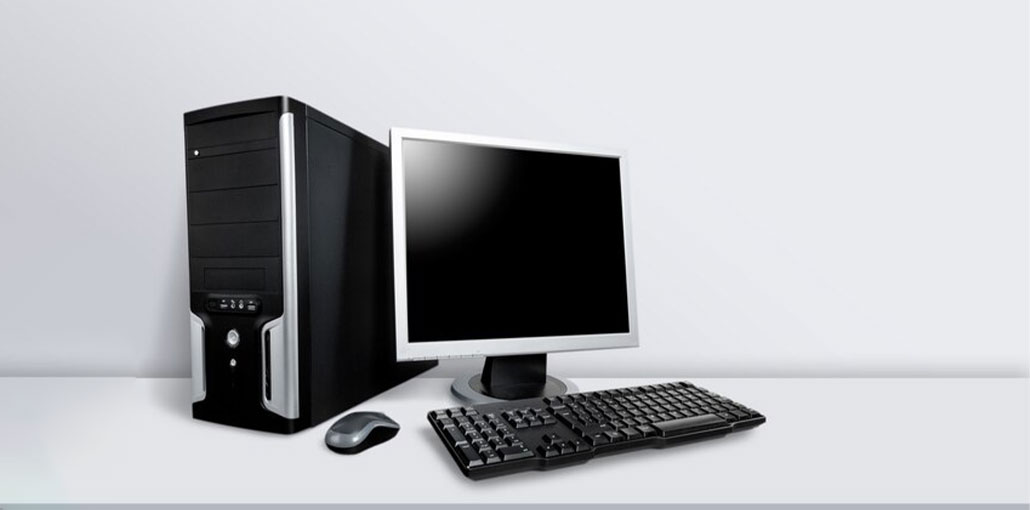
Need assistance with booting up your computer? Perhaps it is booting, but you don’t see a display? To ease your mind, you aren’t the only person experiencing this problem. This is a common issue, and many users are looking for solutions for ” My computer turns on but no display ” or ” It crashed, and now there is no display, only the CPU is turning on.”
Computer starts but no display? Possibly. Could it have something to do with the configuration of your system, or an infected file? It could! A PC’s operation integrates hardware and software, and issues like this could result from a failure to perform.
The possible solutions are endless, but the solutions are limited. In this article, we offer five simple solutions to resolve the computer turns on but no display issue. let’s begin!
Why Your Computer Turns On But No Display Appears
Before jumping into the fixes, it’s important to understand why your computer turns on but no display appears. Identifying the root cause can make troubleshooting much easier. Here are the most common reasons behind this issue:
- Loose or damaged display cables
- Faulty or failing power supply (PSU)
- Monitor hardware issues
- Improperly seated RAM
- Corrupted system files
- Outdated or broken display drivers
- Incorrect BIOS settings
These issues could cause a display problem. You can use the solution if you’ve identified that the computer turns on but no display issue. If not, there’s no issue because you can test the fixes separately to determine which one is working for you.
Also read: How to Fix Computer Screen Shadow Problems: 10-Minute Guide
How to Fix a Computer Turns On But No Display Issue
1. Check Your Monitor Connection
The first thing you should examine is to ensure all connections are in good working order. If you’re employing an HDMI cable for connecting your CPU to your monitor, be sure the HDMI ports remain clear, and there’s no problem with the connection.
If the table moves, these connections can loosen. The dust could cause a weak connection. Monitor status by using the LED indicator on the screen. If you have two monitors, ensure you connect the main one.
If you’re connected to a docking or external device, remove it and connect only a single monitor to your CPU, since it might be the cause.
2. Clean Your Power Supply
The Power Supply inside your CPU is the organ of your PC (as the processor is already the heart). If it isn’t functioning properly, it won’t be able to run the computer. Over time, dust and power voltage issues can reduce the power supply performance.
If your computer turns on but no display on the monitor as a result of an abrupt shutdown of your computer because of a power failure, chances are your power supply may be short.
In that scenario, your power supply unit must be replaced. But, if this were not the scenario. You can clean the fan in the power supply because dirt can cause it to move slowly, which can lead to an error.
3. Test with Another Monitor
If your monitor is older or a TV compatible with HDMI connections, connect your processor to it. Examine if the display goes up. If yes, your system is in good shape, and the problem is in the display.
You can connect your monitor to another CPU to verify if it is working. It could be an issue with the interface between your processor and the monitor. You can replace the driver and get your PC working again.
If the display doesn’t turn on even after switching the monitor, it could be a serious issue, as there is no display to monitor. In this case, move to the next solution.
4. Reinstall the RAM and Reboot
Try unplugging the power and then plugging in the RAM. There is no other way to start your computer. Naturally, you’ll need to have the tools to perform this. But this is exactly the thing you must do. This is more frequent than it appears with PCs and CPUs.
All you need to do is
- Open the CPU cabinet
- Inside the cabinet, you’ll be able to detect the RAM on the motherboard.
- You can loosen RAM by removing its motherboard.
- Clean the dust off the RAM, then reconnect it to the computer.
- Put together the cabinet. Then you’re finished.
Press the start button on your CPU, and it will come on. Refresh all memory in the motherboard and RAM. It fools the computer into functioning normally, unless the same issue occurs again. This will restore the display on your monitor; however, if you restart your computer, the issue occurs again.
To make sure it doesn’t happen again, be sure to check for the next solution.
Remove all the Software Issues Before You Turn Your PC Off.
You can boot the PC. However, this also indicates that the problem was not within the hardware but the software. To make sure that this problem doesn’t happen again, it is important to know the aspects:
5. Check for Corrupt Files on Your PC
The sudden computer shutdown is typically caused by a corrupted system file. To fix and identify these files, you can use the SFC command. This will search your system for corrupted files and then remove them immediately.
How you can do it –
- When you open the Windows search results, type CMD and then click Command Prompt as Administrator.
- In the Command Prompt window, type SFC/Scannow, then press Enter. Enter key.
- This will start the scan. It could take a few minutes to complete
- When it’s finished, when it is done, quit the command prompt,
- Wait to restart your computer, because there’s another Step you must take.
Also read: 5 The Best Ways To Recover Data On A Windows OS Computer
6. Roll Back or Update Display Adapter Driver
A damaged, outdated, or incompatible device driver can also result in a blank display on the screen when you boot a PC. This issue can be fixed by rolling back or updating the driver. To do this, you’ll have to boot your PC in Safe Mode.
- Type Device Manager in your Windows search box, and then start it.
- Expand the Display adapter.
- Right-click on the device and choose Update driver.
- Click Search automatically to find the latest driver software.
After that, you can determine if you’ve fixed the black screen problem.
7. Reset BIOS Settings to Default
Your computer might start with a black screen due to faulty BIOS settings. You can reset your BIOS to its default settings to determine the reason behind your issue. here how you can do it:
- Hold down the power button until the PC shuts down.
- Remove the power cable from the power source and then open the PC’s case.
- Utilizing a non-conductive screwdriver or your fingernail, remove the CMOS battery from your motherboard.
- Reinstall your CMOS battery after waiting for 5 minutes.
- Turn on your computer after connecting the AC power cord to the power source. Check if the PC turns on but no display issue persists.
Final Thoughts
It may seem like many solutions, but it’s worth it since these are proven and tested techniques. You can use the suggestions above to resolve the computer turns on but no display issue. If you think something is unclear, post your query in the comment section.
FAQs: Computer Turns On But No Display
Computer turns on but no display and no beep – what does it mean?
When a computer turns on but no display and no beep occurs, it usually indicates a motherboard, RAM, or power supply problem.
Will resetting BIOS fix no display issues?
Yes, resetting BIOS can fix incorrect settings that may prevent your computer from displaying anything.
Can overheating cause a computer turns on but no display issue?
Yes, overheating can cause a computer turns on but no display problem. When internal components get too hot, the system may stop sending signal to the monitor to prevent damage.
How do I fix a computer that turns on but no display?
To fix a computer turns on but no display issue, check connections, reseat RAM, test another monitor, reset BIOS, and update display drivers.






Leave a comment