

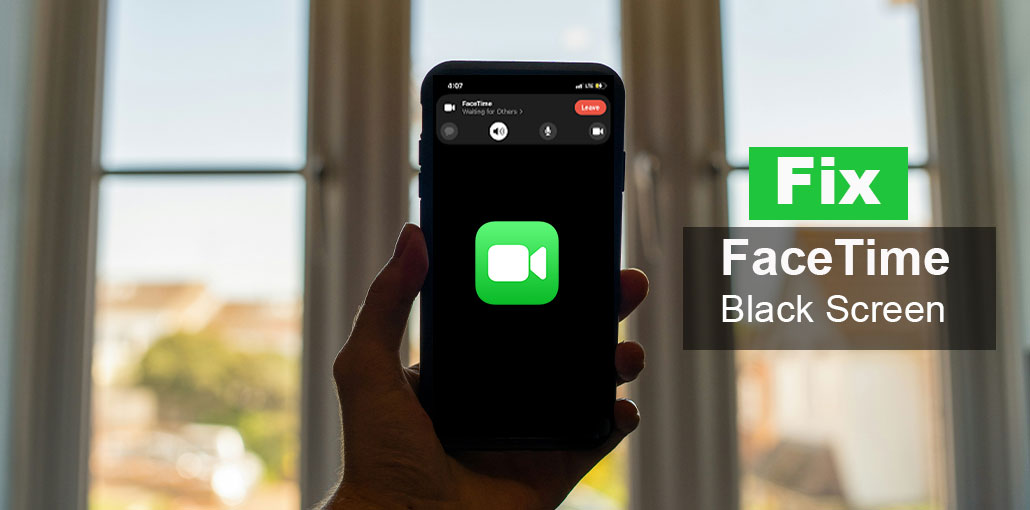
Like the user above, are you experiencing this FaceTime black screen problem on your Mac, iPhone, or iPad? It’s difficult to deal with when FaceTime is connected without audio or video, especially during video calls, as it hinders efficiency and communication.
Do not worry, this guide will help you make a smooth FaceTime video-calling experience with your loved ones, family members, and colleagues. Learn about the most effective ways to fix the FaceTime dark screen issues.
Why Is My FaceTime Screen Black?
Before jumping into fixes, here are the most common reasons FaceTime shows a black screen:
- Camera access is disabled for FaceTime
- Poor or unstable internet connection
- Temporary iOS or macOS bug
- Another app is using the camera
- Outdated software
- Hardware issues with the camera
Also read: FaceTime Not Working on MacBook? Try These Quick Fixes Now
How to Fix FaceTime Black Screen on Mac
With patience and time, you can fix the FaceTime black screen issue. Let’s explore some practical solutions for Mac users:
1. Force Restart Your FaceTime App
The most effective and first step to get rid of the black screen on FaceTime is to quit using the “Command + Q” buttons on the keyboard. It is also possible to perform this procedure by pressing “FaceTime” and choosing “Quit.” Relaunch it using the application folder on your Mac.
2. Update Your Mac
Then, you should verify if an update is available on the Mac. This update can fix software glitches, thereby eliminating the black screen problem. This is why:
- Navigate to “Settings,” click “General,” and then open “Software Update.”
- If an update is available, click “Update Now.”
- If there’s no update, just click on the “Apple” icon on your Mac and choose “Restart.”
3. Check If It’s an Audio Call
Most of the time, you’ll make an audio-only call and expect it to be a video. Therefore, disconnect the call and then make another video call by pressing the Video” button.
4. Allow the Camera Access
Did you grant your camera to FaceTime before making your FaceTime video conference? If not, then complete the following task:
- Go to your “Apple Menu” to select “System Preferences.”
- Click “Security & Privacy” and select “Camera.”
- You must mark in the “FaceTime” app to let it access your camera.
5. Ensure FaceTime is Using the Correct Camera
There are times when your phone is equipped with multiple cameras. In this case, the wrong choice of camera results in a FaceTime black screen. Therefore, you ensure the right cameras are selected. To check this :
- Start FaceTime from your Mac.
- Then you can simply click “Video” from the menu bar.
- Check that the correct camera has been chosen.
6. Ensure a Stable Wi-Fi Network
You require a strong and stable internet connection to ensure that your FaceTime video calls work. Also, you should restart your Wi-Fi router or check the internet connection speed at least once.
7. Close All Unnecessary Apps
Running too many apps on your Mac takes up a lot of resources, thus bogging down FaceTime calls. You can shut down the applications manually by pressing the close button, or you can use the dock feature to close the running apps.
8. SMC Reset
Your FaceTime Black screen on Mac may be the result of a hardware problem. Try the SMC reset. The method used differs across macOS versions.
- For desktop Macs and Mac Mini: Shut off the Mac and unplug the power cord. After waiting 15 minutes, reconnect the cord. Repeat 15 seconds before turning to the Mac.
- MacBook Air and Pro: Close the device while connected to the power source. Hold your “Shift + Control + Option + Power” buttons for 15 minutes. Then release the keys, hold for 15 seconds, and then turn on the device.
- For MacBook 2018 or later: switch off the device, and ensure it is connected to the power source. Hold and press to hold the “Left Ctrl + Left Option + Right Shift” for 10 seconds.
Also read: How to Use FaceTime on Android: Step-by-Step Guide for 2025
How to Fix FaceTime Black Screen on iPhone/iPad
Are you experiencing the FaceTime black screen issue on your iPhone? If so, here are solutions that can be implemented to solve the issue on iPhone and iPad users:
1. Restart Your iPhone or iPad
The initial fix for the FaceTime black screen for iPhone and iPad is to restart; however, this is dependent on the specific model.
2. Check If You’ve Enabled FaceTime
Restart your device, and confirm that you have access to FaceTime in your area. Then, download FaceTime application from the App Store. Sign in with the app using your Apple ID, and activate the FaceTime app. Then, open it and select “Continue” for activation. If the app is active, then go to your device’s “Settings,” click “FaceTime,” and then enable and disable the app using the switch to resolve minor issues.
3. Check Your Internet Connection
Because FaceTime relies on the internet to begin the FaceTime video conference, you should check that the Wi-Fi connection is stable. If not, turn on the cellular data in the Control Bar. If it’s stable, close all other apps running.
4. Update Your iPhone or iPad
Sometimes, an outdated iOS version leads to a FaceTime black screen issue. So you’re updating your iPhone to the latest version. To get rid of this problem, here’s what you have to do:
- Open your device’s “Settings.”
- Click “General” and click “Software Update.”
- After that, click “Install Now.”
5. Access Permissions to the Camera and Microphone
It’s impossible to make a call without turning on the camera and microphone on your device. Follow these steps:
- Start”Settings” and choose “Settings” and choose “Privacy.”
- Then expand your “Camera” section and turn it on.
- Click on the “Microphone” button and toggle the switch to turn it on.
Also read: Why Is My iPhone Camera Not Working and How Do I Fix It?
6. Make Sure the Camera Lens isn’t Blocked
When you’re certain you’re making a video call and have granted permission for the camera, check the camera on your iPhone/iPad. Sometimes, it’s restricted due to the cover or some other obstacles. You should test it one time. Remove the cover or clean it once to ensure your camera is working properly.
Please share this article with people who are looking for solutions to fix the FaceTime black screen issue.
Ending Notes
This article has provided the most effective solutions to resolve FaceTime black screen issues on iPhone, iPad, and Mac. You can test the solutions according to the specifications of your device. If the issue persists, it is recommended record your device and provide it to experts to get help.
FAQs – FaceTime Black Screen
FaceTime camera not working after update — what now?
If FaceTime shows a black screen after updating iOS or macOS, restart your device and check if the update fully completed. You may also need to reset camera permissions.
Do I need to reset my Mac to fix FaceTime black screen?
Not always. You can first try SMC reset or restarting your Mac. A full reset is rarely needed unless the hardware is malfunctioning.
Why is my FaceTime video black but audio works?
This usually happens when your camera permission is off or another app is using the camera. Check camera access in settings and close other camera apps.
Why does FaceTime show black screen only sometimes?
Intermittent black screens usually point to unstable Wi‑Fi, wifi congestion, or temporary app glitches. Switching networks or restarting Messenger/FaceTime often helps.







Leave a comment